web
You’re offline. This is a read only version of the page.
close
Skip to main content

Announcements

News and Announcements icon
Community site session details

Community site session details

Session Id :
Dynamics 365 Community / Forums / Finance forum / Unable to start trace
Finance forum

Unable to start trace

(0) ShareShare
ReportReport
Posted on by 411

Hello everyone, 

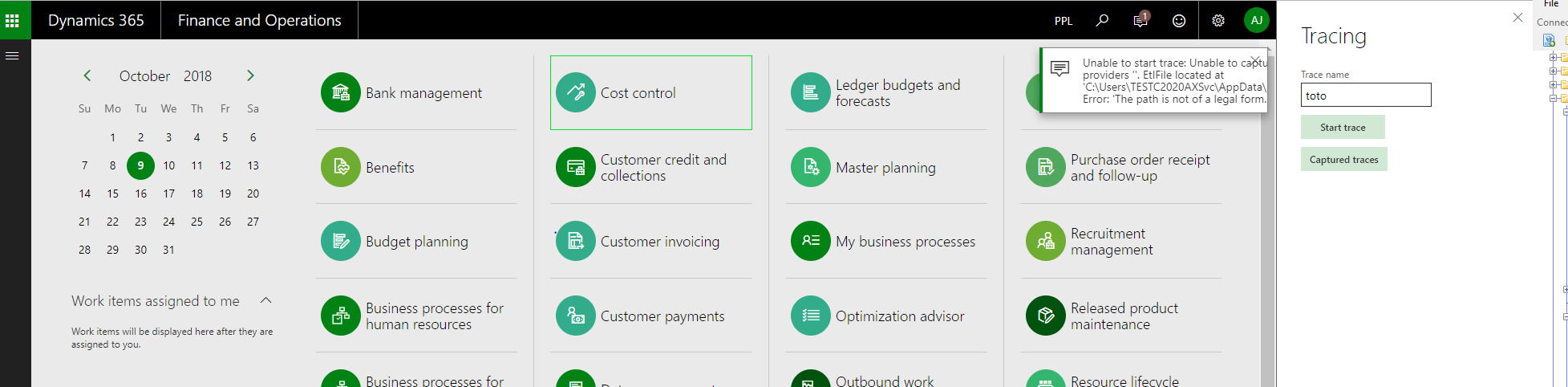
I have an issue when starting trace. I am getting the following error message : Unable to start trace: Unable to capture trace for providers ''. EtlFile located at 'C:\Users\TESTC2020AXSvc\AppData\Local\Temp\toto.etl'. Error: 'The path is not of a legal form.'. Can anybody help me out ? Do I have to create the trace file prior to starting the trace ? 
7633.Capture.PNG

Thanks :) 

Categories:
I have the same question (0)
  • Suggested answer
    Community Member Profile Picture
    on at

    You must have a trace to download.

    Traces can be opened via form "Captured Traces" alternatively you can also view them using the URL

    ?cmp=USMF&mi=Systablebrowser&tablename=SysTracingTable

  • MATTGUO Profile Picture
    22,353 Moderator on at

    Hi Ashwin,

    Has the user been assigned the "System tracing user" role?

    It seems that the PC user does not have permission for this path.

    You can try to set the permission of this path for everyone.

  • Ashwin Jugurnauth Profile Picture
    411 on at

    Hello,

    I was logged in as sys admin + sys tracing user using the AOS service account. Still the same message :(

    Regards,

    Ashwin

  • Verified answer
    Ammar Salah Profile Picture
    150 on at

    The Trace function is still not yet implemented for On-premise! check below

    https://docs.microsoft.com/en-us/dynamics365/unified-operations/fin-and-ops/get-started/features-not-implemented-on-prem

    Fortunately, you still have a workaround:

    1.Open the AX client and then click on the “smiley face” in the top right corner – get a print screen from here and also take note of the AOS that you are getting connected to

    2.Acces this specific AOS and then follow the procedure described here https://blogs.msdn.microsoft.com/axsupport/2017/11/15/collect-dynamics-365-for-finance-and-operations-event-traces-with-windows-performance-monitor/ - you should log in with a user that has Admin rights on this machine

Under review

Thank you for your reply! To ensure a great experience for everyone, your content is awaiting approval by our Community Managers. Please check back later.

Helpful resources

Quick Links

November Spotlight Star - Khushbu Rajvi

Congratulations to a top community star!

Forum Structure Changes Coming on 11/8!

In our never-ending quest to help the Dynamics 365 Community members get answers faster …

Dynamics 365 Community Platform update – Oct 28

Welcome to the next edition of the Community Platform Update. This is a status …

Leaderboard > Finance

Last 30 days Overall leaderboard

Featured topics

Product updates

Dynamics 365 release plans
