web
You’re offline. This is a read only version of the page.
close
Skip to main content

Announcements

News and Announcements icon
Community site session details

Community site session details

Session Id :
Supply chain | Supply Chain Management, Commerce
Suggested Answer

Warehouse management app. cluster picking position view

(1) ShareShare
ReportReport
Posted on by 4
Hi all,

My cluster picking is setup to have a "work confirmation setup" with product information scan. And that works without any problems. But my team would like to have shown on the screen where i do the position scan, the "colour".

So on the confirmation scan its on:
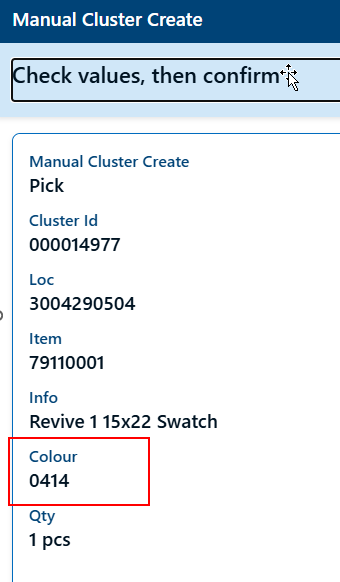
 
Would it be possible to get that added into the next view as well, where the position needs to be scanned?
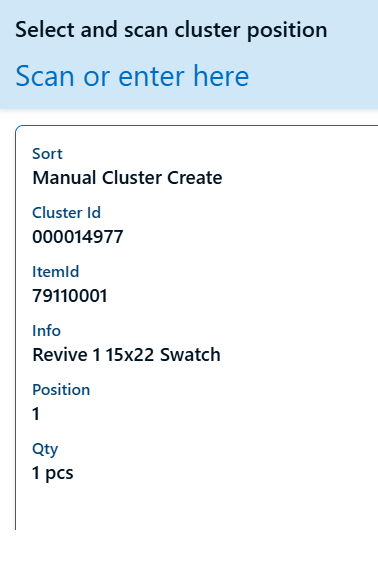
Anyone knows if that is possible?

Br.
Jørgen 
Categories:
I have the same question (0)
  • Suggested answer
    Laurens vd Tang Profile Picture
    4,875 Super User 2026 Season 1 on at
    Hi Jørgen,
     
    I doubt whether it is possible, but you might try to change the priority:
     
     
    Otherwise you need consider a customization or raise an idea on the ideas portal of Microsoft. 
     
    Link to the ideas portal: https://experience.dynamics.com/ideas/
     
    Best regards,
    Laurens van der Tang
  • Suggested answer
    Sagar Suman Profile Picture
    6,773 Super User 2026 Season 1 on at
    Hi,
     
    I fear this is not possible in standard. Flow is to confirm the picked item on hand as step 1 and later confirm the position where it was stored as step 2.
     
    The design is following warehouse workers picking flow structure. 
     
    My advise - Stay away from customization of the app and adapt to the menu.


  • Suggested answer
    CR-29051508-0 Profile Picture
    11 on at
    You could try adding "Colour" as a promoted field to see if it will populate on that screen.
     
    Go to (Warehouse Management > Setup > Mobile Device > Mobile Device Steps). You will need to find the correct step to match what you are seeing on the mobile device. You could search "Select and Scan Cluster Position" in the column for "Title for input". My best guess would be the Step ID "ClusterPosition". Select the line for that step ID and then click on "Add step configuration" at the top, and select your mobile device menu you are adding this detour to "Manual Cluster Create". 
     
    After you have created the override for the menu and step then you will need to go down to the "Select promoted fields" tab and "Select fields". Depending on your menu you may be able to move "Colour" over from your available fields to the selected fields, and then you could even highlight it.
     
     
    One note: The promoted fields do take precedence over what is in the default display in that Step ID for the menu. This means that if you just add "Colour" that would be all that is displayed on the menu in the app so you will also need to add the fields for the other information you want displayed. You can also only highlight 2 fields per Step ID.

Under review

Thank you for your reply! To ensure a great experience for everyone, your content is awaiting approval by our Community Managers. Please check back later.

Helpful resources

Quick Links

Season of Sharing Community Challenge Launch!

Jump in, show your community spirit, and win prizes!

Women in Power Builds Momentum

Expanding mentorship, skilling, and AI innovation

Congratulations to the May Top 10 Community Leaders

These are the community rock stars!

Leaderboard > Supply chain | Supply Chain Management, Commerce

#1
André Arnaud de Calavon Profile Picture

André Arnaud de Cal... 171 Super User 2026 Season 1

#2
Laurens vd Tang Profile Picture

Laurens vd Tang 108 Super User 2026 Season 1

#3
Abhilash Warrier Profile Picture

Abhilash Warrier 102 Super User 2026 Season 1

Last 30 days Overall leaderboard

Product updates

Dynamics 365 release plans



