web
You’re offline. This is a read only version of the page.
close
Skip to main content

Notifications

Announcements

No record found.

Community site session details

Community site session details

Session Id :
Customer experience | Sales, Customer Insights,...
Suggested Answer

How to convert Contact to Account?

(0) ShareShare
ReportReport
Posted on by 15

Hi,

We would like to know how it's possible to convert a Contact to an account?

Our business case is : Lead qualified, convert to Opportunity. If Opportunity is won convert to Contact. It works. But we would like to add another step which is Convert the contact to an Account.

Thanks for your help.

I have the same question (0)
  • Suggested answer
    Abdul Wahab Profile Picture
    12,119 Moderator on at
  • Nico Transat Profile Picture
    15 on at

    Hi Abdul,

    In fact I would like to convert a contact into an account.

    I solve the issue regarding converting a lead into an opportunity but not a contact into an account.

    How I can proceed?

    Thanks

  • Suggested answer
    Abdul Wahab Profile Picture
    12,119 Moderator on at

    Hi Nico Transat,

    Is the screenshot help you? For more detais.

    pastedimage1675830913270v1.png

  • Inogic Profile Picture
    682 on at

    Hi Nico,

    Looking at your business case, it looks like post qualification of lead you are creating only opportunity, and post winning the opportunity you want to create contact first and then create the account by converting contact to an account.

    As the lead qualification is part of your business case, we would like to suggest the following:

    There already exists an OOB lead qualification process where there is the automatic generation of Opportunity, Contact, and Account records after clicking on the qualify button on the lead record.

    When the lead is qualified (when clicked on the qualifying button), the following entered values on the Lead record play role in the outcome of the OOB lead qualification process:

    • Name (First Name and Last Name):If this value is entered, it becomes the full name of the new contact record.

    NOTE: Last name being a mandatory field is entered always by the user hence contact record will be created always in lead qualification along with opportunity.

    • Company:If this value is entered, it becomes the name of the new account record.

    NOTE: “Company’ being a business recommended field is not entered always by the user hence account record may or may not be created in lead qualification along with opportunity.

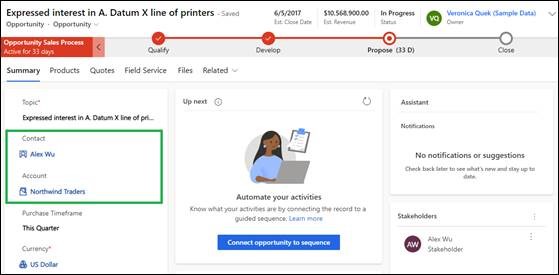
    You can find the below screenshot where the Contact and Account records were created/converted through the OOB lead qualification process:
    1OOB.jpg

    Also optionally, you can control the above OOB lead qualification process from App Setting as below:

    Under Sales hub app > Change the area > select App Settings

    Under General settings --> “Lead + Opportunity Management” -->Go to Lead Qualification” by default this setting is Yes means qualifying the lead Account, Contact, and Opportunity created as explained above.

    2OOB.jpg

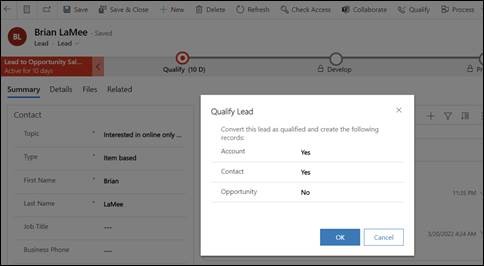
    But if this setting is set to ‘No’ then while qualifying lead record you can choose only those records which you want to create.

    When you try to qualify a lead, you will see the below page where you have the flexibility to create or skip record creation amongst Opportunity, Contact, and Account records.
    3OOB.jpg

    If you find this useful then mark it as verified or let us know if we can help you further.

    Hope this helps.

    Thanks!

  • Nico Transat Profile Picture
    15 on at

    Hi,

    Thank you for your which was really helpful.

    I did it but it only create a contact and opportunity. Not an Account.

    Even if Contact, Account and Opportunity are set to YES.

    Do you know what happened?

    I havde another question, as soon as I convert the lead I would like to have the same custom fields in Contact, Opportunity and Account. In order to have the same information in all the object.

    Thank you for your help

  • Inogic Profile Picture
    682 on at

    Looking at your query it seems that while qualifying only contact and opportunity created even if you say yes to all while qualifying.

    This will happen only if “Company” field value is blank on Lead record.

    Here are the detailed steps demonstrating the OOB lead qualification experience:

    Created lead record with entering values in First Name, Last Name, Company fields as below:

     1OOB-mapping.jpg

    Qualified it by clicking on Qualify button on lead record:

    2OOB-mapping.jpg

    Set all the record creation to Yes as shown above. As you can see in our scenario, the Opportunity, Account, Contact records created and on converted Opportunity that created Account (Company on lead turns to Account) and Contact (First name and Last name on lead turns to Contact) set as well:

     3OOB-mapping.jpg

    Regarding custom field mapping query you asked:

    There is already OOB mapping available but for that you still need to switch back to old classic layout as below:

    Click on gear icon > Advance Settings > Settings > select Customizations

     4OOB-mapping.jpg

    In Customization > select Lead entity expand it > click on 1: N Relationships > select the appropriate relationship it has with opportunity entity as below:

     5OOB-mapping.jpg

    You can find as there is already existing OOB mapping available for field “Topic” i.e. “Topic” field on Lead record maps as “Topic” Opportunity record when you qualify, because appropriate source field and corresponding target field mapping is already defined here:

    6OOB-mapping.jpg

    Likewise you can also create the new field mapping as well by clicking on “New” button highlighted above. For more information refer this doc.

    You have to select the desired field from “Source entity” fields listed below at leftmost and corresponding field in which you want the value to be mapped from the “Target entity” fields listed below at rightmost and click on “OK” for saving the new mapping.

     7OOB-mapping.jpg

    Hope this helps.

    If you find this helpful then do mark it as verified or let us know if need further help.

    Thanks!

  • Nico Transat Profile Picture
    15 on at

    Hi,

    thank you very much for your help. It's really appreciate.

    It works!!

    Regarding the mapping field.

    If I want for example the field from the lead to be all transfered to the contact. Do I have to create them in the contact form? As I just have these fields in the Lead form.

    Thank you!!!

Under review

Thank you for your reply! To ensure a great experience for everyone, your content is awaiting approval by our Community Managers. Please check back later.

Helpful resources

Quick Links

Responsible AI policies

As AI tools become more common, we’re introducing a Responsible AI Use…

Neeraj Kumar – Community Spotlight

We are honored to recognize Neeraj Kumar as our Community Spotlight honoree for…

Leaderboard > Customer experience | Sales, Customer Insights, CRM

#1
Tom_Gioielli Profile Picture

Tom_Gioielli 170 Super User 2025 Season 2

#2
#ManoVerse Profile Picture

#ManoVerse 61

#3
Gerardo Rentería García Profile Picture

Gerardo Rentería Ga... 52 Most Valuable Professional

Last 30 days Overall leaderboard

Product updates

Dynamics 365 release plans



