web
You’re offline. This is a read only version of the page.
close
Skip to main content

Notifications

Announcements

No record found.

Community site session details

Community site session details

Session Id :
Customer experience | Sales, Customer Insights,...
Suggested Answer

Workflow Shows Wrong Form

(0) ShareShare
ReportReport
Posted on by 221

I'm creating a workflow which needs to update some fields so I've added the "Update Record" action. When I set the properties, it brings up the incorrect form to the one which is currently published. 

Strangely, it also seems to be missing several fields even under the "Additional Fields" section. Below are the fields I am trying to update:
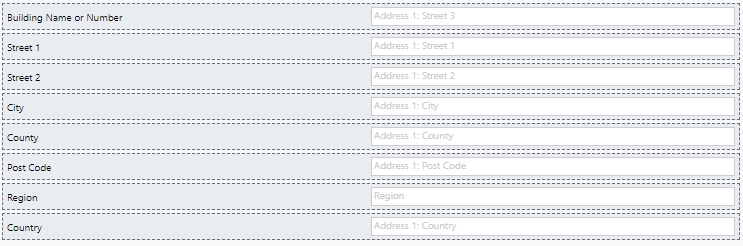
Contact-Address-Fields-on-Form.PNG

These are all the relevant address fields in the "Update Record" section:
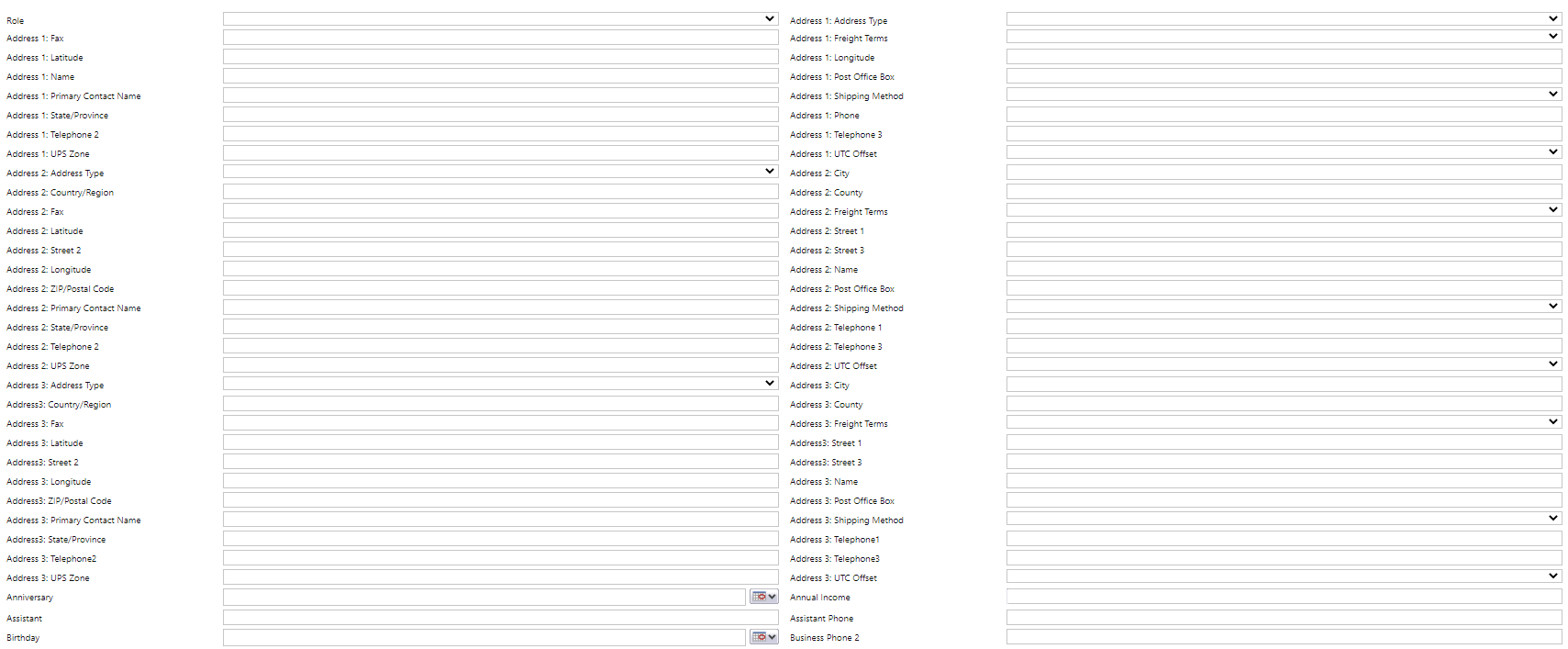
Contact-Address-Fields.PNG

As you can see, none of them appear to match. How can I force the workflow to either show ALL the available fields, or just the proper Form which is the one I'm currently using?

Thanks in advance for your help.

I have the same question (0)
  • necsa Profile Picture
    3,455 on at

    you must assign the field from the workflow for the matching fields.

    An example:

    1881.workflow.jpg

    the fields will update when you save and activate the workflow.

  • thecharwest Profile Picture
    221 on at

    Sorry, I think you misunderstood my issue. The fields I am trying to update are not in the workflow section on the left. So where you've highlighted step 4 in your image, it's that field which is actually missing. It's not missing from the drop-down list.

    So, for example, I'm trying to populate the address fields for a contact with those from the organisation. The organisation fields are fine. My issue is that I have address fields sitting in the contact form which are not showing up anywhere for me to actually populate them with anything. They're just not available.

    I hope that makes sense. Thank you for trying to help.

  • necsa Profile Picture
    3,455 on at

    There isn't any drop-down list on step 4 where the fields exist. After step 3 go to the same field name and click inside so the cursor in it then go to step 5 click on OK. The fields will fill them automatically. If still I am wrong please share some screenshot from your workflow and step.

  • Flydancer Profile Picture
    1,332 on at

    Hi Charlotte, the upper part of the "update record" section reflects your default view. If I see it right, you're looking at the lower part where only the additional (not on form) fields appear.

  • thecharwest Profile Picture
    221 on at

    Hello, thanks for your reply! The top part does not show my default form, that's part of the problem. It's showing an old form, despite the fact I've changed the form order to put the one I want on top. I want to be able to change the form which is shown in the "update record" section but I don't know how. Is there a way?

    I was looking in the additional fields section because I couldn't find the fields I wanted anywhere else, especially not in the main form section at the top.

  • thecharwest Profile Picture
    221 on at

    Hello, apologies for not being clear. I understand how the workflow actually works, and I know how to set them up (I've done one very similar for a different entity). I haven't even tried to run this one yet at all because the fields I want to update (e.g. Address 1: Street 1) are not available for me to populate in the "Update Record" section. There isn't a problem with the workflow itself, but with the fields it is showing me in the "Update Record" step.

    When I click to set the properties in the Update Record step, I am shown an old Form (not my current default form) which does not contain the fields I want to include in the workflow (e.g. Address 1: Street 1). I scroll down to the "Additional Fields" section, and they are not even listed there. I can't begin the process you have outlined, because the field I want to update is not available to me.

    To show you what I've done, here is the step I set up:

    pastedimage1604418819320v1.png

    I am then shown this:

    pastedimage1604418865211v2.png

    None of these fields are the fields I need (e.g. Address 1: Street 1). If I scroll down, I still can't see the fields I need, not even in the Additional Fields section. They are just mysteriously missing. Is there any way to change the form which is shown? Or is there a reason those fields might not be available? They are published in my environment:

    pastedimage1604419059434v3.png

    Thank you for your help so far!

  • necsa Profile Picture
    3,455 on at

    When you open this view

    pastedimage1604420884180v1.png

    scroll down and click on a field which you want to populate then you will see the Operator and drop-down list from view populate.

    pastedimage1604421287857v2.png

    workfl.jpg

  • Fubar Profile Picture
    2,761 on at

    Usually all the fields are in the workflow editor even if not on the form.

    Check the Display name on the field (in case it has been renamed)

    Look for Collapsed Tabs (e.g. the form that is being displayed the field could be on a Tab and that tab is collapsed on the form - this is expandable in the workflow but just looks like a small heading if collapsed).

  • Suggested answer
    Ayaka Iwai Profile Picture
    on at

    I recommend you to raise a support ticket for further investigation if the issue is not resolved.

  • thecharwest Profile Picture
    221 on at

    Hello everyone - thanks for trying to help but unfortunately I have tried everything you have suggested already and still have not found the fields I am after. I will be raising a support ticket instead.

Under review

Thank you for your reply! To ensure a great experience for everyone, your content is awaiting approval by our Community Managers. Please check back later.

Helpful resources

Quick Links

Responsible AI policies

As AI tools become more common, we’re introducing a Responsible AI Use…

Neeraj Kumar – Community Spotlight

We are honored to recognize Neeraj Kumar as our Community Spotlight honoree for…

Leaderboard > Customer experience | Sales, Customer Insights, CRM

#1
Pallavi Phade Profile Picture

Pallavi Phade 96

#2
Tom_Gioielli Profile Picture

Tom_Gioielli 69 Super User 2025 Season 2

#3
Gerardo Rentería García Profile Picture

Gerardo Rentería Ga... 43 Most Valuable Professional

Last 30 days Overall leaderboard

Product updates

Dynamics 365 release plans



