Hi,
Follow below article to Register Application in Azure Active DIrectory.
docs.microsoft.com/.../walkthrough-register-app-azure-active-directory
Once this setup is completed, copy Application ID and Create Application use in CRM then grant appropriate permission/security role.
Manually create a Common Data Service application user
The procedure to create this user is different from creating a licensed user. Use the following steps:
-
Navigate to Settings > Security > Users
-
In the view drop-down, select Application Users.
-
Click New. Then verify that you are using the Application user form.
If you do not see the Application ID, Application ID URI and Azure AD Object ID fields in the form, you must select the Application User form from the list:
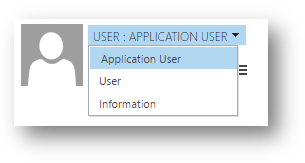
-
Add the appropriate values to the fields:
The Application ID URI and Azure AD Object ID fields are locked and you cannot set values for these fields.
When you create this user the values for these fields will be retrieved from Azure AD based on the Application ID value when you save the user.
-
Associate the application user with the custom security role you created.
See this link here for more details - https://docs.microsoft.com/en-us/powerapps/developer/common-data-service/authenticate-oauth
class SampleProgram
{
    private static string serviceUrl = "https://yourorg.crm.dynamics.com";
    private static string clientId = "51f81489-12ee-4a9e-aaae-a2591f45987d";
    private static string userName = "you@yourorg.onmicrosoft.com";
    private static string password = "yourpassword";

    static void Main(string[] args)
    {

        AuthenticationContext authContext =
        new AuthenticationContext("https://login.microsoftonline.com/common", false);
        UserCredential credential = new UserCredential(userName, password);
        AuthenticationResult result = authContext.AcquireToken(serviceUrl, clientId, credential);
        //The access token
        string accessToken = result.AccessToken;

        using (HttpClient client = new HttpClient()) {
        client.BaseAddress = new Uri(serviceUrl);
        client.Timeout = new TimeSpan(0, 2, 0);  //2 minutes
        client.DefaultRequestHeaders.Add("OData-MaxVersion", "4.0");
        client.DefaultRequestHeaders.Add("OData-Version", "4.0");
        client.DefaultRequestHeaders.Accept.Add(
            new MediaTypeWithQualityHeaderValue("application/json"));
        HttpRequestMessage request =
            new HttpRequestMessage(HttpMethod.Get, "/api/data/v9.0/WhoAmI");
        //Set the access token
        request.Headers.Authorization = new AuthenticationHeaderValue("Bearer", accessToken);
        HttpResponseMessage response = client.SendAsync(request).Result;
        if (response.IsSuccessStatusCode)
        {
            //Get the response content and parse it.
            JObject body = JObject.Parse(response.Content.ReadAsStringAsync().Result);
            Guid userId = (Guid)body["UserId"];
            Console.WriteLine("Your system user ID is: {0}", userId);
        }

    }
}
If found helpful, Please mark my answer verified.







