web
You’re offline. This is a read only version of the page.
close
Skip to main content

Notifications

Announcements

No record found.

Community site session details

Community site session details

Session Id :
Customer experience | Sales, Customer Insights,...
Suggested Answer

Problems importing Communication Preferences against a Contact

(0) ShareShare
ReportReport
Posted on by

Hello everyone

I'm trying to import a bunch of Communication Preferences against a Contact, but I can't find how to do this using the Import Data wizard. The Communication Preferences themselves already exist in CRM, so that isn't the problem.

My import .csv file contains data as per the image below:

4478.commsprefs1.PNG

I then go to the Import Data wizard and select Communication Preferences in the Record Types box:

6201.commsprefs2.PNG

When I click Next I'm then unable to map the Contact field (this field is the unique SerialID for the person). If I pull down the arrow next to Not Mapped 

3386.pastedimage1613566512804v1.png

I'm relatively familiar with importing data into Dynamics 365 Online, but this one has really stumped me!

Any help would be much appreciated.

Many thanks,
Jon


I have the same question (0)
  • Suggested answer
    LuHao Profile Picture
    40,892 on at

    Hi Jon,

    The relationship between Communication Preferences and Contact should be N:1, that is, Communication Preferences has a lookup field of Contact.

    So we can select the Contact lookup field for the Contact (Not Mapped) during the import process.

    0336.pastedimage1613640478676v1.png

    Then click the icon to change the lookup mapping. Deselect all fields, then select only SerialID.

    2703.pastedimage1613640569080v2.png

    4150.pastedimage1613640615034v3.png

  • JonClay Profile Picture
    on at

    Hi Hao

    Many thanks for your reply, much appreciated.

    Unfortunately I don't seem to have the same fields as you on the import screen. Do you know what I could be doing wrong?

    1145.Capture.PNG

    Best wishes,
    Jon

  • Suggested answer
    LuHao Profile Picture
    40,892 on at

    Hi Jon,

    Can you check if Communication Preferences entity has a lookup field of Contact?

    In the N:1 relationships of Communication Preferences, there should be one that Primary Entity is Contact, the Field Name is the lookup field's name.

    pastedimage1613807238886v1.png

    If there is no lookup field of Contact in the Communication Preferences, then you cannot import Contact data in the Communication Preferences Excel.

  • JonClay Profile Picture
    on at

    Hi Hao

    Many thanks once again for your reply.

    I've taken a look and I don't see Contacts in the list as shown below:

    commsprefs200221.PNG

    I'm sure this is why I can't import the Communication Preferences against the Contacts!

    However, we have around 250,000 contacts already in our CRM who have Contact Preferences against them, so someone must have migrated these over at some point in time.

    Is there another way that we can get these into the CRM against Contacts rather than inputting them manually (there's around 40,000 and it would take forever doing it manually!)?

    Many thanks
    Jon

  • LuHao Profile Picture
    40,892 on at

    Hi Jon,

    In addition to the N:1 relationship, you can also check the 1:N and N:N relationships of Communication Preferences, check whether there is Contact.

    If not, another way to link Contact Preferences and Contacts is Connection.

    To check if it is due to Connection, open a Contact form that the Contact has Communication Preferences, Related > Connections, and check if there are Communication Preferences.

    pastedimage1613961521808v1.png

  • JonClay Profile Picture
    on at

    Hi Hao

    I can see Contact in the N:N relationships of Communication Preferences. Is this a good sign, and if so, how would I then go about importing the data?

    nncontact.PNG

    Many thanks

    Jon

  • Suggested answer
    LuHao Profile Picture
    40,892 on at

    Hi Jon,

    In this case, we will first import Communication Preferences without Contact, then import the link of both entity records through NN Relationship manager of XrmToolBox.

    Before importing, we need to understand how the N:N relationship works.

    Please refer to https://carldesouza.com/understanding-intersect-entities-and-nn-relationships-in-dynamics-365/ (You only need to read the <Native Intersect Entity>, the <Manual Intersect Entity> is not needed for now.)

    Step 1. Import Communication Preferences without Contact.

    Edit your original CSV, delete the Contact column, and only keep the Communication Preferences columns.

    Then import CSV into D365.

    Step 2. Download XrmToolBox. Open XrmToolBox and connect to your D365.

    Install "NN Relationship manager" and open it.

    First select Contact, then select the N:N relationship, then Export.
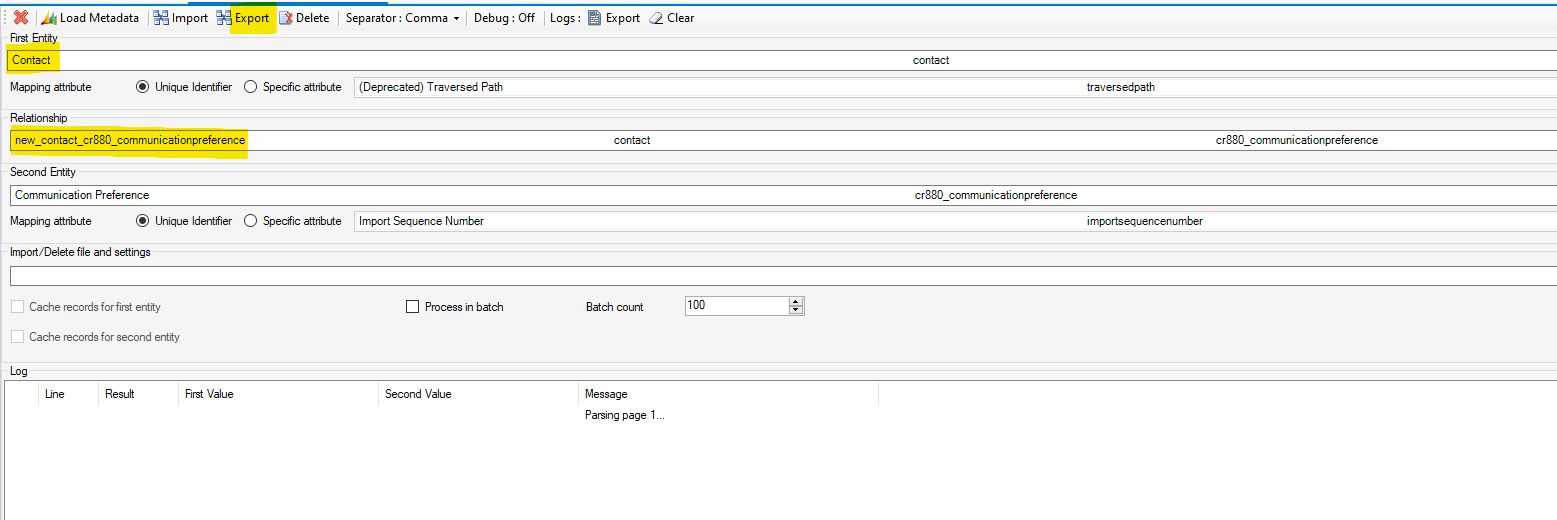
    pastedimage1614066170528v4.png

    Open the downloaded csv, we can see there are two column, the first is GUID of Contact, the second is GUID of Communication Preference.

    pastedimage1614066900325v6.png

    Then we need to enter the data into these two columns to link Contact and Communication Preference. We can open the record in D365 and copy the GUID from the URL.

    GUID is the part after communicationpreference&id= or contact&id=.

    pastedimage1614066543039v5.png

    So we get the GUID of both entity records, and enter these GUID into the downloaded csv. Each line is a mapping between Contact and Communication Preference.

    Then import it into NN Relationship manager of XrmToolBox.
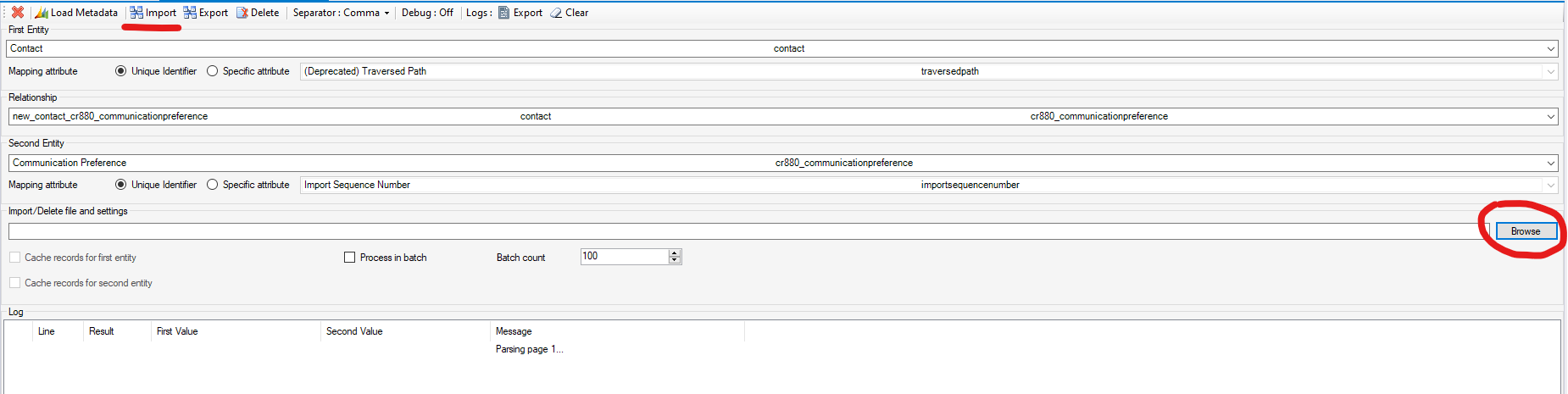
    pastedimage1614066965743v7.png

Under review

Thank you for your reply! To ensure a great experience for everyone, your content is awaiting approval by our Community Managers. Please check back later.

Helpful resources

Quick Links

Responsible AI policies

As AI tools become more common, we’re introducing a Responsible AI Use…

Neeraj Kumar – Community Spotlight

We are honored to recognize Neeraj Kumar as our Community Spotlight honoree for…

Leaderboard > Customer experience | Sales, Customer Insights, CRM

#1
Tom_Gioielli Profile Picture

Tom_Gioielli 70 Super User 2025 Season 2

#2
Gerardo Rentería García Profile Picture

Gerardo Rentería Ga... 33 Most Valuable Professional

#3
Daniyal Khaleel Profile Picture

Daniyal Khaleel 32 Most Valuable Professional

Last 30 days Overall leaderboard

Product updates

Dynamics 365 release plans



