web
You’re offline. This is a read only version of the page.
close
Skip to main content

Notifications

Announcements

No record found.

Community site session details

Community site session details

Session Id :
Customer experience | Sales, Customer Insights,...
Suggested Answer

Using Dynamics Sales Power BI connector App filters for reports 30, 60, 90, >90 days

(0) ShareShare
ReportReport
Posted on by 265

Hello, 

I am looking to make 3 separate tables in a Power BI report using data from Dynamics. 

Here is a version of the tables. 
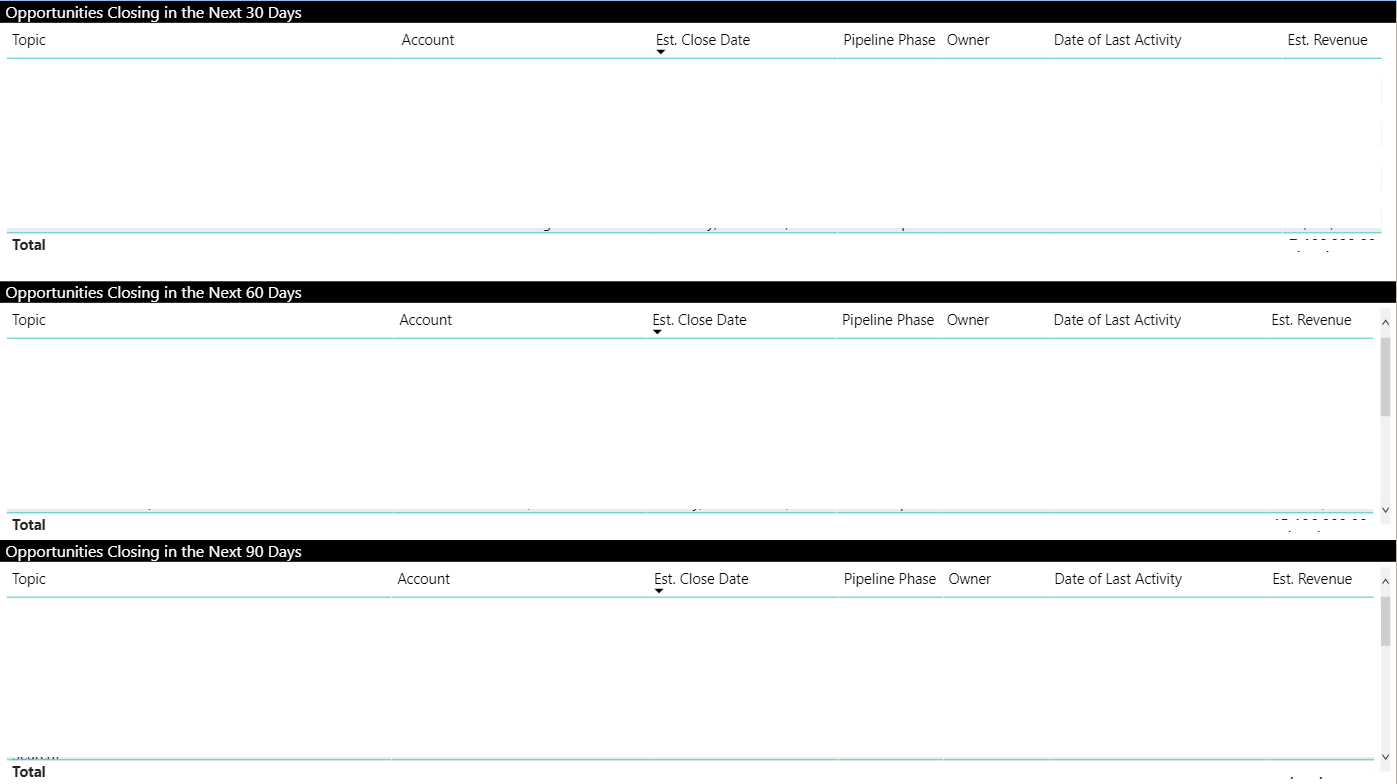
Screen-Shot-2020_2D00_09_2D00_15-at-7.34.40-PM.png

Im wondering if I can use the out of the box filtering for these tables so opportunities are not double counted across them. 

Example: Filter would use estimated closing date

  • Advanced Filtering: 
  • Show Items when the value is on Today and is on or before 30 days 
  • Filter: Show items when the value is On or after "Todays Date + 30" AND On or Before "Todays Date + 60"
  • Filter: Show items when the value is On or after "Todays Date +60" AND On or before "Todays Date +90"

Is this possible with the OOB editing on filters within the PowerBI website? 

There is also an OOB entity called Date with some options. 

Does anyone have and idea where you can filter a range of days out in the future like this. 

Thank you for your time, 

Josh 

I have the same question (0)
  • Dribblej Profile Picture
    265 on at

    Update: I pulled all the data into Power BI Desktop with the entities I wanted from the XRM Toolkit using the Power Query BI app. I then added a calendar entity to my data set using the help of this guide. I then took the concept discussed in this youtube video to make a "Relative Day Filter". 

    My Code for the custom column is... 

    Relative day filter =

    DATEDIFF(TODAY(),'Calendar'[Date],DAY)
    I made this off my "Day of Year" column in my calendar. This gets me close but not perfect. I think I need to include the "Est. Close Date" from the opportunity entity some how and calculate a date diff from this. Or I need to map a relationship somehow between the calendar and the opportunity to make this work. 
    Any ideas?
  • Suggested answer
    Dribblej Profile Picture
    265 on at

    I was able to solve this. With the following steps.

    1. Create a custom Power BI report on desktop version using XRM Toolkit - Power Bi Power Query Builder 
    2. Pulled in relevant entities [lead,contact,account,opportunities, owners, product, opportunityproduct] + Dyn365CEBaseURL & ServiceRootURL bc of how i pulled in the data. 
    3. Created a Calendar entity
      1. add Day of the year column 
    4. Make a relationship between est. close date and date, between calendar and opportunities 
      1. Screen-Shot-2020_2D00_09_2D00_21-at-12.46.04-PM.png
    5. Create a custom column on the Opportunties entity
      1. Est. Close Filter = DATEDIFF(TODAY(),'Opportunities'[Est. Close Date],DAY)

    You can now add a slicer to your list of opportunities. 

    • add the slicer to your power bi page grab the new entity field you just created of est. close the filter and drop it on your slicer 
    • apply it to lists in various ways 
      • to create a list "opportunities closing in 30-60 days set your filter to 30-60

    Alternatlivley you can just drag this new field into the visual filters, and then use advanced filtering to sort day ranges like 30-60 days 

    • Advanced filter on est. close date filter -> "is greater than 30 AND is less than or equal to 60"

Under review

Thank you for your reply! To ensure a great experience for everyone, your content is awaiting approval by our Community Managers. Please check back later.

Helpful resources

Quick Links

Responsible AI policies

As AI tools become more common, we’re introducing a Responsible AI Use…

Neeraj Kumar – Community Spotlight

We are honored to recognize Neeraj Kumar as our Community Spotlight honoree for…

Leaderboard > Customer experience | Sales, Customer Insights, CRM

#1
Tom_Gioielli Profile Picture

Tom_Gioielli 170 Super User 2025 Season 2

#2
#ManoVerse Profile Picture

#ManoVerse 70

#3
Jimmy Passeti Profile Picture

Jimmy Passeti 50 Most Valuable Professional

Last 30 days Overall leaderboard

Product updates

Dynamics 365 release plans
