You can edit the “Footer” web template to put different footers as per your needs.
In the “Footer” web template, do the highlighted changes as seen below
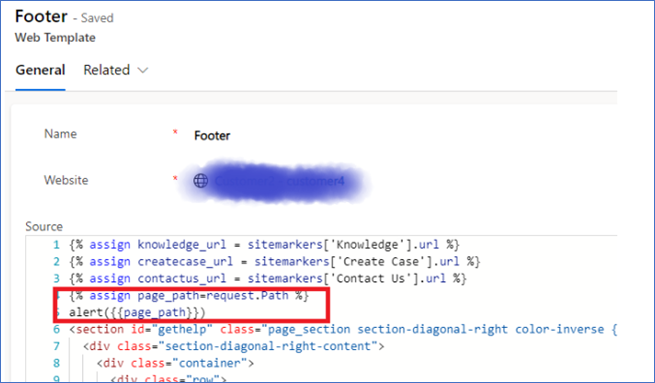
From “request.Path”, you will get to know the path in the current URL as mentioned here: https://learn.microsoft.com/en-us/power-apps/maker/portals/liquid/liquid-objects#attributes-15
You can IGNORE the alert step I have added. I have put that just to show you how the data comes in the variable where you have stored “request.Path” in liquid.
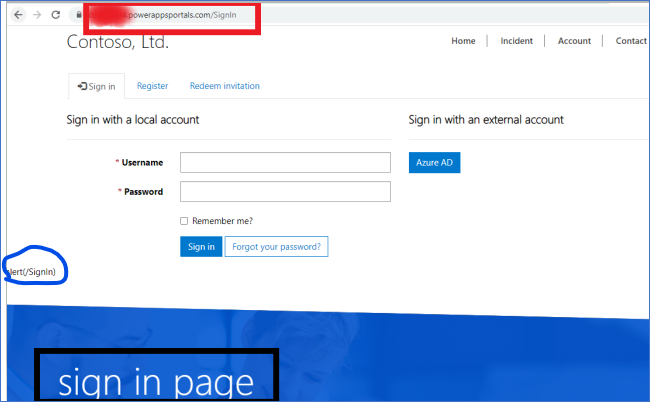
Now as per your needs, you can design your footer for specific page in your case “Sign In” page by checking if the variable “page_path” contains the word “SignIn” or not as shown below

Here just for demo purpose, I tried to show the sentence “sign in page” if my current URL is linked to SignIn and it’s seen below in Portal
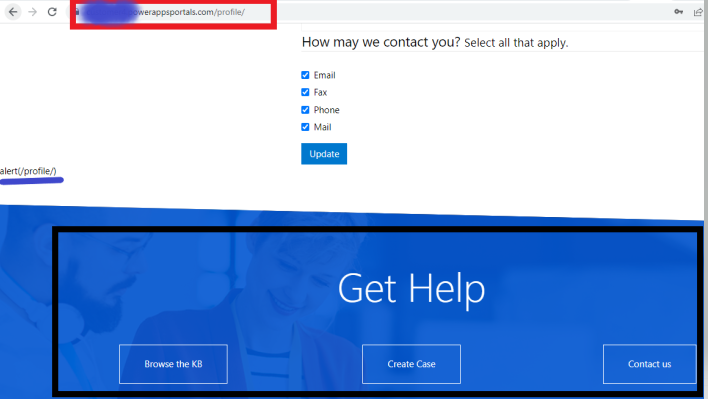
And if my page is NOT sign-in, then display the existing footer as seen below
You can do the same approach for “Header” template as well to do customized headers for different pages
Please mark my answer as verified if the solution worked for you so that if someone else face similar issue, they can try the same since they would prefer if solution is a verified one.
Thanks!


