web
You’re offline. This is a read only version of the page.
close
Skip to main content

Notifications

Announcements

No record found.

Community site session details

Community site session details

Session Id :
Customer experience | Sales, Customer Insights,...
Answered

Add Notes to Product Lines

(0) ShareShare
ReportReport
Posted on by

Hi Everyone,

I was wondering if it is possible to add a 'Notes' or 'Description' section to write in line items in Dynamics 365.

Our business sells large customizable systems rather than products like T-Shirts or computers, so we need to add some detail to each line/product item.

pastedimage1610318736541v1.png

Also will the added 'Details' section be able to show up on exporte4d auto generated quotes with XML linking?

Thanks in advance for the help.

I have the same question (0)
  • Community Member Profile Picture
    on at

    Go with a field instead of the OOB notes entity - use multiline text field.  You can add them into views, which means you can see it in a report.  If you arent using the Word Document templates you may want to try that route (if possible), they can look pretty decent if they fit your data structure.

    To require and/or show the field for write ins you should be able to do a business rule.  If that doesnt work you can get some simple JavaScript.

    If you need any more detail let me know.

  • Community Member Profile Picture
    on at

    Hi Mike,

    Thanks for the help.

    How do I add the field?

    Is it through settings?

    Thank you,

    Siena

  • Verified answer
    Community Member Profile Picture
    on at

    Sure, yes settings > Solutions (youll need a solution with the entity in it - quote lines

    This would open a popup window (assuming classic mode)

    pastedimage1610323797120v1.png

    on the left navigation open the 'entities' menu, then go down to Quote Lines, and go the 'fields' section.  You can add a new field here.
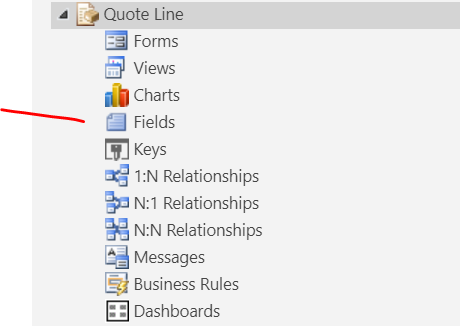
    pastedimage1610323842123v2.png

    This is the window for the field, when done save it.

    pastedimage1610323936148v3.png

    Then youll need to add the field to the form (form is in the same navigation as Fields).  Open the form, then on the right, drag the field onto the form.  Save and close, then publish all from the first popout window.
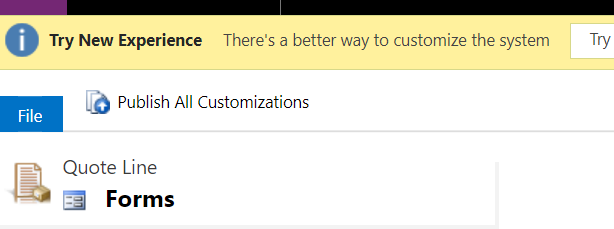
    pastedimage1610324117613v4.png

    The business rule is another item altogether, if its easier for you, Id just leave the description/detail field on the form for all products.

  • Verified answer
    Wahaj Rashid Profile Picture
    11,321 on at

    Hi,

    Thank you for your query.

    There is a Description field already in the Quote Product (line) entity.

    pastedimage1610340449271v1.png

    You just need to add these in the forms and views (if needed).

    Here are steps to follow:

    • Go to Advanced Settings -> Customization -> Customize this System.
    • Expand Entities -> Quote Product -> Forms.

    pastedimage1610340504495v2.png

    • Open the Information form.
    • From the right hand panel, drag the Description field on the form.

    pastedimage1610340591751v3.png

    If you do not see the Description field in the Field Explorer, make sure filter is set to All Fields and the field is not added already on the form. In that case you can uncheck Only show unused field.

    • You can adjust the position and properties of the Description field as per your need (double click on the field to open). For example, you can configure the layout of the Description field two columns and Number of Rows to 4 (to make it bigger).

    pastedimage1610340937617v4.png

    • Save the form and Publish.

    pastedimage1610341069834v5.png

    • Similarly you can add the Description field on the Quote Detail (quick create) form. This form is used when you add a Quote Line from Sub-grid on the Quote entity.

    Now you can see the Description field on the Quote Detail forms.

    pastedimage1610341406939v6.png

    If you need, you can add Description field in the Quote forms as well.

  • Community Member Profile Picture
    on at

    Hi Wahaj,

    Thanks for the reply!

    I was able to add the description, however, how do I make sure that this new form is used in all my draft quotes?

    Do I need to active it and deactivate the old one?

    Thank You,

    Siena

  • Suggested answer
    Wahaj Rashid Profile Picture
    11,321 on at

    Hi Siena,

    Once you publish the changes, Description field should show up for all records.

    By default, Quote Product has 2 forms:

    • Information: this form loads when you open the Quote Product by double clicking on the subgrid,
    • Quote Product Detail: this is the form when you add a Quote Product using '+' button in the subgrid,

    Same forms are used for Draft, Active and In-Active Quotes. You do not need to any thing here.

    However, the data in Description field will be empty for older records (unless you edit the data).

    Furthermore, you can add this field to Quote Product Views.

  • Suggested answer
    LuHao Profile Picture
    40,892 on at

    Hi Siena,

    Each type of form can be set in form order, and users will see the default form at the top of the form order (based on the user's security role).

    pastedimage1610354205165v1.png    pastedimage1610354219166v2.png

    Take your first screenshot as an example. It is a quick create form, so as long as you add the Description field to the quick create form located at the top of the form order, then all users will see the Description field in the quick create form of Quote Product.

    For the main form, it can be set up with accessible security roles, so it is possible that different users will access different default main form.

    Therefore, I would recommend you add the Description field for all main forms, and add the Description field for the quick create form located at the top of the form order.

    These are the introductions to the order of forms and form security roles:

    https://carldesouza.com/set-default-form-order-dynamics-365/

    https://carldesouza.com/restricting-access-to-a-form-in-dynamics-365-through-security-roles/

  • Community Member Profile Picture
    on at

    Hi Lu Hao,

    For some reason now the when I create a quote the product field has disappeared.

    I de-activated the old Information form and activated the new form I added the Description field.

    pastedimage1610486731968v1.png

    product-line-disapeared.JPG

    How do I make sure that the product form shows up on the quote form again?

    On the Quote form the 'Products' section is there:

    pastedimage1610489206342v1.png

    How come it does not show up when I make a new quote?

    Is the product section not linked to the new 'information' form i made?

    Thanks

  • Community Member Profile Picture
    on at

    Hi Again Wahaj,

    I de-activated the old Quote Products 'information form' and activated the new form with same name which now has the Description field.

    For some reason, now the 'Product' section does not show up on new quotes.

    Can you help me with this?

    Thank you

Under review

Thank you for your reply! To ensure a great experience for everyone, your content is awaiting approval by our Community Managers. Please check back later.

Helpful resources

Quick Links

Responsible AI policies

As AI tools become more common, we’re introducing a Responsible AI Use…

Neeraj Kumar – Community Spotlight

We are honored to recognize Neeraj Kumar as our Community Spotlight honoree for…

Leaderboard > Customer experience | Sales, Customer Insights, CRM

#1
Tom_Gioielli Profile Picture

Tom_Gioielli 108 Super User 2025 Season 2

#2
Jimmy Passeti Profile Picture

Jimmy Passeti 50 Most Valuable Professional

#3
Gerardo Rentería García Profile Picture

Gerardo Rentería Ga... 49 Most Valuable Professional

Last 30 days Overall leaderboard

Product updates

Dynamics 365 release plans



