web
You’re offline. This is a read only version of the page.
close
Skip to main content

Notifications

Announcements

No record found.

Community site session details

Community site session details

Session Id :
Customer experience | Sales, Customer Insights,...
Suggested Answer

Automatic Quote Effective From and Effective To Dates

(0) ShareShare
ReportReport
Posted on by 115

We would like for the system to autofill the Effective From and Effective To dates. Effective from date would be the quote created date. Is there a way to do this? Effective to would be, say, 60 days from effective from date. Thanks

I have the same question (0)
  • Suggested answer
    Naveen Ganeshe Profile Picture
    3,397 User Group Leader on at

    Helo Rickster,

    We were having the same scenario where we created a system workflow on created of Quote. The effective date is set from Created on and Effective to date is set to CreatedOn + 2 months or 60 days  

  • Suggested answer
    Community Member Profile Picture
    on at

    Hi

    There are serval ways to achieve this. 

    First way: 

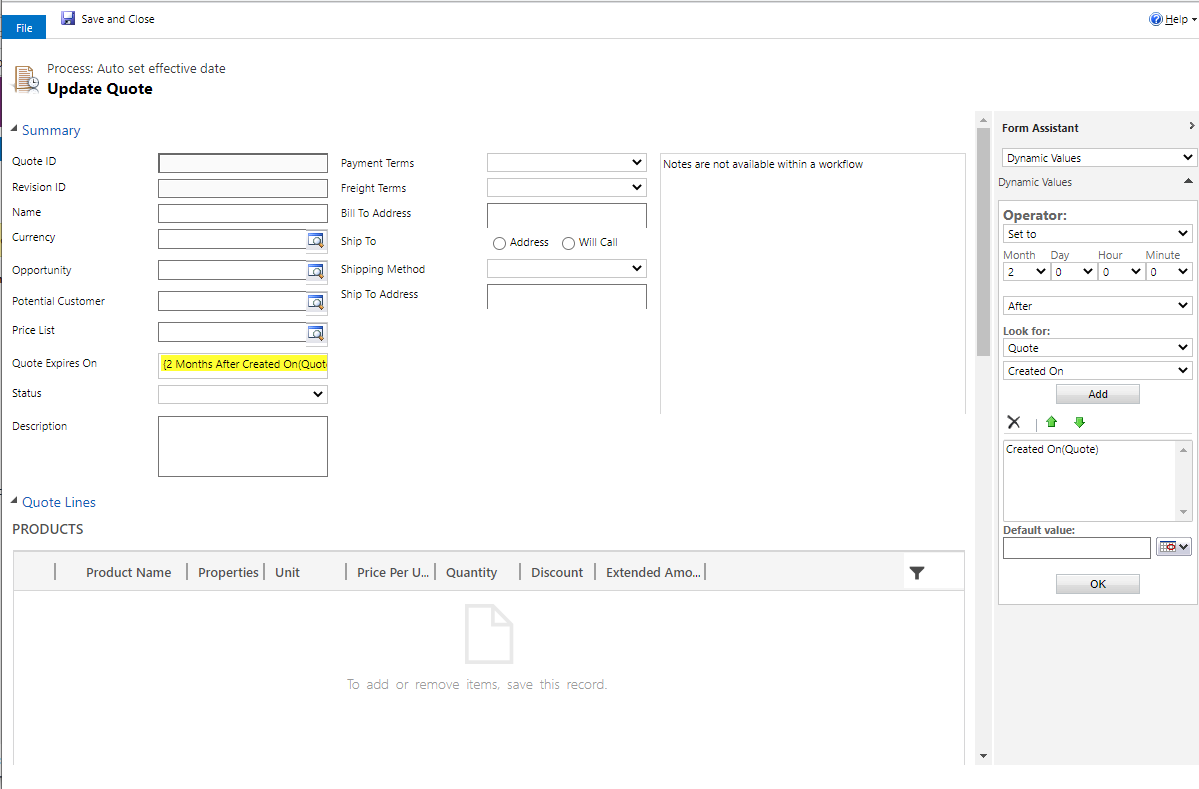
        As Naveen Ganeshe said, you can create a workflow and set value of Effective From fields form Created On, set value of Quote Expires On fields from 2 Months after Created On.

        Steps:

    1.  Navigate to Advanced setting and click Processes.

                     Snipaste_5F00_2021_2D00_07_2D00_05_5F00_14_2D00_07_2D00_49.png

            2. Create a new process and select Quote entity.
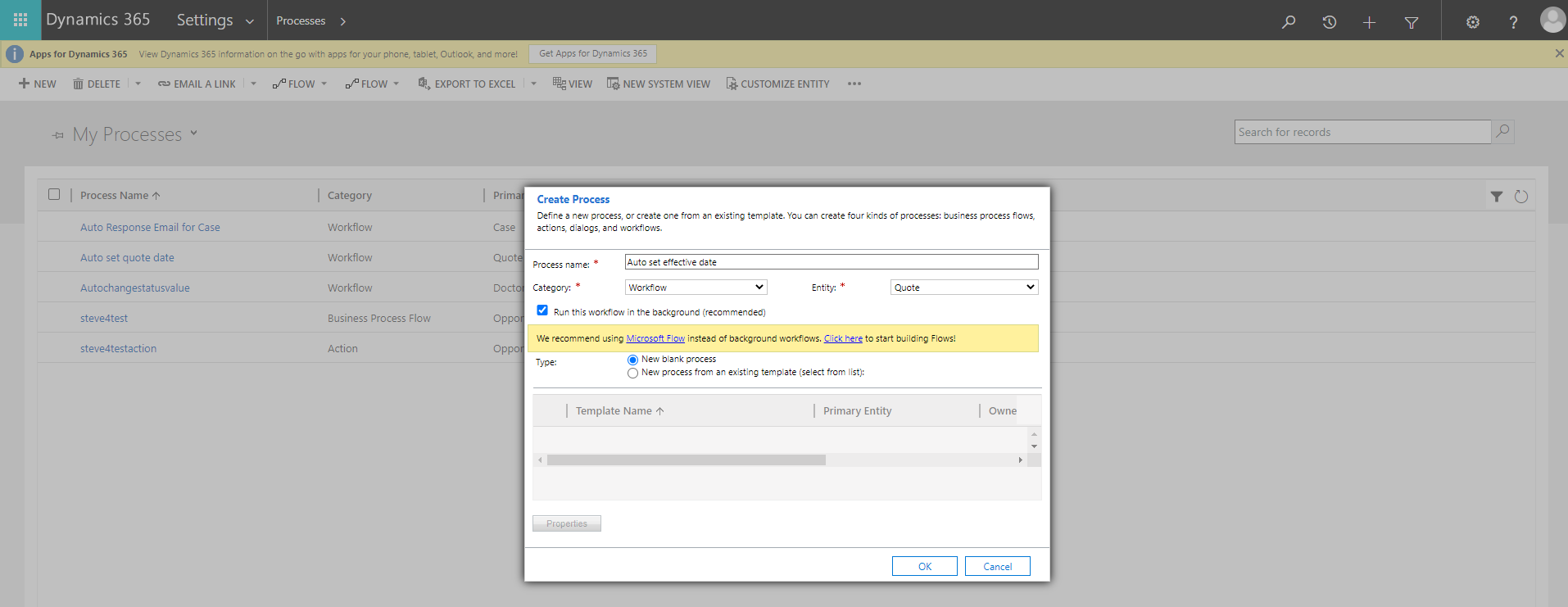
                 Snipaste_5F00_2021_2D00_07_2D00_05_5F00_14_2D00_13_2D00_04.png

            3. Create a Check Condition to check these fields are empty or not.

                Snipaste_5F00_2021_2D00_07_2D00_05_5F00_14_2D00_19_2D00_36.png

                Snipaste_5F00_2021_2D00_07_2D00_05_5F00_14_2D00_16_2D00_22.png

            4. If they’re empty, set the value of them.

                Snipaste_5F00_2021_2D00_07_2D00_05_5F00_14_2D00_21_2D00_36.png

                Snipaste_5F00_2021_2D00_07_2D00_05_5F00_14_2D00_23_2D00_13.png

                8244.ss.png

            5. Save and activate it.

                Snipaste_5F00_2021_2D00_07_2D00_05_5F00_14_2D00_26_2D00_02.png

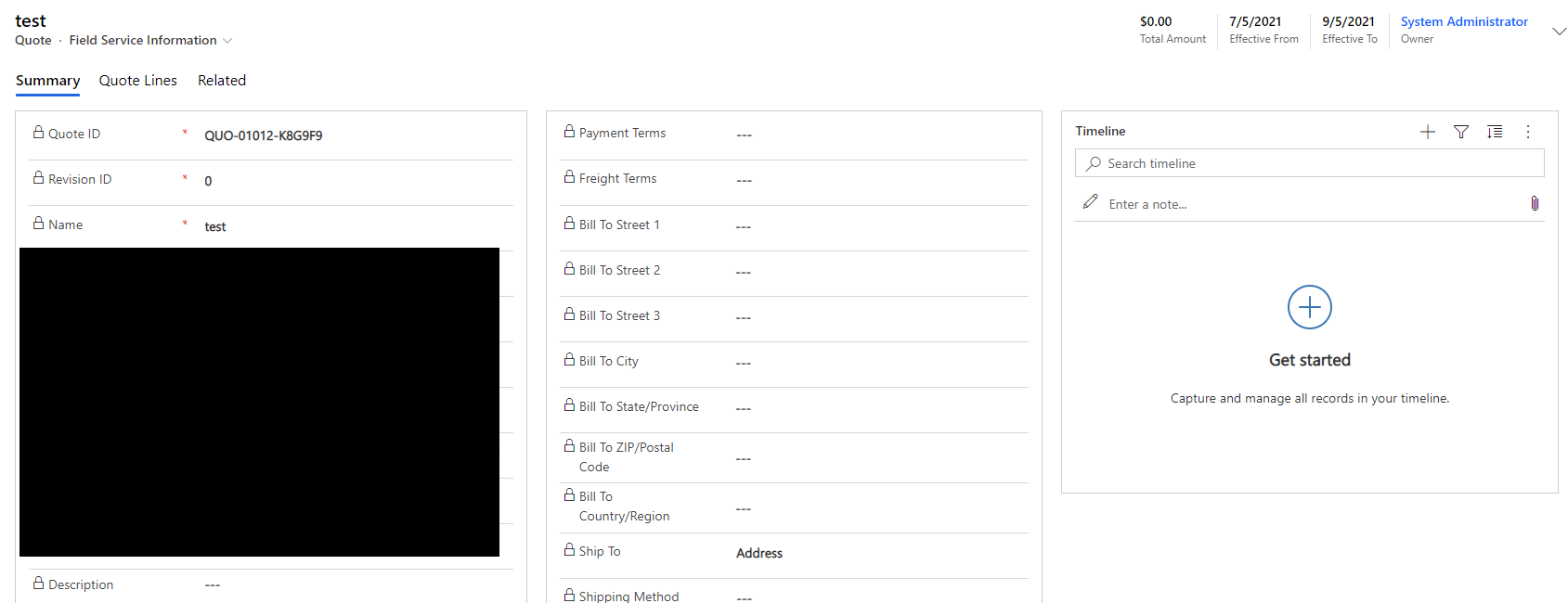
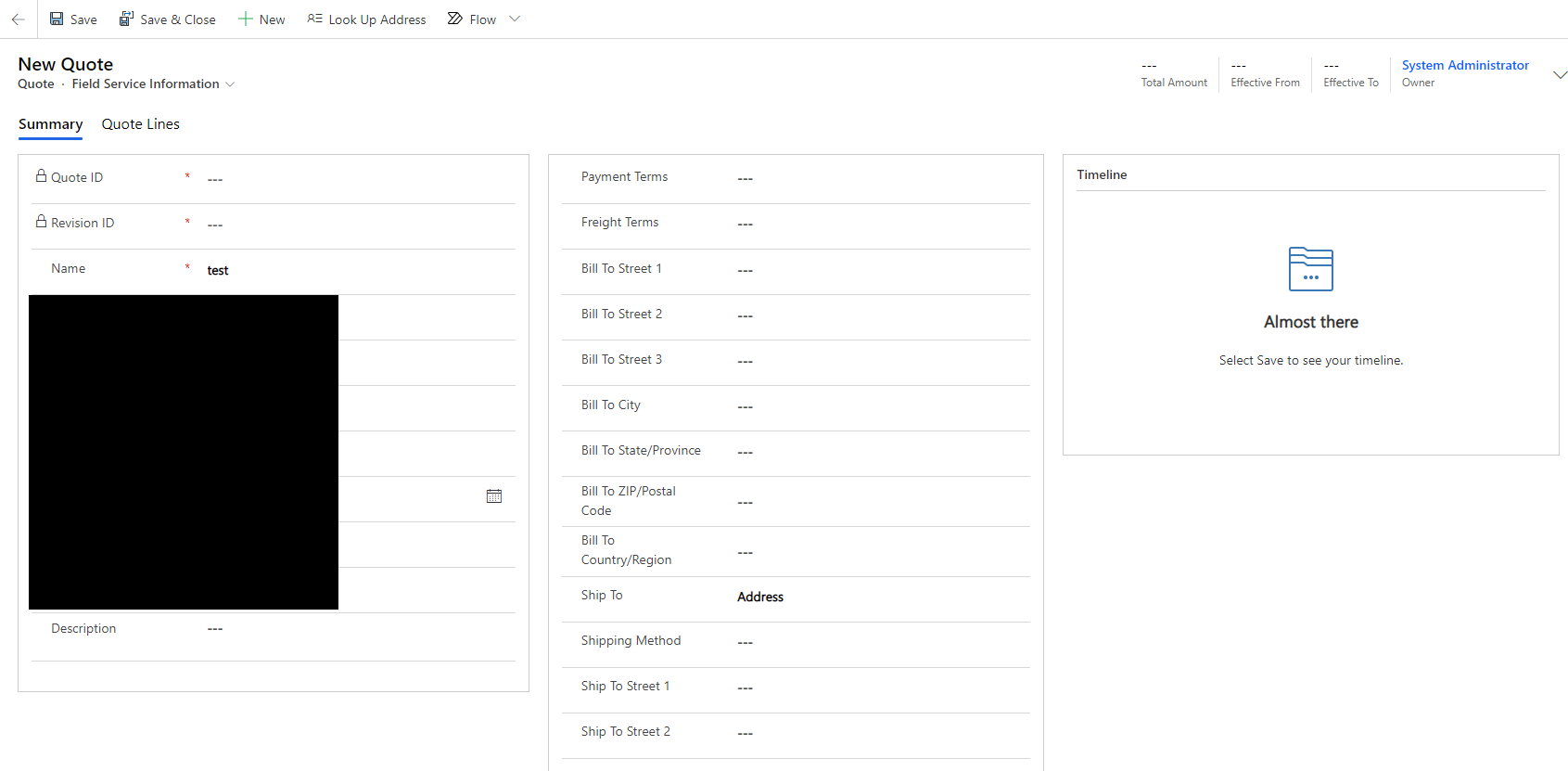
            6. Navigate to Quotes in the Sales Hub, new a quote for test.
                Snipaste_5F00_2021_2D00_07_2D00_05_5F00_14_2D00_36_2D00_11.png

            7. Wait for a moment and refresh:

                Snipaste_5F00_2021_2D00_07_2D00_05_5F00_14_2D00_43_2D00_33.png

    Second way:

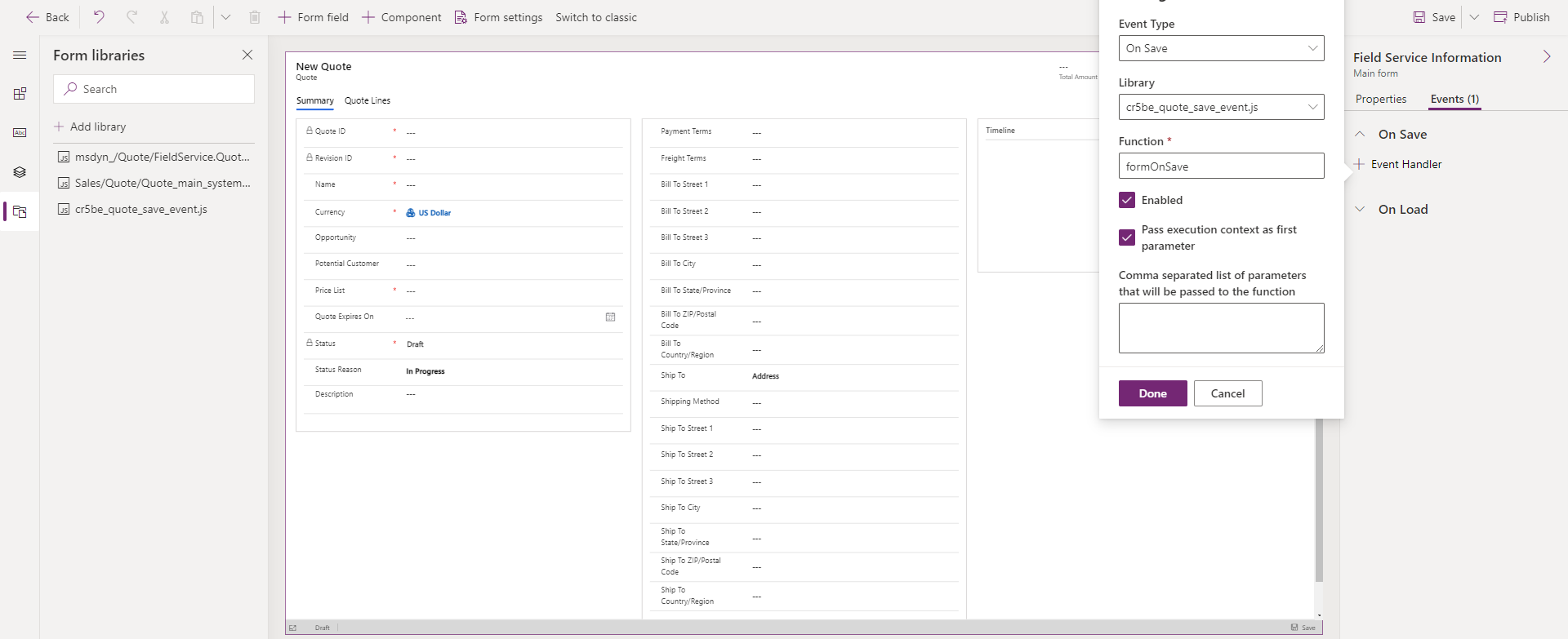
        You can create an On Save event on your Quote’s form. Then use Client API to set the value of Effective From and Effective To fields.

        Steps:

            1. Navigate to the Tables and click Quote table, click the form you used.

                Snipaste_5F00_2021_2D00_07_2D00_05_5F00_14_2D00_48_2D00_18.png

            2. Navigate to the Form libraries to new a libraries.

                Snipaste_5F00_2021_2D00_07_2D00_05_5F00_14_2D00_50_2D00_25.png

                Snipaste_5F00_2021_2D00_07_2D00_05_5F00_14_2D00_54_2D00_03.png

                Below is my sample code, you can refer to it.


                          function formOnSave(executionContext){

                                var formContext = executionContext.getFormContext();

                                var effectivefrom = formContext.getAttribute("effectivefrom").getValue();

                                var effectiveto = formContext.getAttribute("effectiveto").getValue();

                                if(!effectivefrom && !effectiveto){

                                       var date = new Date();

                                       formContext.getAttribute("effectivefrom").setValue(date);

                                       date.setDate(date.getDate()+60);

                                       formContext.getAttribute("effectiveto").setValue(date);

                                }

                          }

            3. New an On Save event with that library, save and publish it.
                Snipaste_5F00_2021_2D00_07_2D00_05_5F00_14_2D00_56_2D00_57.png

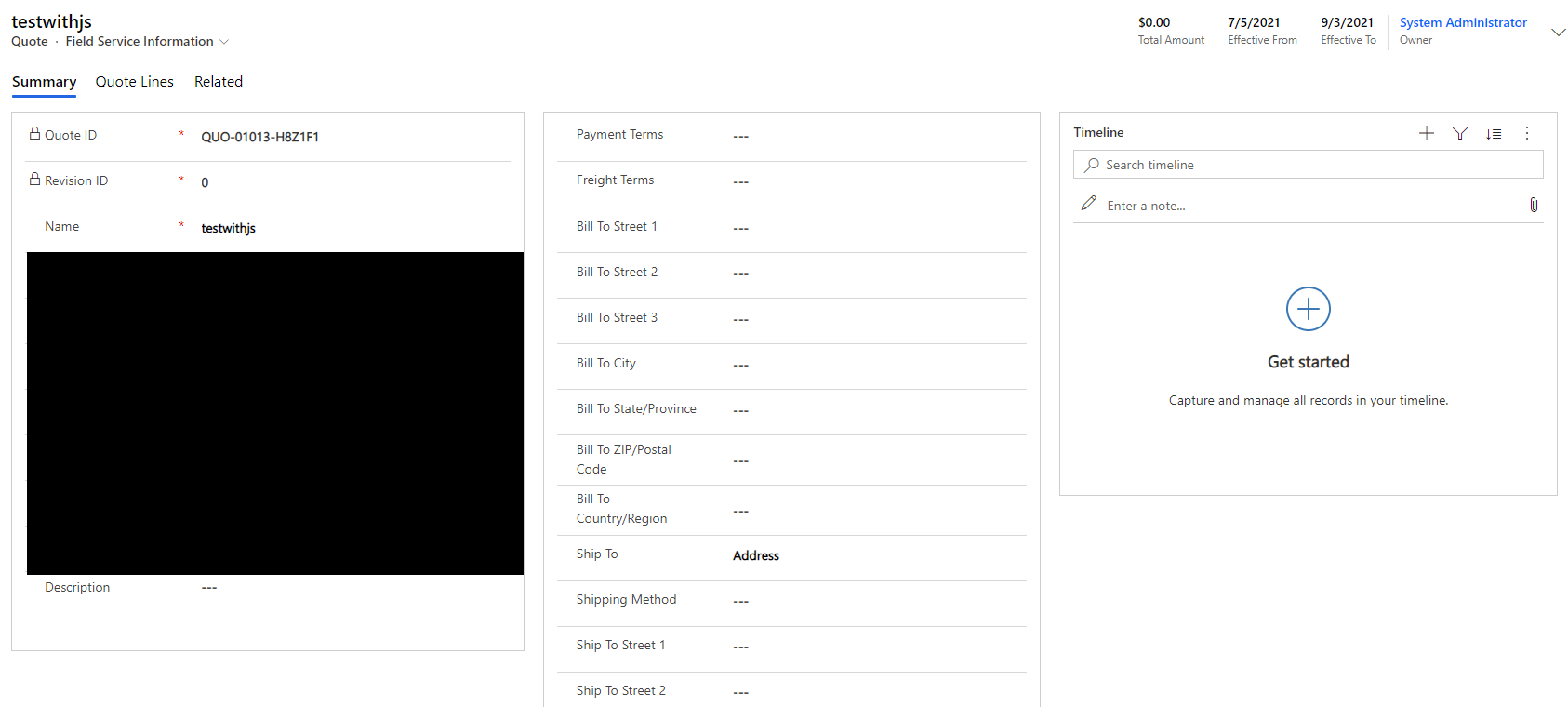
            4. Navigate to Quotes in the Sales Hub, new a quote for test.

                Snipaste_5F00_2021_2D00_07_2D00_05_5F00_15_2D00_01_2D00_07.png

            5. Result.

                Snipaste_5F00_2021_2D00_07_2D00_05_5F00_15_2D00_01_2D00_33.png

    Regards,

    Steve Zhao

    Please mark as verified if the answer is helpful.


  • Suggested answer
    RicksterBC44 Profile Picture
    115 on at

    Wow, Steve, that was amazing! I tried the first step and it worked just as you documented. Your detail and screen captures were very helpful. Thanks for taking the time to do this, very much appreciated.

  • Community Member Profile Picture
    on at

    I'm glad to hear that. If you think my answer helps you, could you click Yes under "Did this answer your question?" to close this thread. Thanks a lot.

Under review

Thank you for your reply! To ensure a great experience for everyone, your content is awaiting approval by our Community Managers. Please check back later.

Helpful resources

Quick Links

Responsible AI policies

As AI tools become more common, we’re introducing a Responsible AI Use…

Neeraj Kumar – Community Spotlight

We are honored to recognize Neeraj Kumar as our Community Spotlight honoree for…

Leaderboard > Customer experience | Sales, Customer Insights, CRM

#1
Tom_Gioielli Profile Picture

Tom_Gioielli 108 Super User 2025 Season 2

#2
Jimmy Passeti Profile Picture

Jimmy Passeti 50 Most Valuable Professional

#3
Gerardo Rentería García Profile Picture

Gerardo Rentería Ga... 49 Most Valuable Professional

Last 30 days Overall leaderboard

Product updates

Dynamics 365 release plans