Hi prasmadd123.
1. Add an application registration.
a. Log in to your Microsoft Azure Dashboard.
b. In the on the left side navigation menu, click Azure Active Directory. The Azure Active Directory window for your organization appears.
c. Under Manage, click App registrations.
d. At the top of the window, click New registration.
e. Enter the following information:
Name: The name of the application, for example, Microsoft Dynamics 365 data actions integration.
Supported account types: Select who can access this application.
Redirect URI (optional): Enter a valid URI format, for example, [View:https://foo.com:750:50].
f. Click Register. And the application appears in the list of registered applications.
2. Add required permissions to the application.
a. Click View API Permissions.
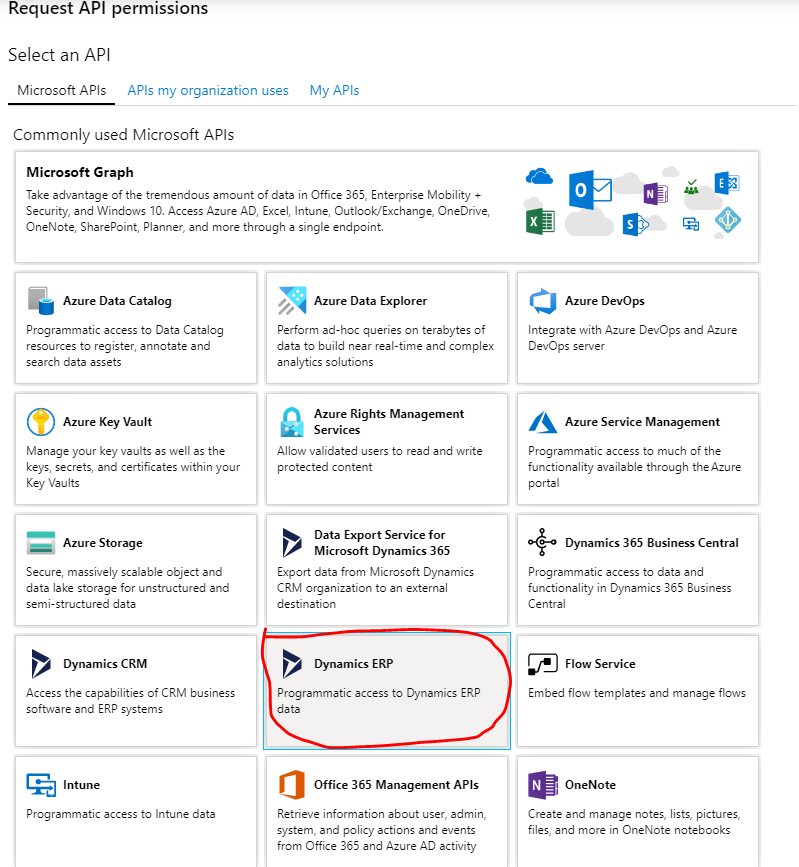
b. Click Add a permission.
c. Click Dynamics ERP.
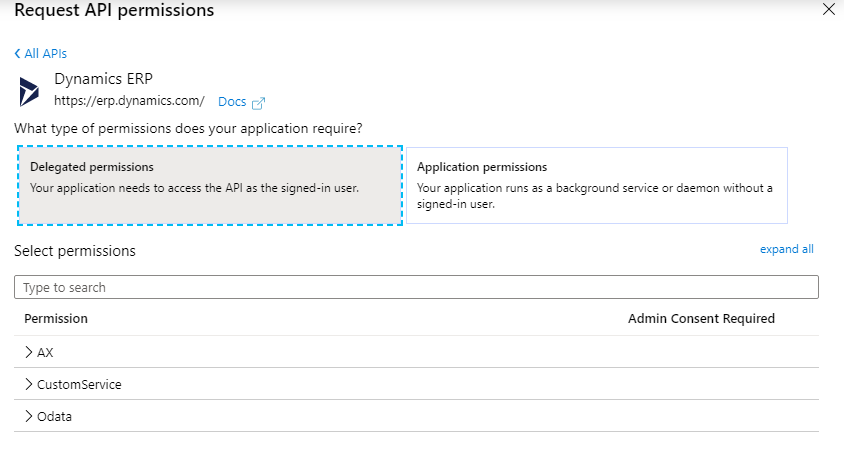
f. Click on Delegated permissions and check the options and select permissions that you want and click on Add permissions.
Please have a look at this DOC:
[View:https://docs.microsoft.com/en-us/powerapps/developer/common-data-service/walkthrough-register-app-azure-active-directory:750:50]







