web
You’re offline. This is a read only version of the page.
close
Skip to main content

Notifications

Announcements

No record found.

Community site session details

Community site session details

Session Id :
Finance | Project Operations, Human Resources, ...
Answered

Project task duration not respecting calendar template

(1) ShareShare
ReportReport
Posted on by 20

Hello all,

I have configured a calendar template for 7.5 hours using a 'Generic' resource called 'Default Work Hours':
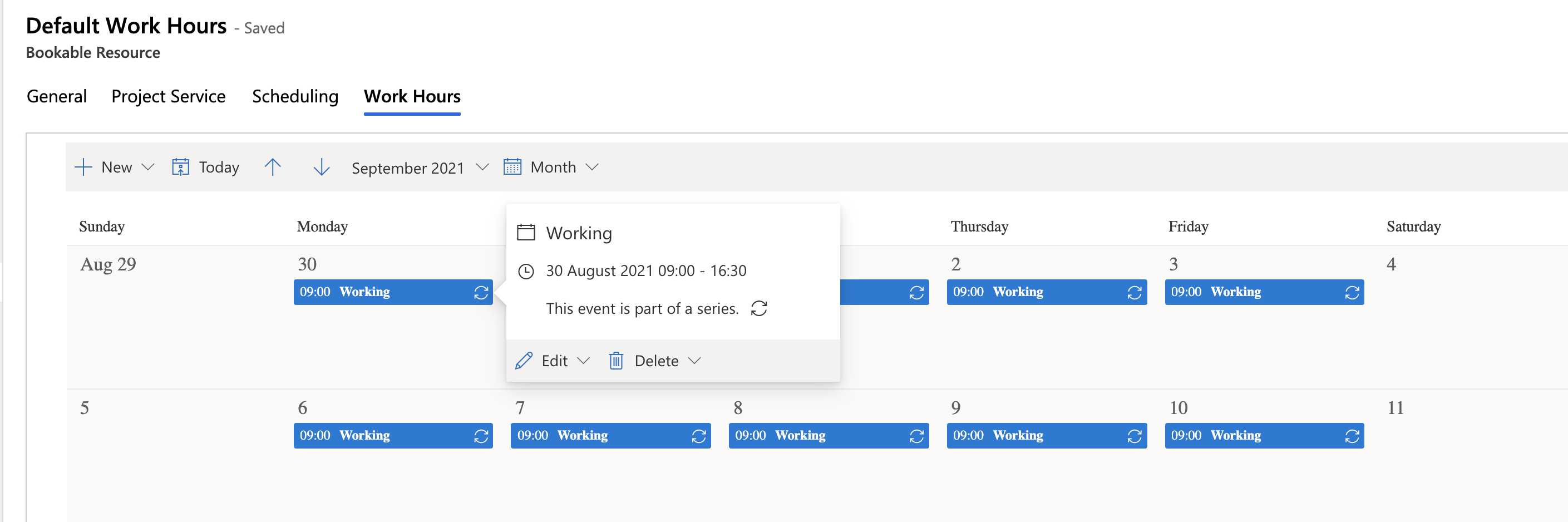
pastedimage1632773271530v1.png

This resource has been applied to the 'Default Work Template' as 'Template Resource':
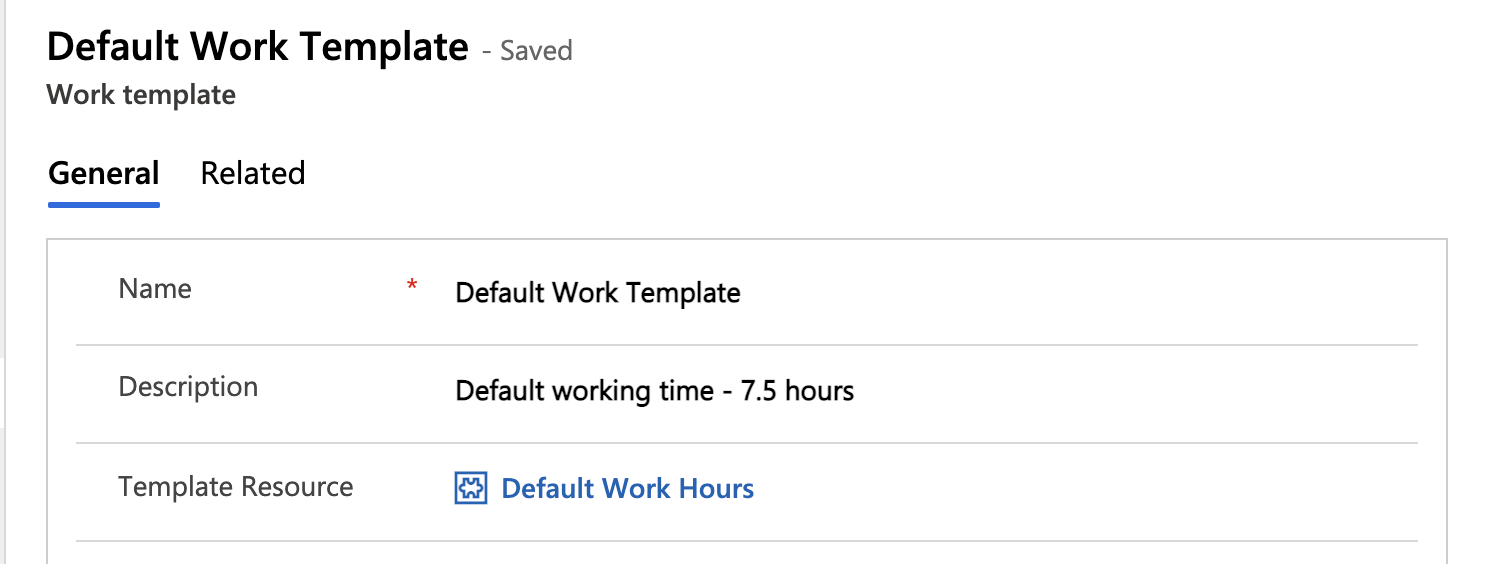
pastedimage1632773341820v2.png

The 'Default Work Template' has been applied to all bookable resources in the system (using Set Calendar).

When creating a new project, the 'Default Work Template' is used as the 'Calendar Template', however when tasks are created in the project and duration set to 1 day, the task duration is 8 hours rather than 7.5 hours:
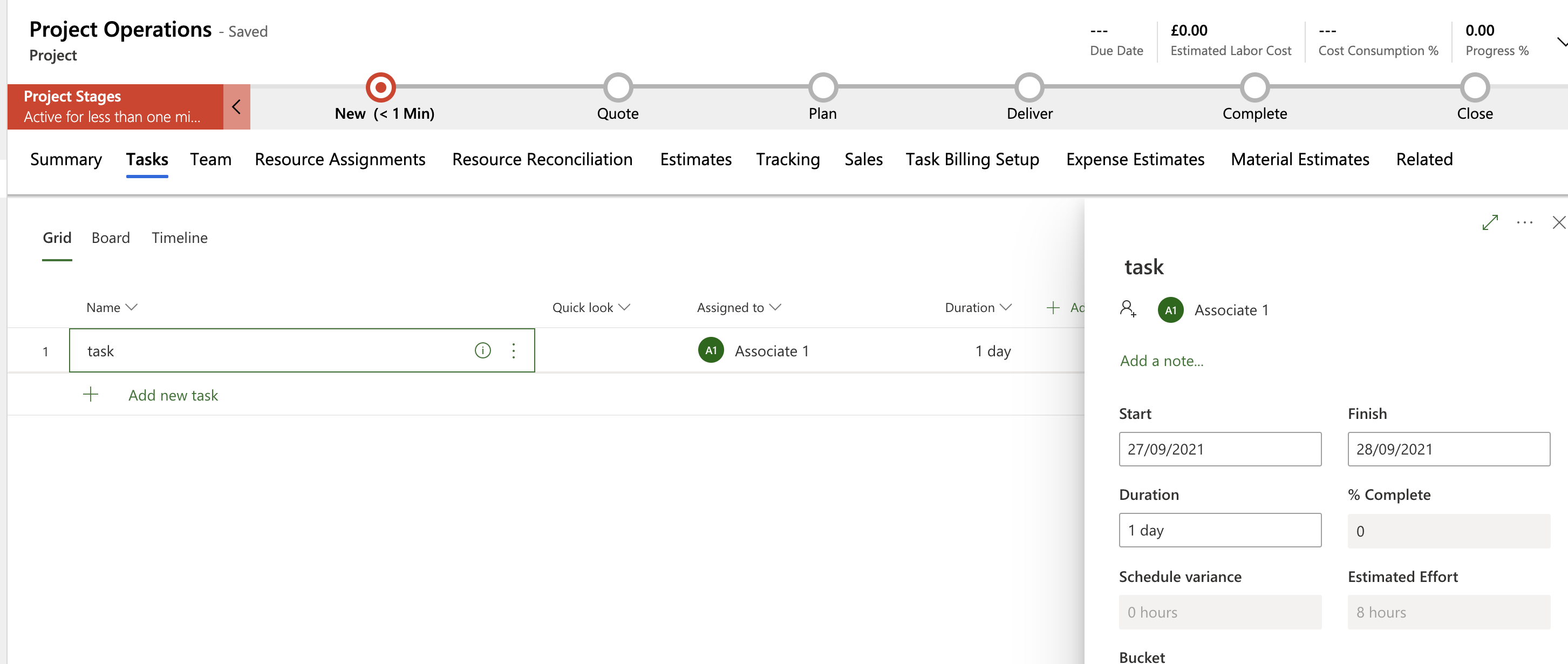
pastedimage1632773490633v3.png

I can see that the calendar template is being respected as the finish has been pushed into the following day (changing the duration to 7.5 hours keeps the finish on the same day). 

Does anyone know why the estimated effort is not 7.5 hours as defined in the calendar template?

This is throwing all project cost estimates, quote estimates and scheduling out as the effort on task is higher.

I have the same question (0)
  • apa Profile Picture
    8,284 Moderator on at

    Hi unify. I'm able to repro this behavior in 4.25.0.91 (Lite). Please open a support request.

  • Verified answer
    Unify Technologies Profile Picture
    20 on at

    Microsoft confirmed this is current behaviour and might change in a future update:

    Symptom: Project task duration not respecting calendar template values
     
    Cause: current system expected behavior
     
    Resolution: Currently the system is designed to show the duration always as 8 hours per day. Its unit displayed on UI is day. If you see duration is 1 day, this always means duration is 8 hours. Effort hour is calculated based on an overlap between the team member calendar and the time window from task start time to task finish time. If you hover your cursor over the start column and finish column on the task grid, it also shows the time
    For example, if task start time is 10/25 9:00 AM with finish time is 10/26 4:00 PM and the team member calendar is set from 9:30 AM to 5:00 PM. And let's assume they are in the same time zone. Effort will be 14 hours. On 10/25, this team member works from 9:30 AM to 5:00 PM, which is 7.5 hr. On 10/26, this team member works from 9:30 AM to 4:00 PM which is 6.5 hr. So 7.5 + 6.5 = 14 hr.
    We are designing a feature that will allow customization on the duration to hour conversion where customers can set duration to 7.5 hours per day for example. But this feature is still under review and currently we do not have information when it might become available.
    Currently, the workaround can be setting duration to 0.9375 day, which is 7.5 hours. Or, like mentioned in my previous email, add effort column and adjust the value to 7.5h  manually. 

  • Gupta Kuldeep Profile Picture
    2,060 on at

    It is also based on the schedule mode setup in the Parameter settings as shown in the screenshot below.

    Read more about schedule mode settings from here Scheduling modes | Microsoft Docs

    pastedimage1635427423624v1.png

  • HenriquePalomo Profile Picture
    510 on at

    Hi there,

    Fixed effort: If I try setting the Effort manually to 15 hours, then the duration is calculated automatically to 1.88 days which isn't true, it should be 2 days as our days are 7.5 working hours. 

    Fixed duration: If I set the effort as 15 hours, the duration is auto populated to 1 day

    So what's the current best approach to work with 7.5 hours a day inside a project?

Under review

Thank you for your reply! To ensure a great experience for everyone, your content is awaiting approval by our Community Managers. Please check back later.

Helpful resources

Quick Links

Responsible AI policies

As AI tools become more common, we’re introducing a Responsible AI Use…

Neeraj Kumar – Community Spotlight

We are honored to recognize Neeraj Kumar as our Community Spotlight honoree for…

Leaderboard > Finance | Project Operations, Human Resources, AX, GP, SL

#1
André Arnaud de Calavon Profile Picture

André Arnaud de Cal... 449 Super User 2025 Season 2

#2
Martin Dráb Profile Picture

Martin Dráb 422 Most Valuable Professional

#3
BillurSamdancioglu Profile Picture

BillurSamdancioglu 239 Most Valuable Professional

Last 30 days Overall leaderboard

Product updates

Dynamics 365 release plans
