






Change Display order of system views
Views (7084)
 Mahadeo Matre
 17,021
 Like
Like Share
Share
 Report
In CRM system views are order by number and alphabets. When view name is starting with number, that view was shown first and then views shown by alphabet orders.
If want some custom order then we need to modify view name and either add number or alphabets in front of view name
1. Go to customization of entity views.
2. Open view and click on view properties.
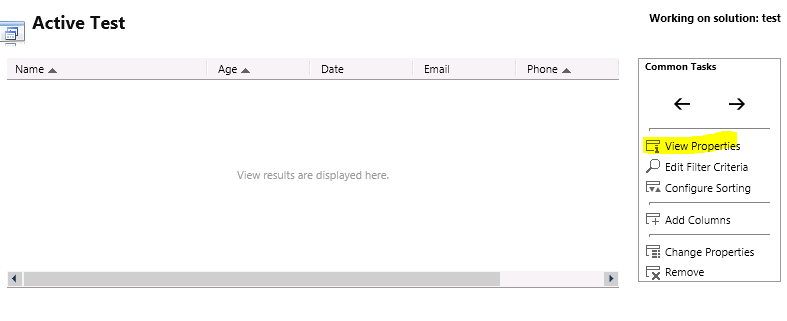
1. Add either number or alphabet in Front of view name
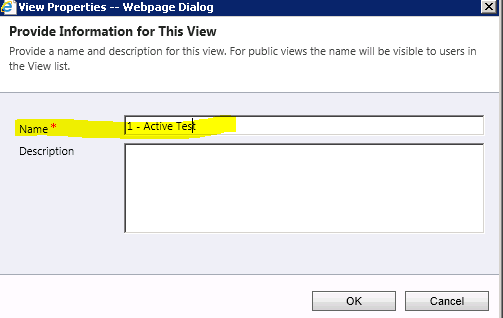
1. Save view and change name of other views as per order
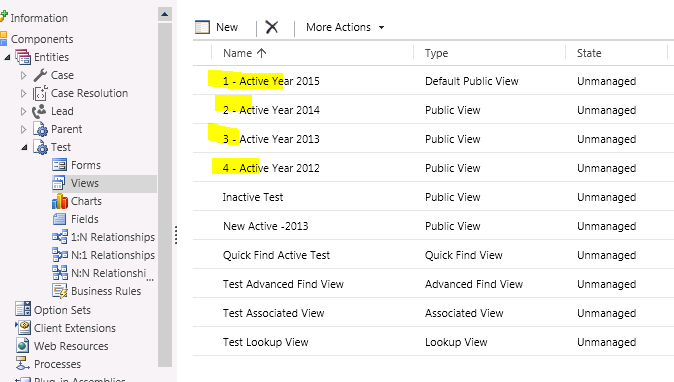
1. Publish customization

with Alphabet order
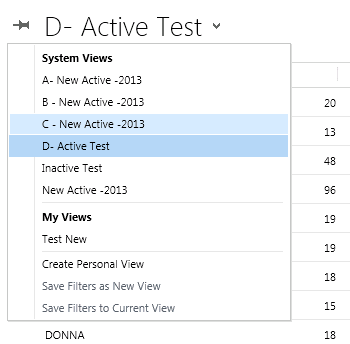
This was originally posted here.
*This post is locked for comments