







Resource Bookings as Calendar in D365 Field Service Portal

 Like
Like Share
Share
 Report
Introduction:
This blog explains how to show Resource Bookings as Calendar in D365 Field Service Portal.
Steps of Implementation:
1. Create a new Entity List in D365 Field Service for “Bookable Resource Booking” Entity as shown below
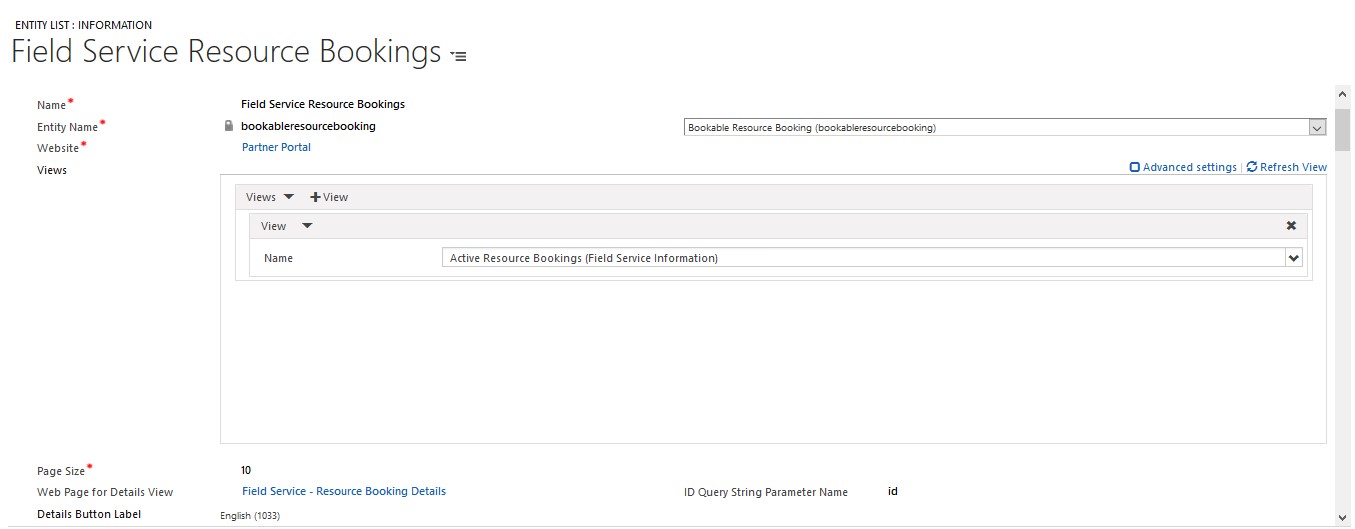
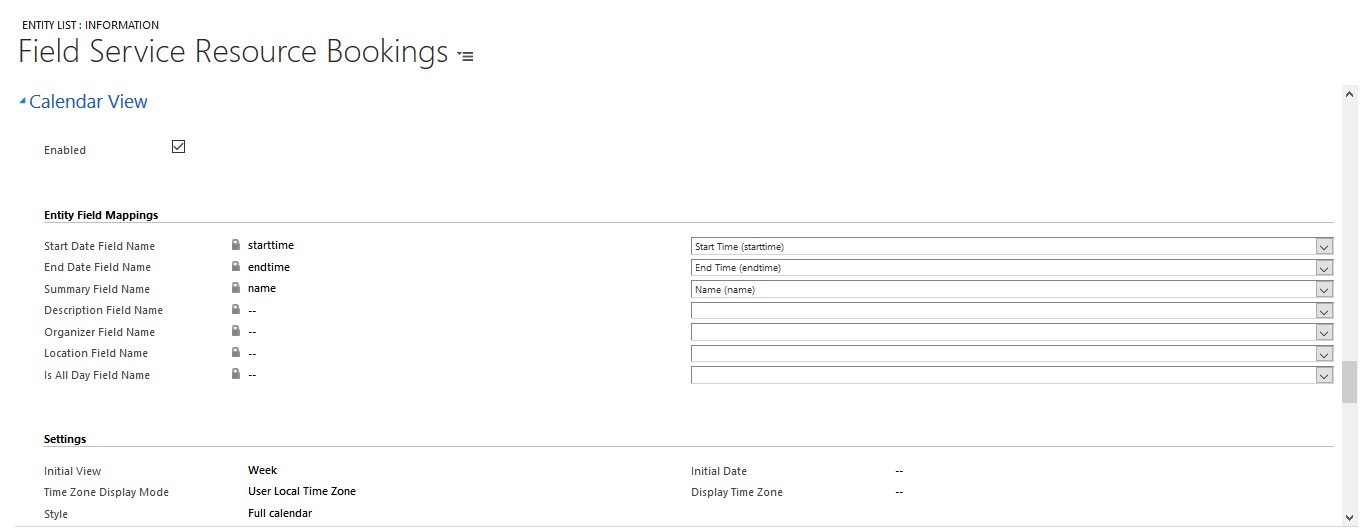
2. Set Calendar View on Entity List as shown below
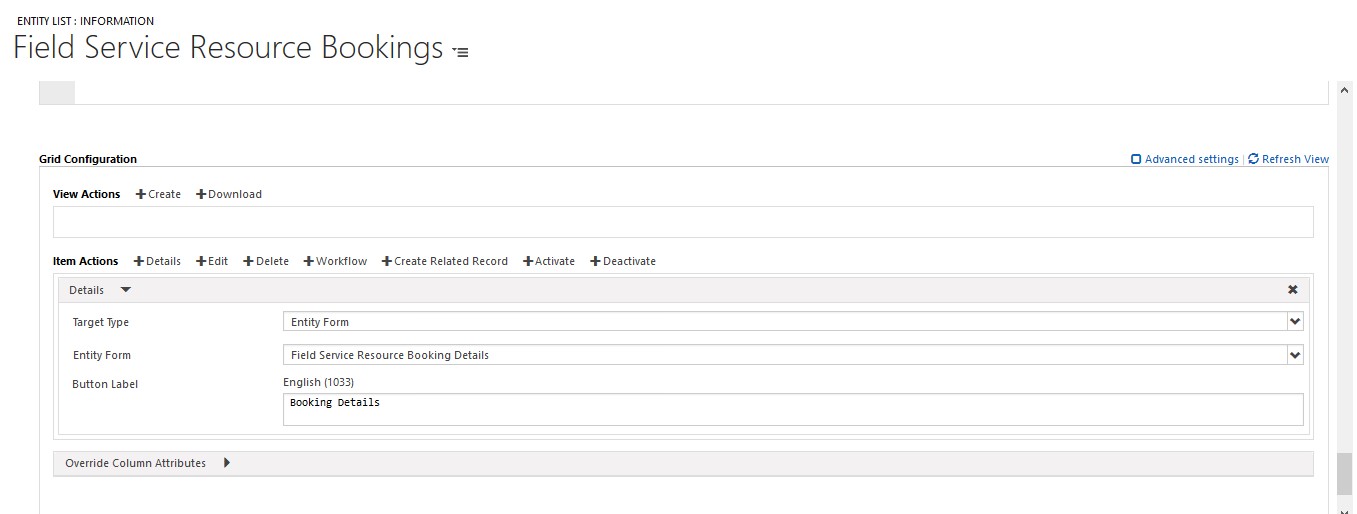
3. Set Grid Configuration as shown below
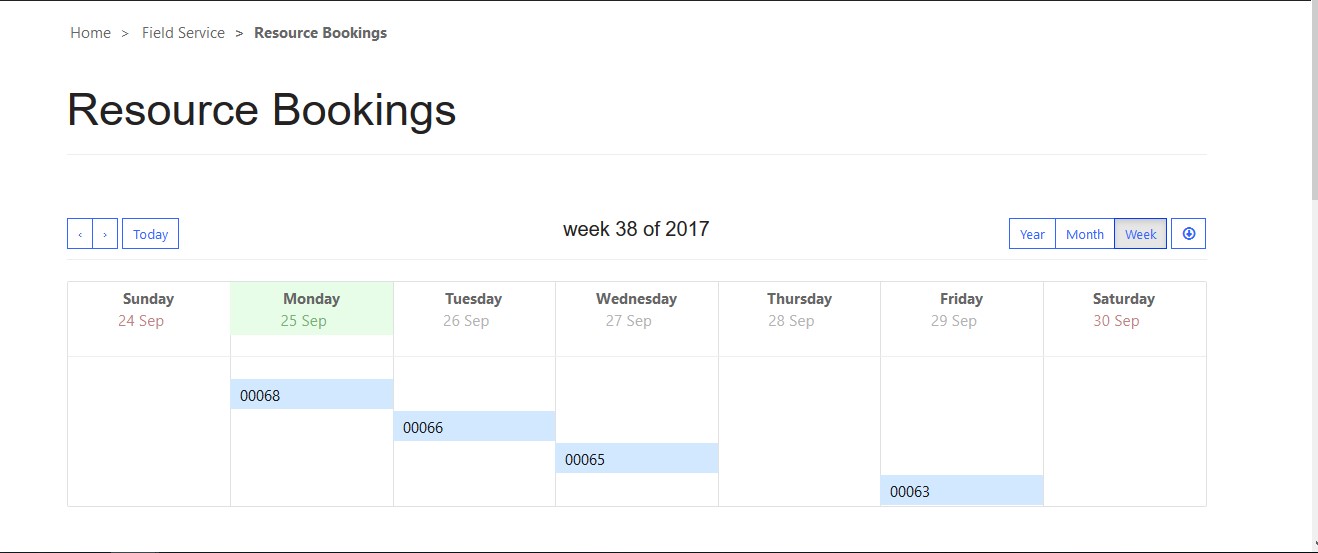
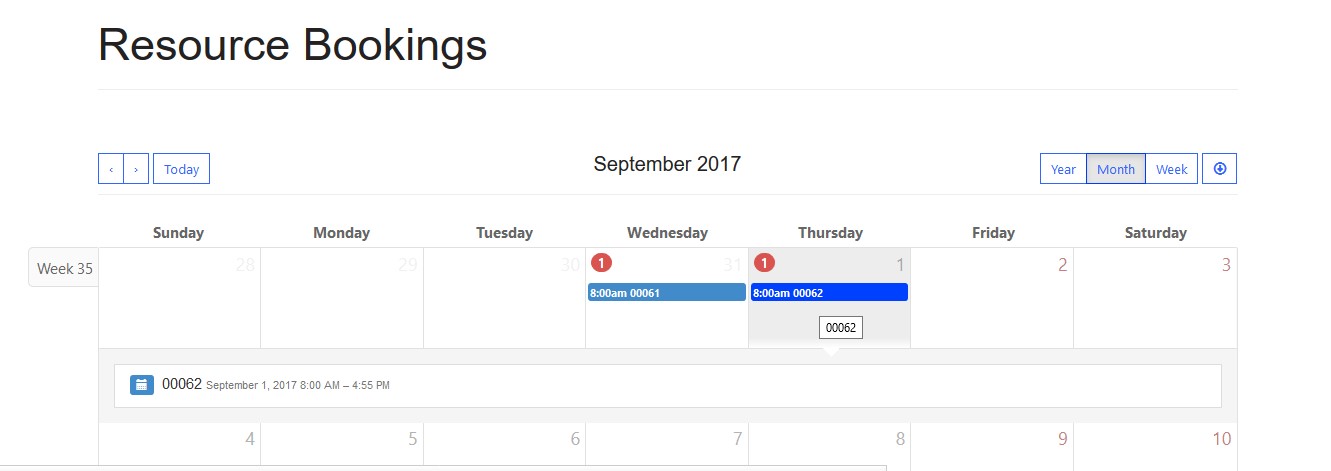
4. After creating Web Page for Resource Booking ,Calendar will be shown as below
Note: You can refer blog how to configure Web Page in D365 Online Portals by referring to this link.
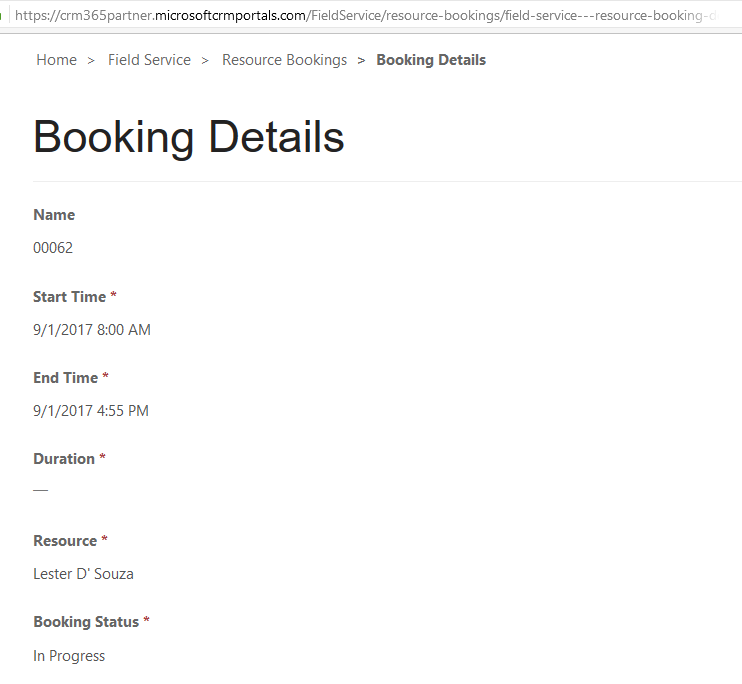
5. Booking Details can be shown as below
Conclusion:
Above description in blog enables configuring Calendars in D365 Online Portals. Default Calendar View depends on the field value of “Initial View” in Settings header of Entity List below is view by Month setting.
The post Resource Bookings as Calendar in D365 Field Service Portal appeared first on CloudFronts - Microsoft Dynamics 365 | Power BI | Azure.
*This post is locked for comments