




 3,111
3,111 Like
Like Share
Share
 Report
Have you every heard about the summary update setup ? Of course there is some tutorials existing here or here.
But I will here go in more details and up to the MSDyn365FO version.
The purpose of this functionality is to gather sales orders in the same document (Confirmation, Picking list, Packing slip, Invoice) according to some criterias.
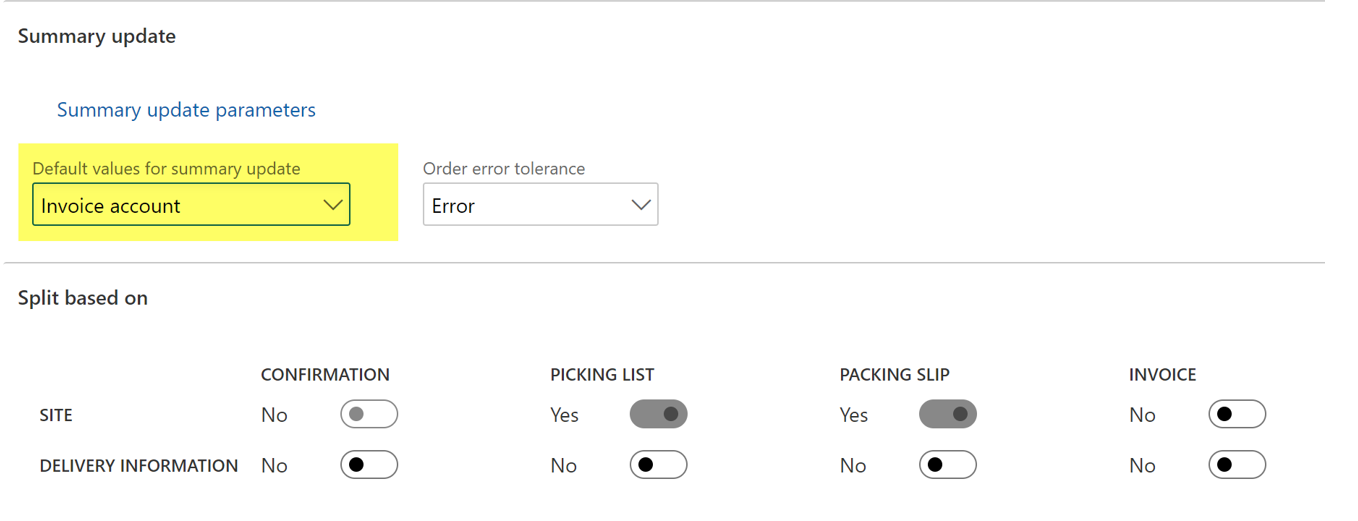
By going under the Accounts receivable parameters and on the Summary update section you will find the setup. You will have 4 values for Default values for summary update.
None
When using None, you won’t be able to gather several sales orders you want to run at the same time. That’s the end of this setup.
Invoice account
When using this value, you will focus only on the invoice process.
So here in the first example, we have 4 sales orders, and only 2 different invoice accounts.

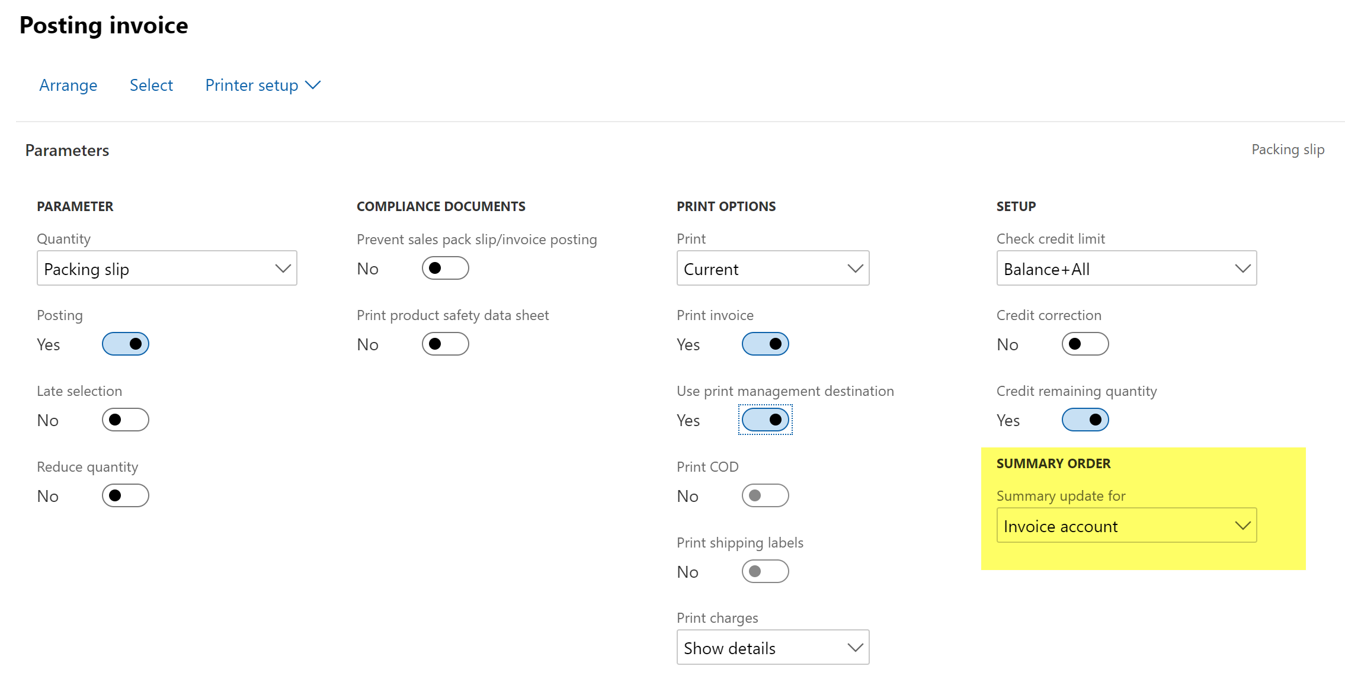
When posting the invoice, the Summary order defaut parameter is setup to invoice account as it has been setup this way in the main parameters.
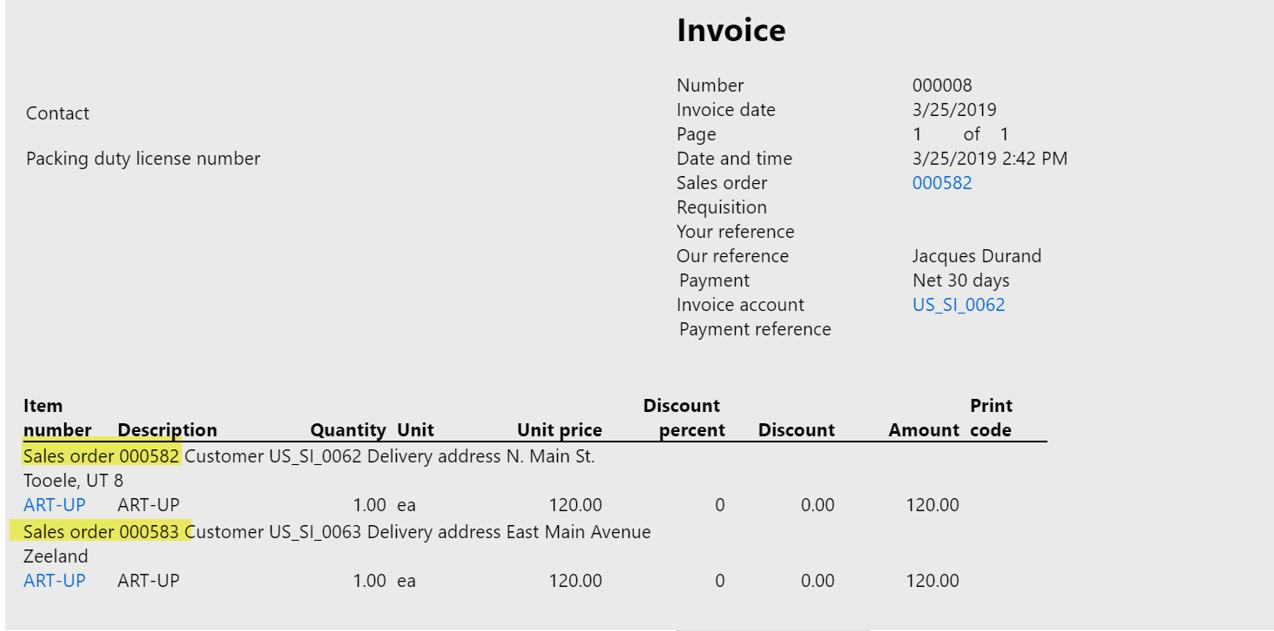
The result is the following : 2 invoices have been generated for gathering the 4 sales orders. That makes sense.
If I had setup the None value for Default values for summary update setup, the same test with 4 sales orders would have generated 4 different invoices.
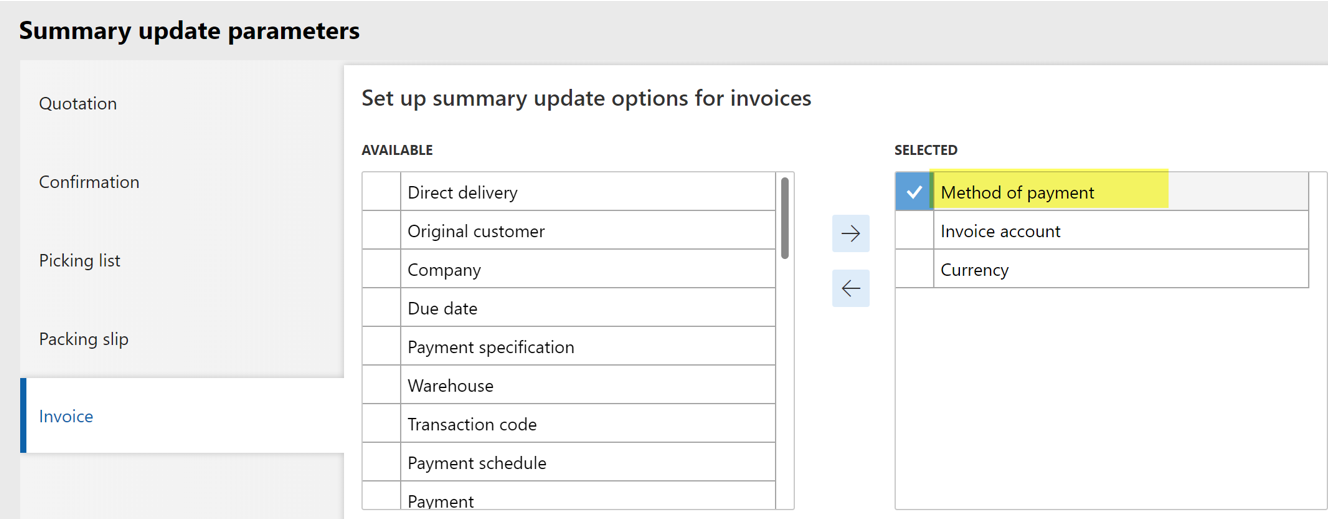
If I go deeper in the Summary update parameter link (under the main parameters in Account Receivable), you will find the default criteria used to gather orders, for each document : Invoice account and Currency. Now I’m adding Method of payment for the Invoice document.
I’m now creating 3 sales orders, and changing the Method of payment for one of them.

It results of 2 invoices : one for the sales orders 95 and 96 and another for the sales order 97.
Last test on Invoice account default values for summary update : I’m ticking the split based on Site for the Invoice as you can see below.
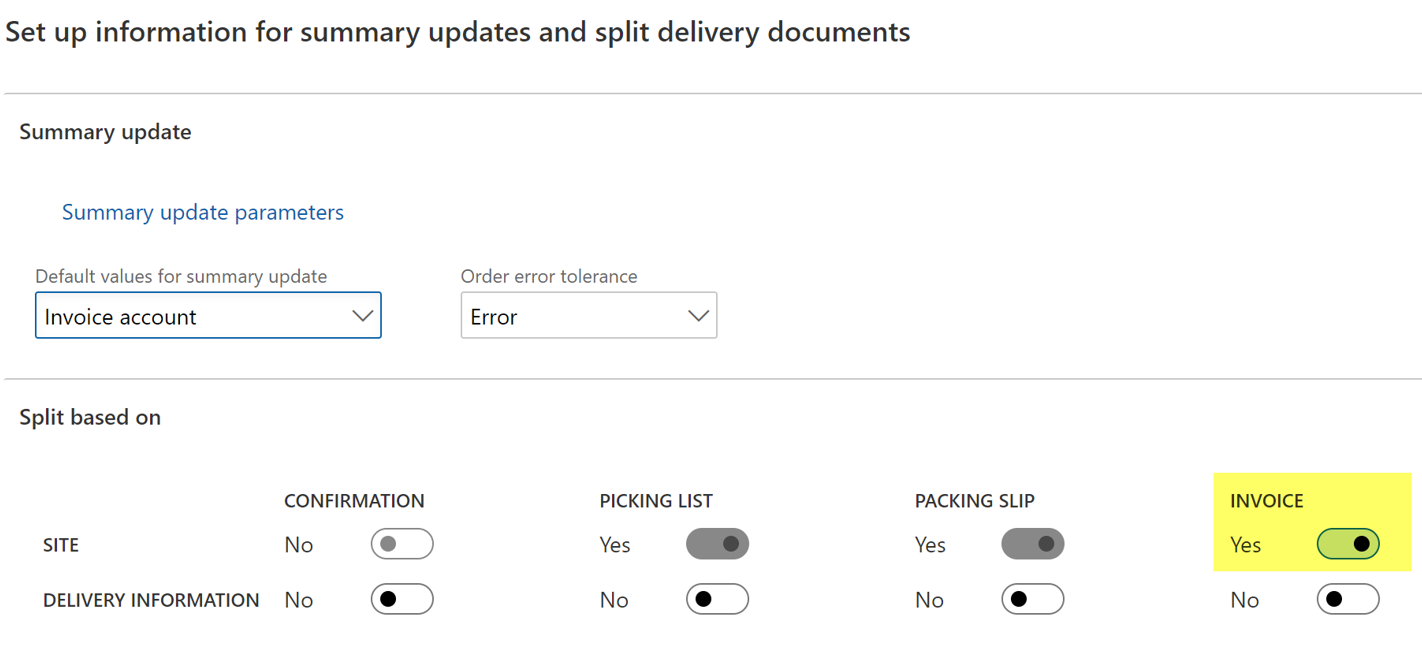
I’m next creating 3 différent sales orders (the same as the previous test). Have a look on the Site.

No suprise here, 3 separate invoices have been generated.
Order
Now let’s focus on the Order setup. Here the Order error tolerance setup plays a role.
In the first test, the tolerance is setup to Error.
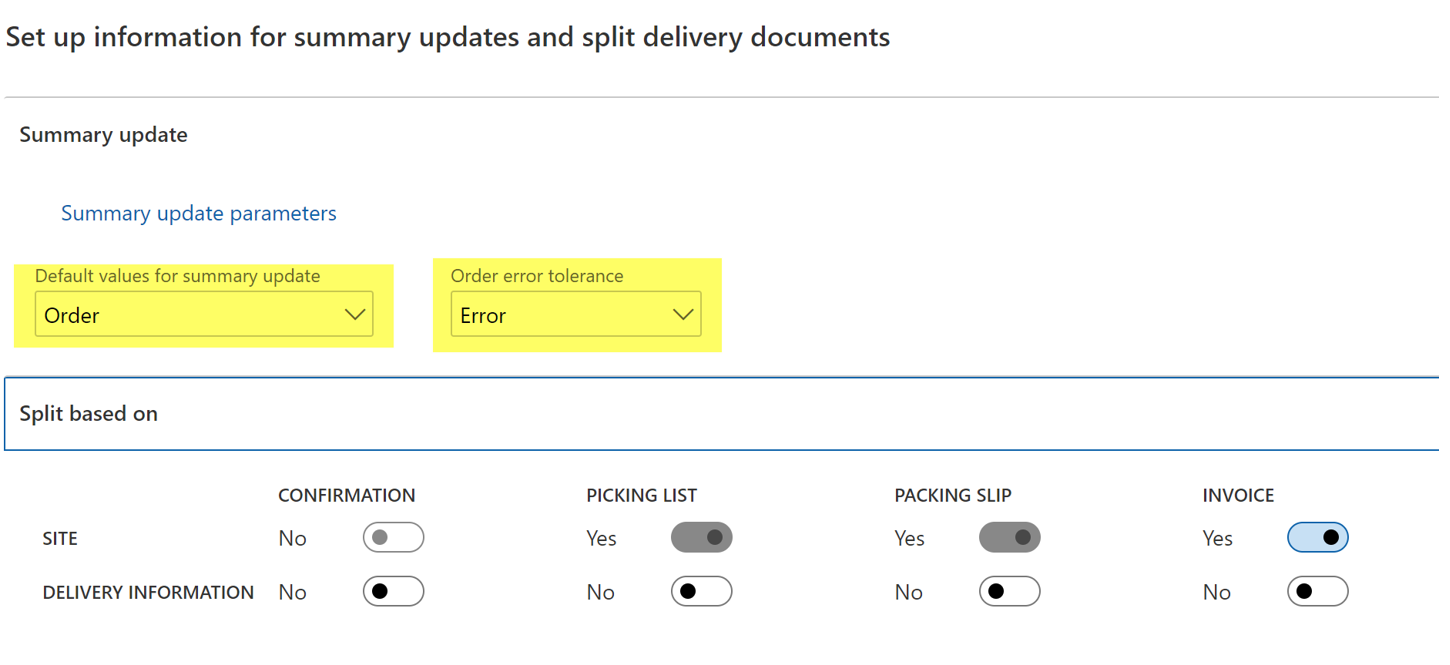
I will use this time a confirmation instead of an invoice generation, but I should have use any of the documents to illustrate it.
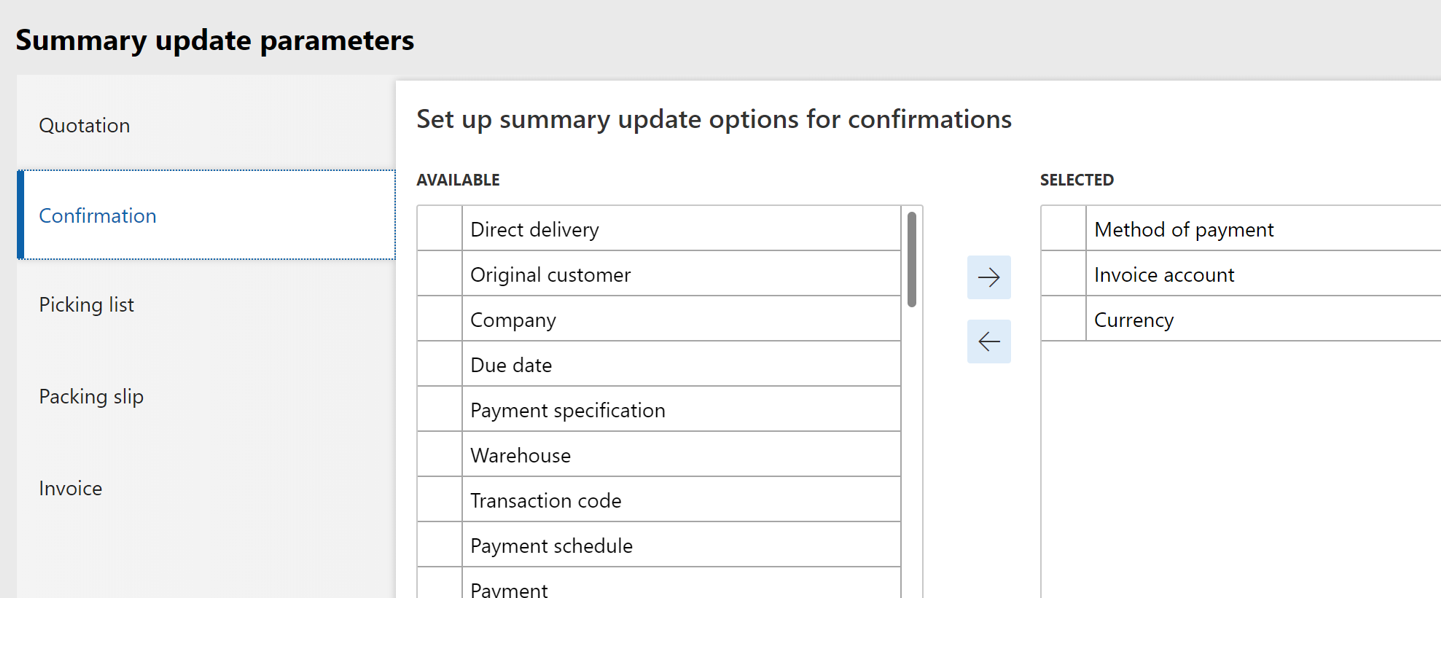
By going in the Summary update parameters, I’ve got this for Confirmation.
Now time to test. I’m creating 4 sales orders, with 2 different invoice accounts and 2 different method of payment.

When running the confirmation, a new area is available : Sales order. You need indeed to select from which order you want to gather the confirmation.
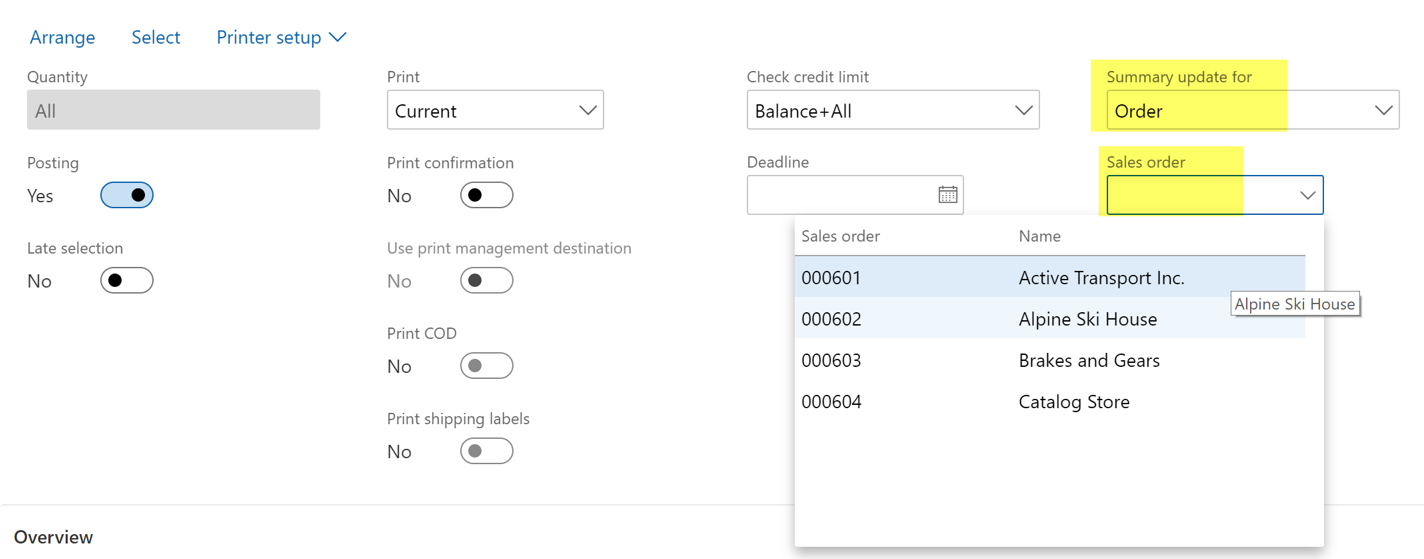
Let’s pick the sales order 601. When posting I’ve got this error message, as the tolerance is setup to error.
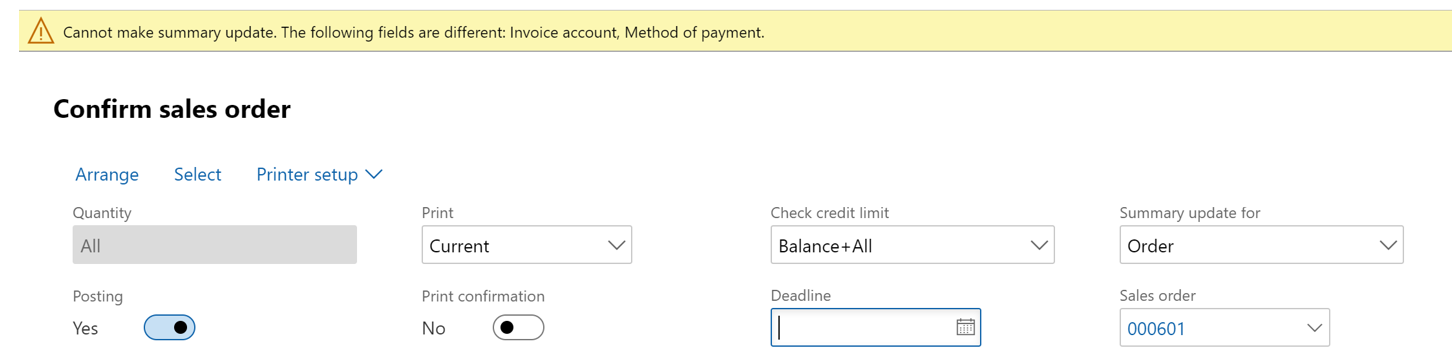
If I’m updating the tolerance to Accept, I’ve got a different error message.

In any case, I couldn’t confirm for 2 different invoice account, no matter the tolerance.
I’m putting back the tolerance to Error, and select only the 2 first orders (with the same invoice account). It works as a charm, the 2 orders are confirmed in the same document.
For the 2 orders left, I’m updating the method of payment to have 2 different values.

Test KO when trying to confirming.
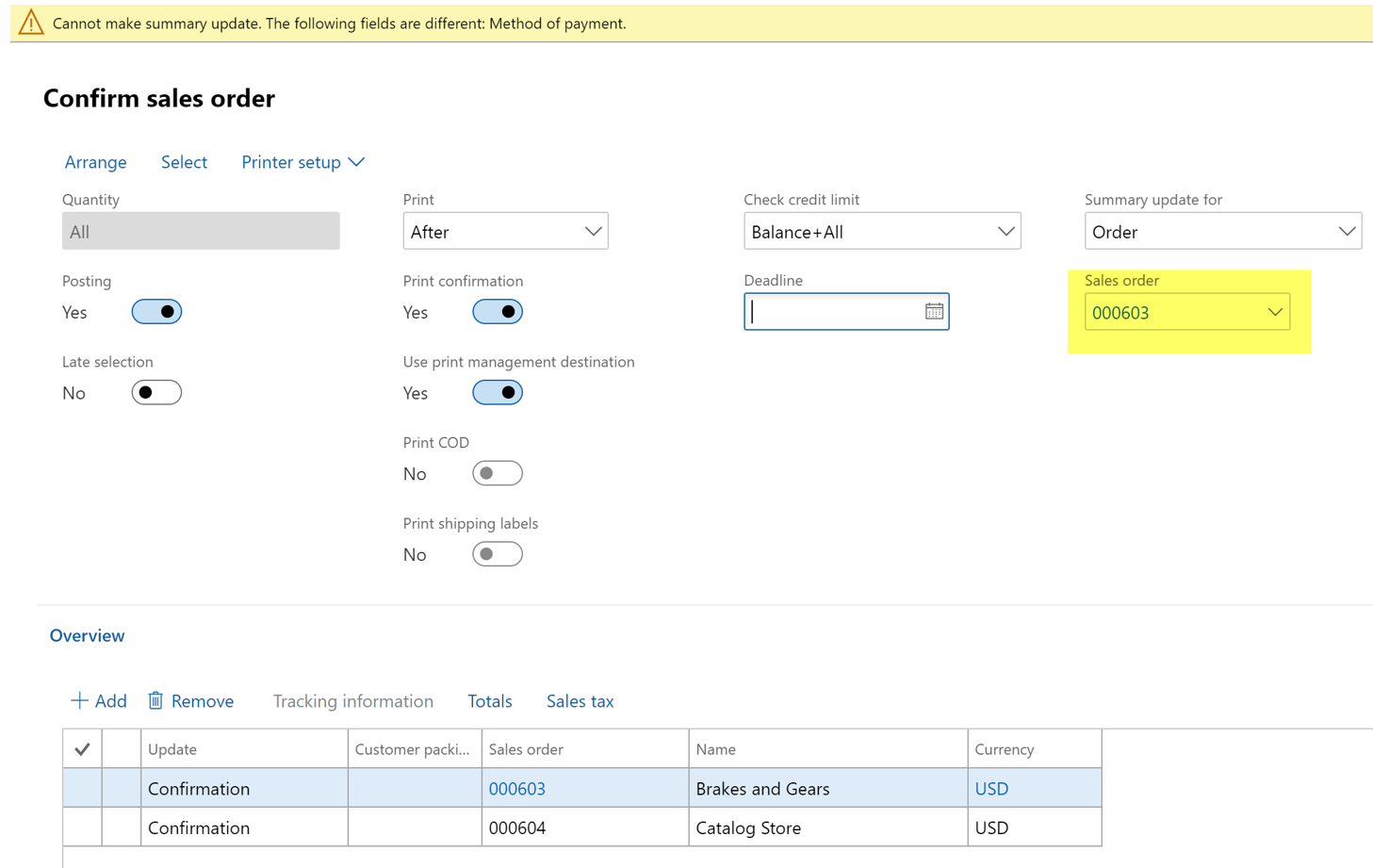
If I’m updating the tolerance to Warning, I’ve got this pop-up message.
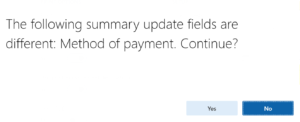
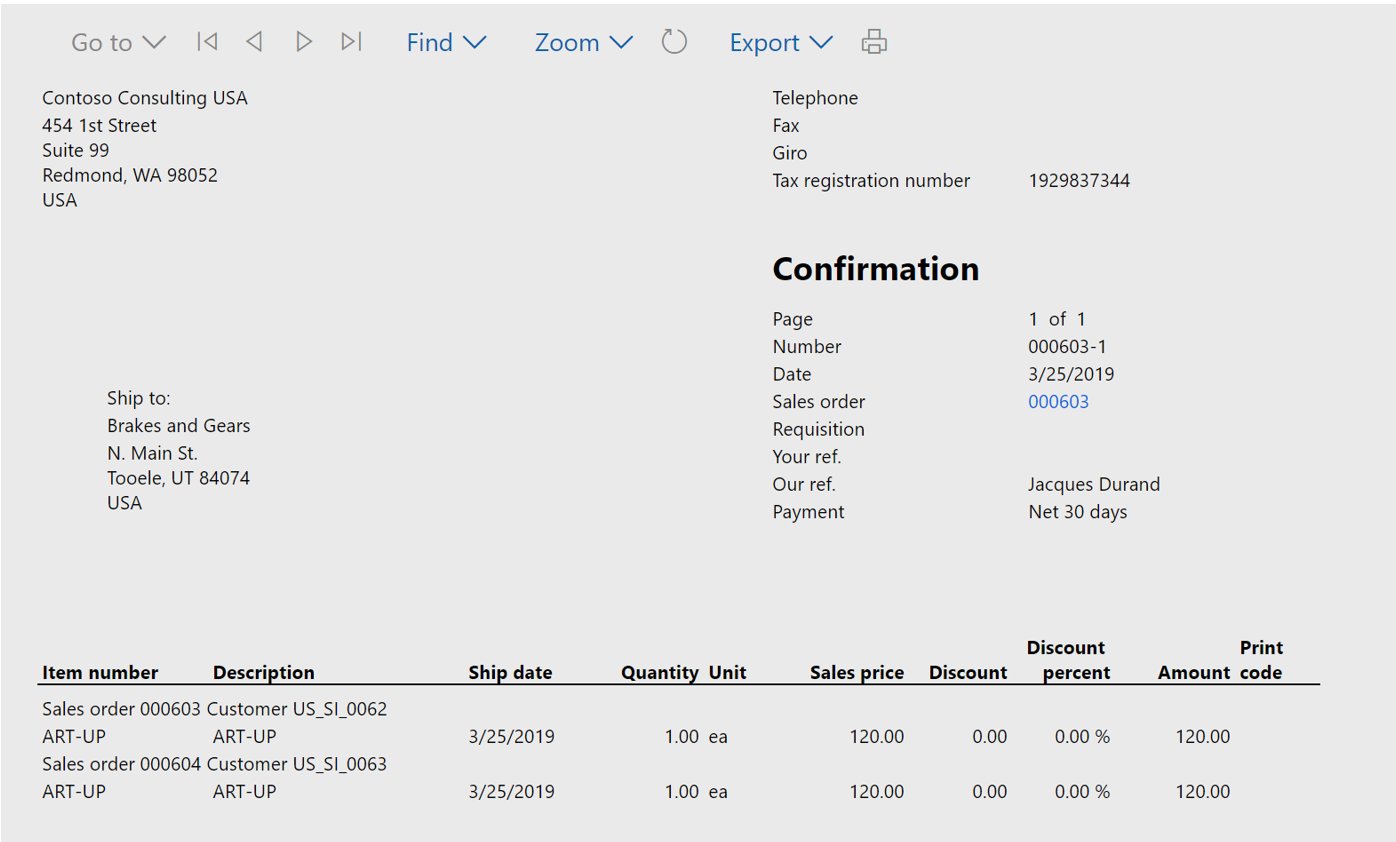
And it works as you can see below.
Automatic summary
Now the final setup, with the Automatic summary value for Default values for summary update.
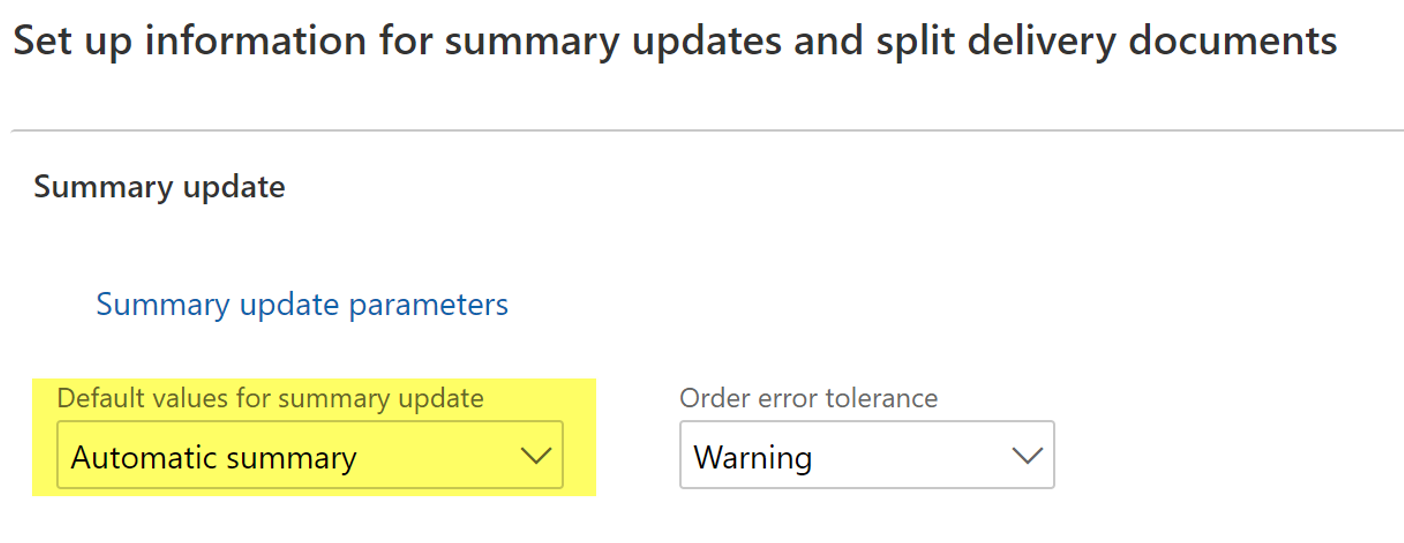
This will gather the orders according to the selected criteria in the Summary update parameters for each document.
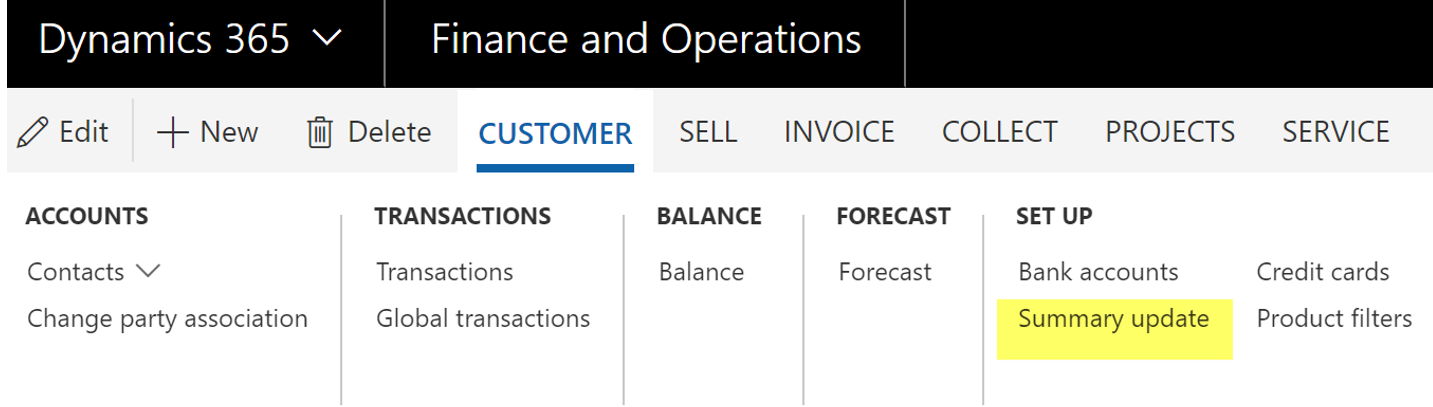
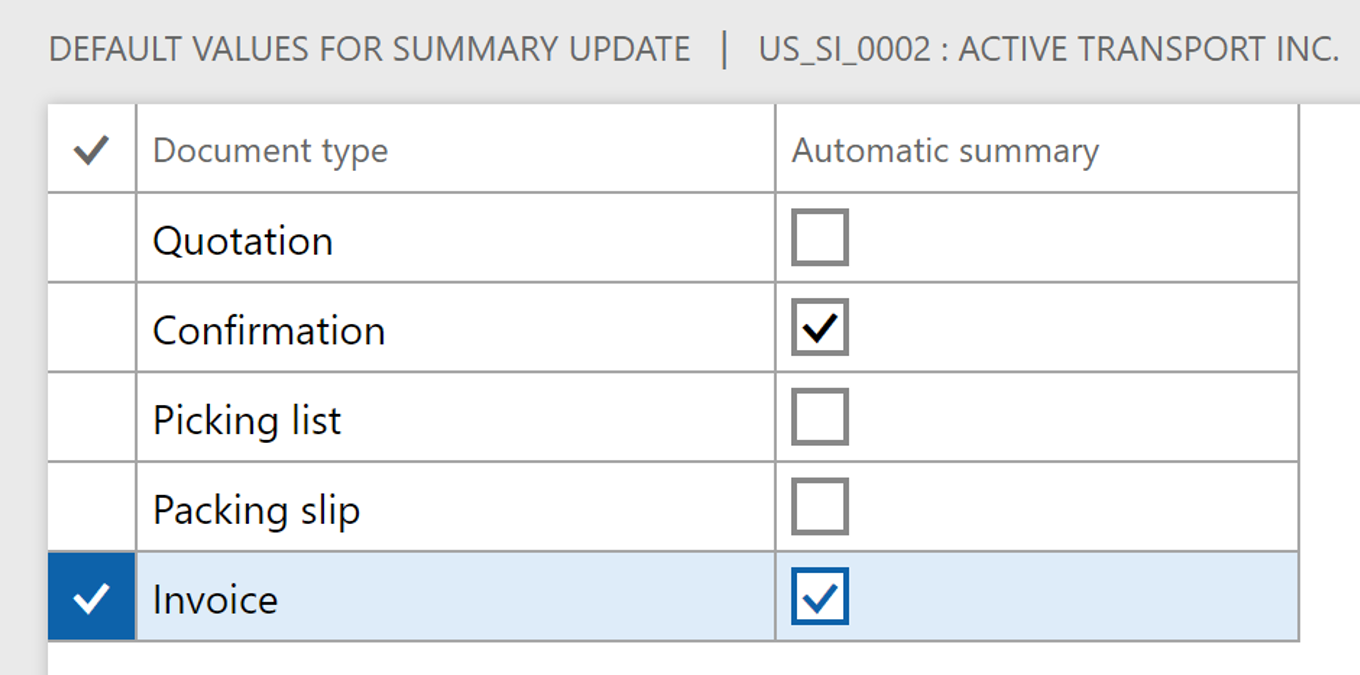
But for making it works, you will need to select which document you want to gather with the automatic summary update on each customer record.
Here I’m choosing the confirmation and invoice, for instance.
I’m running 2 sales orders for this customer.
When confirming, they are gathered on the same confirmation document, according to what I’ve setup for the automatic summary update.
Now I’m testing for 2 different ordered customers (note that I’ve activated Confirmation for Automatic summary for each customer).
Here I’ve got 4 sales orders, as you can see.

And it has been gathered in one document.
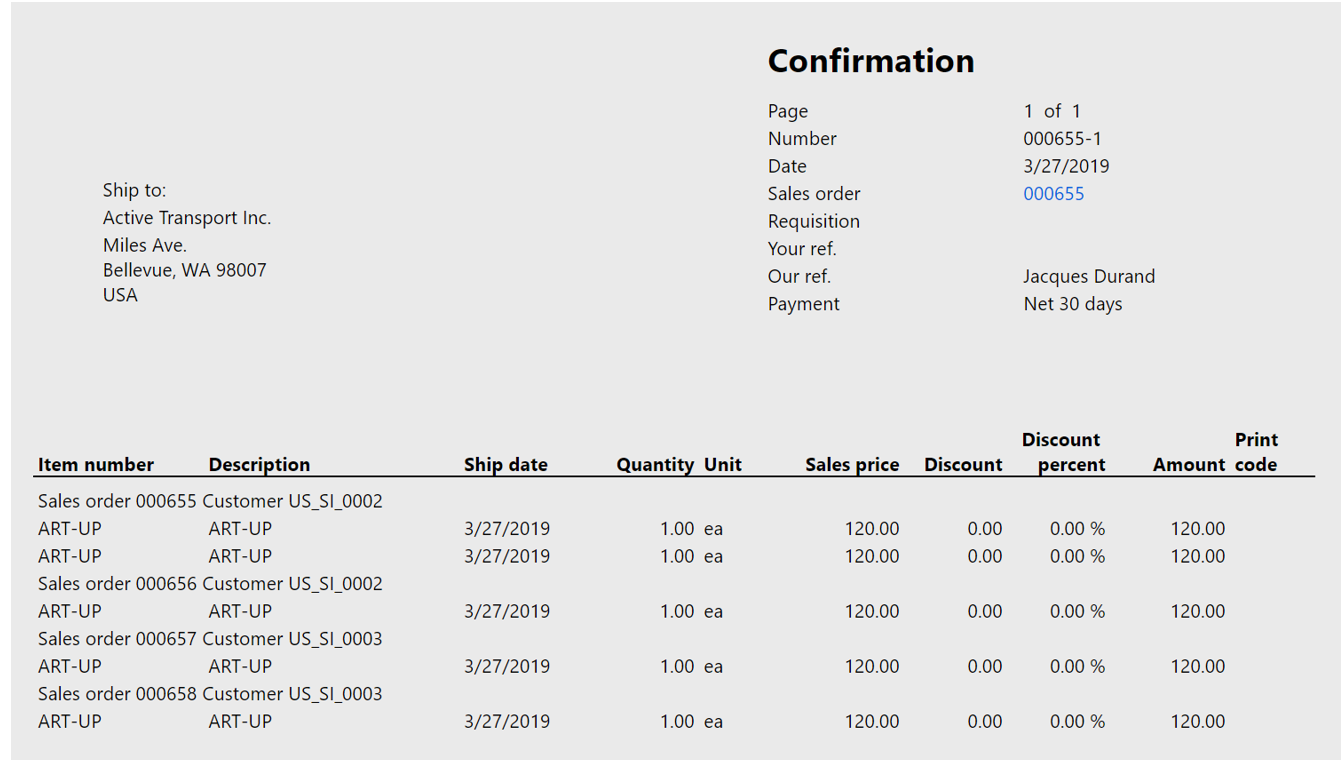
And here, I’ve 4 sales orders and I’ve updated the method of payment of one of them.

With no suprise, only 3 orders are gathered.
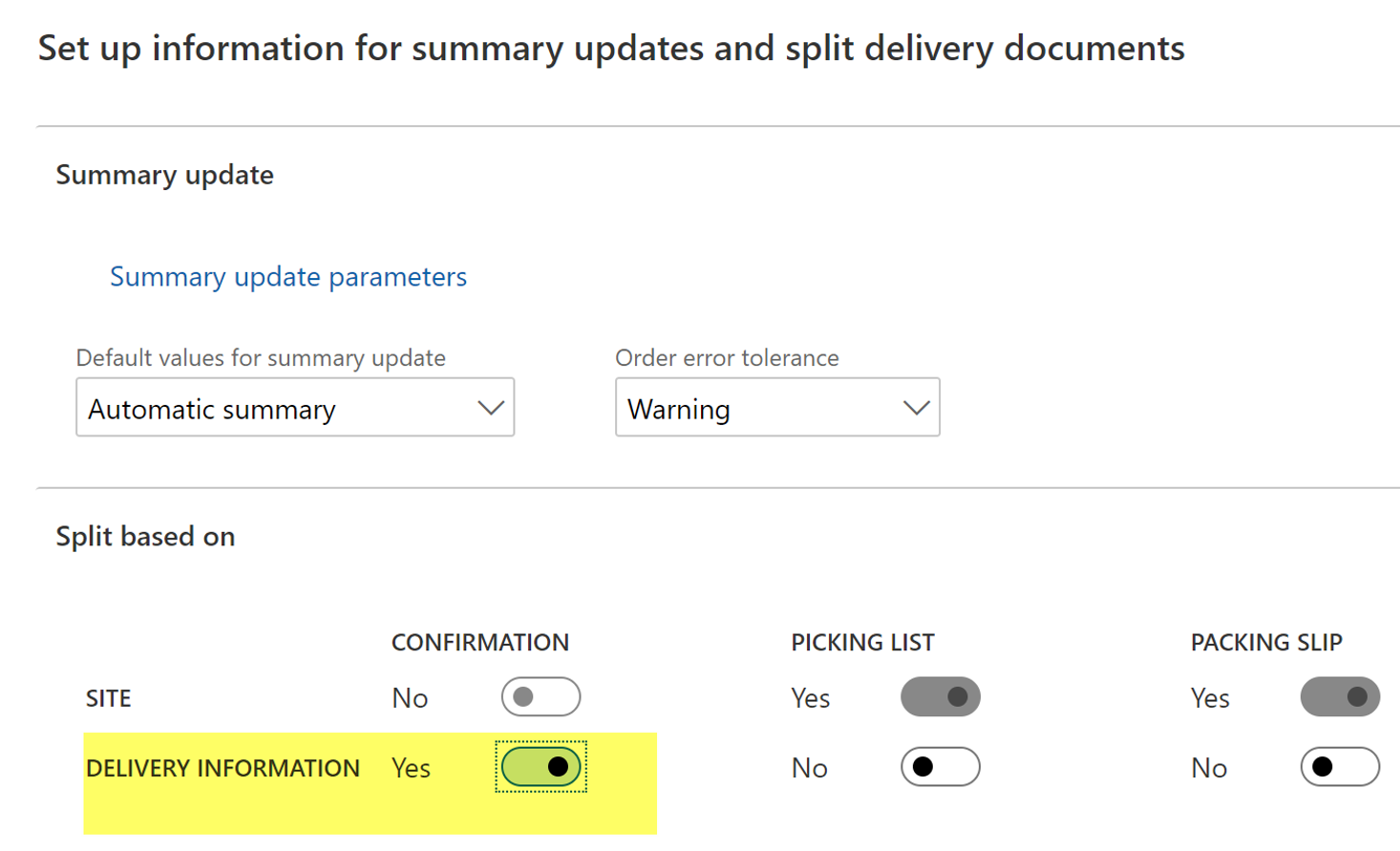
Finally the last test : I’m ticking the Delivery information to Yes for the confirmation.
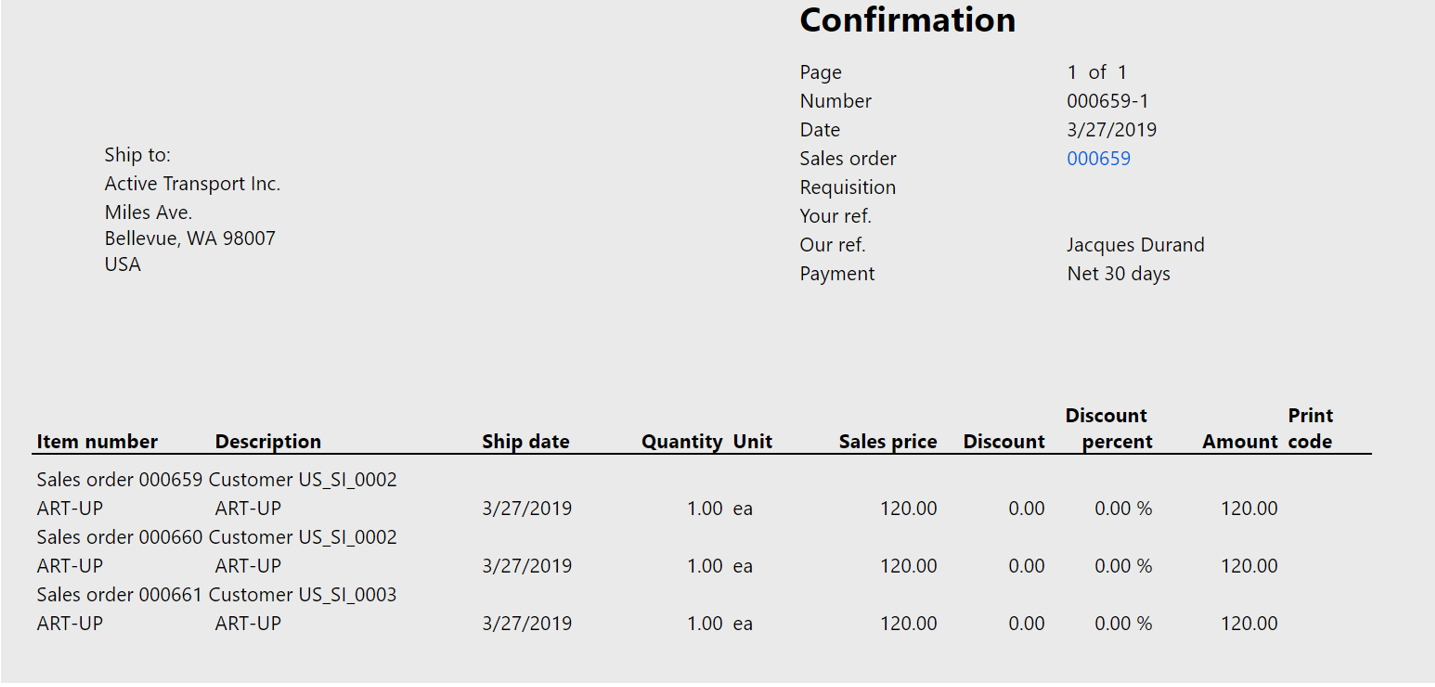
When creating 4 sales orders, the result is the following :
With delivery information checked :
- If I’ve got 2 different order customers (with the same invoice account) with 2 different delivery addresses I will have 2 different confirmation documents.
- If I’ve got 2 different order customers (with the same invoice account) with the same delivery addresses and same other delivery criteria I will have 2 different confirmation documents. MSDyn365FO will split anyway anytime the customer is different no matter the delivery information criteria.
With delivery information unchecked :
- If I’ve got 2 different order customers (with the same invoice account) with 2 different delivery addresses I will have only one confirmation document.
I hope it’s more clear now !
Yohann
L’article Summary update policy explained and detailed est apparu en premier sur D365Tour.
*This post is locked for comments