







Notes attachments in Word Template

 Like
Like Share
Share
 Report
Introduction :
This blog explains how to add notes attachments in word template.
Implementation :
Let say we have word template on the account entity and we want to add attached notes in word template.
Step 1: a. Create record( if no record is there) for an account entity.
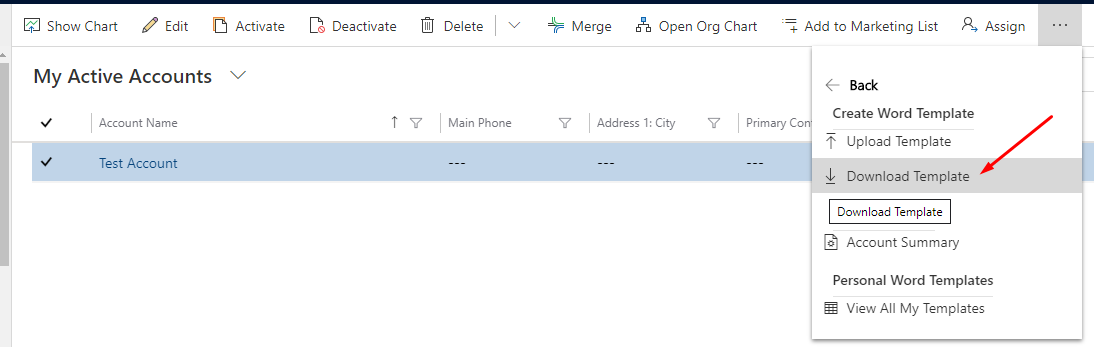
b. Select the record and download the word template.
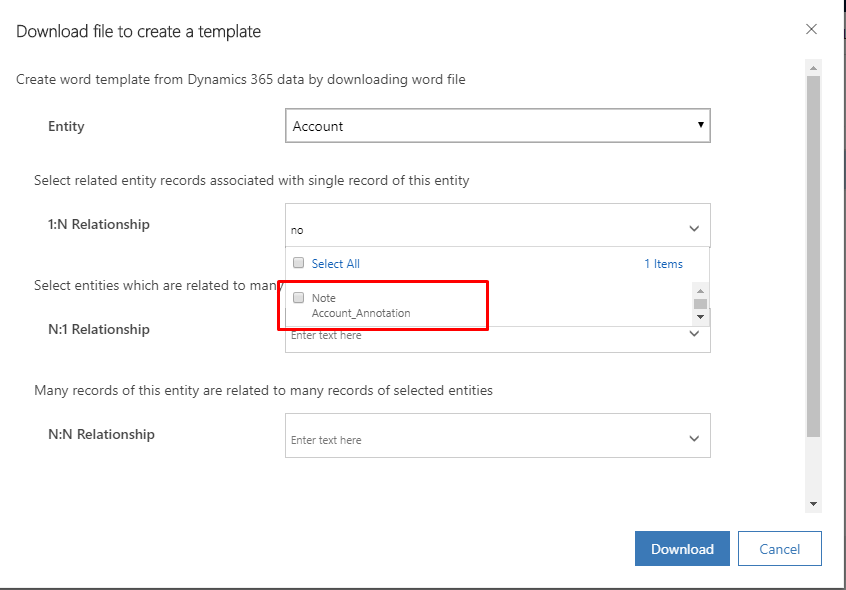
Step 2 : Select notes- annotation(1:N) relationship and Download.
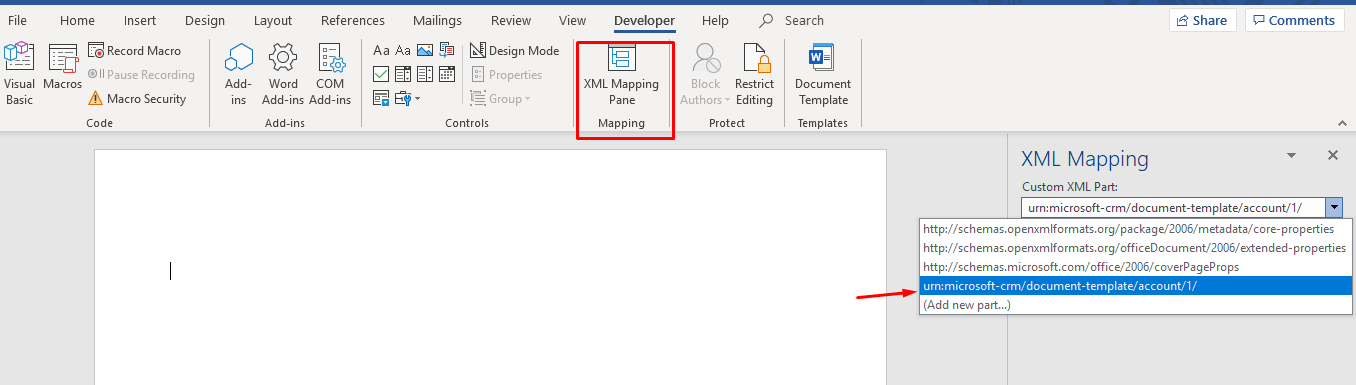
Step 3 : Open Word Template, Navigate to “Developer” ->Select “XML Mapping Pane” -> Select entity .
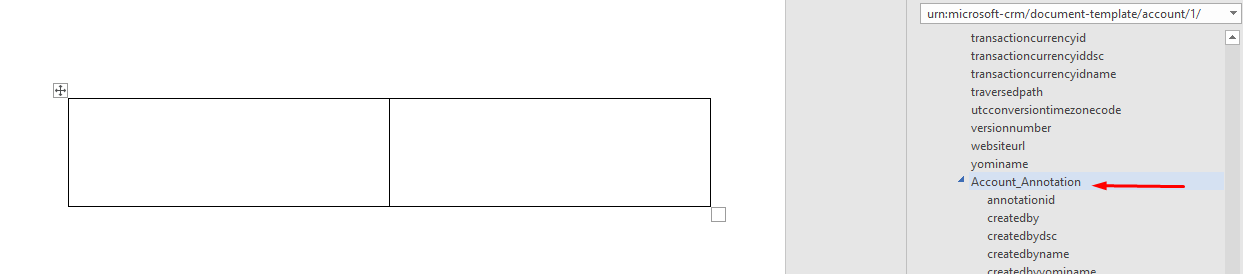
Step 4 : Then insert a table in the template , here inserting 2×1 table.
and then in the XML mapping, go to Account_Annotation relation.
Step 5: Map document body and note text
a. For text in word template, left-click on the note text and select plain text.
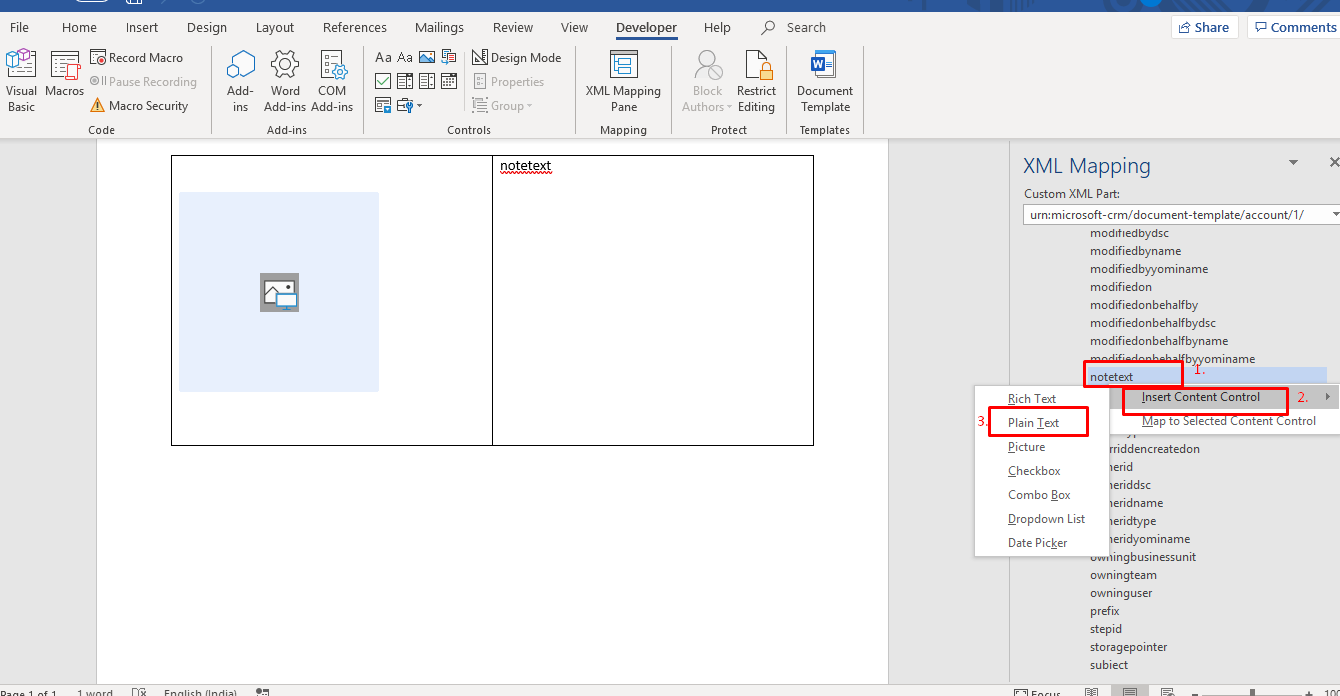
b.For the image in word template, left click on the document body and select Picture.
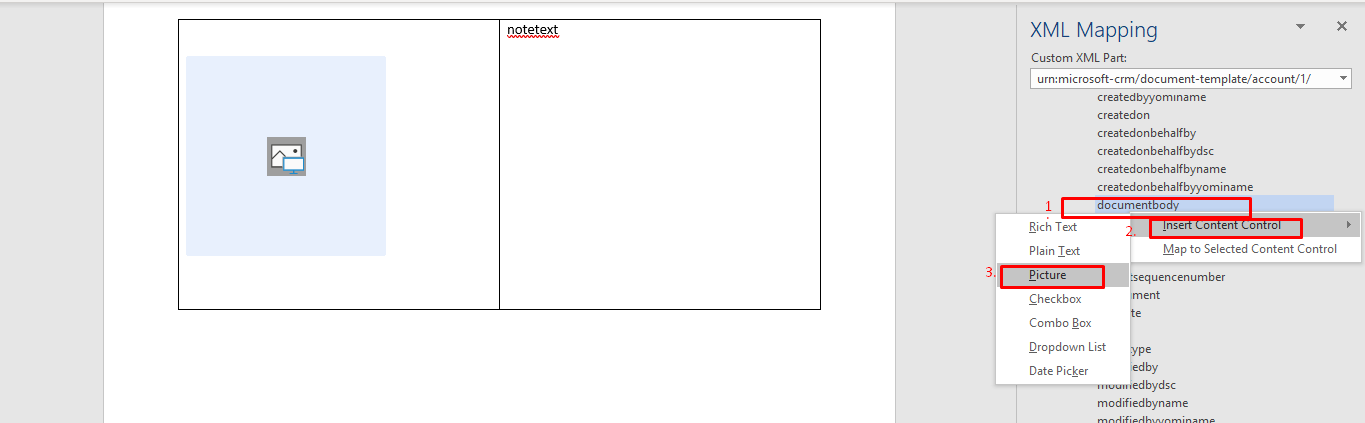
Step 6 : Save and Upload the Template.
To upload the Template –
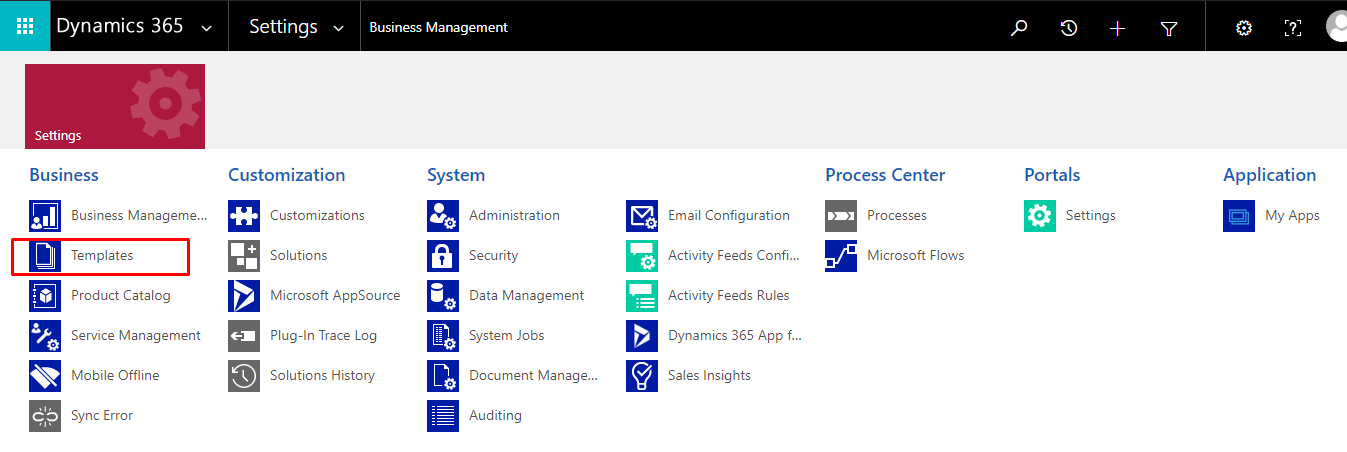
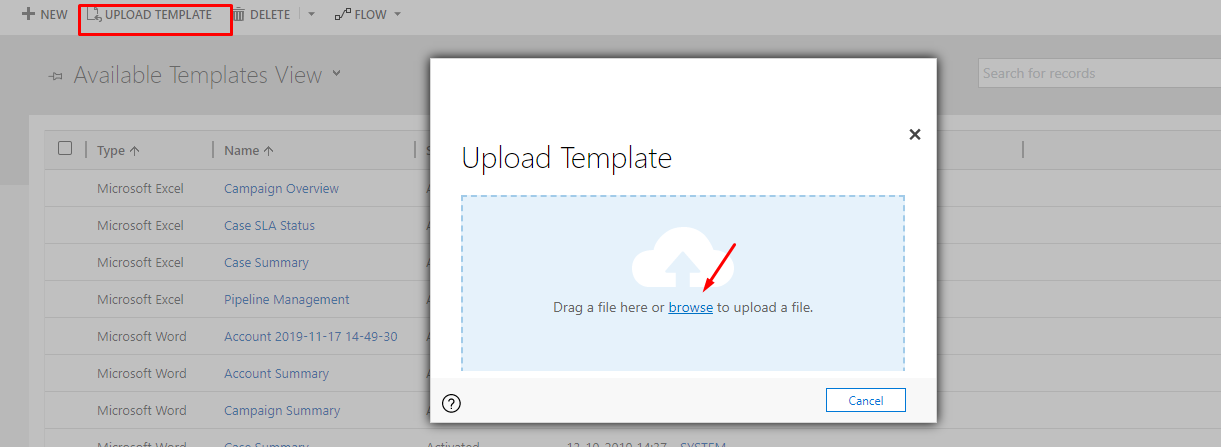
a. Go to advanced settings -> navigate to “Template”.
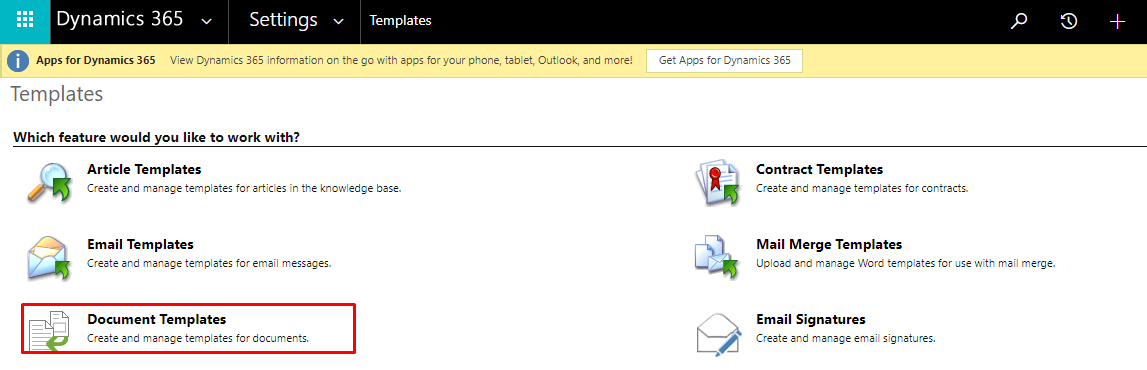
b. In Templates, Select Document Template.
c. In Document Template, click on Upload Template and browse.
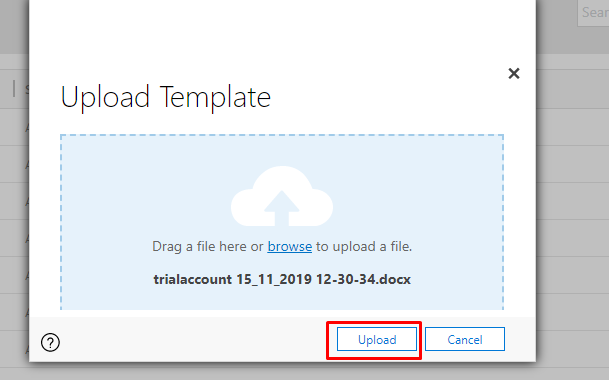
d. Upload.
The post Notes attachments in Word Template appeared first on .
*This post is locked for comments