




 22,315
 Like
Like Share
Share
 Report
In the last blog, we discussed how to delete an environment in Business Central.
In this blog, we will see how to recover a deleted environment and understand what happens during the recovery process.
Deleting an environment does not immediately remove it permanently. Business Central provides a retention window that allows administrators to restore it if needed.
-yyMMddHHmmss
This ensures name uniqueness.
When recovered, the environment does not automatically revert to its original name. You can manually rename it if needed.
However:
Open the Business Central Administration Center.
In the navigation pane, select Environments.
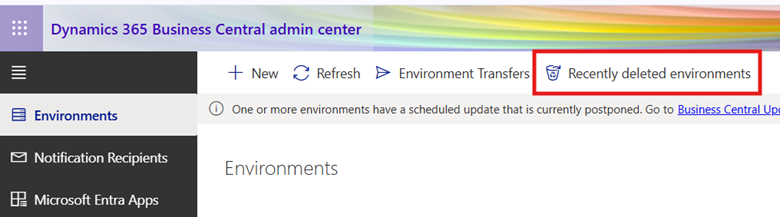
Choose Recently deleted environments.
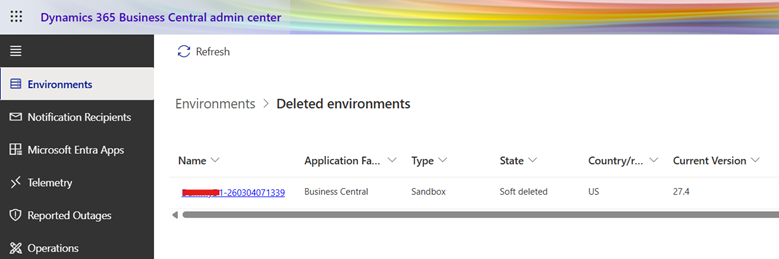
Select the environment you want to recover.
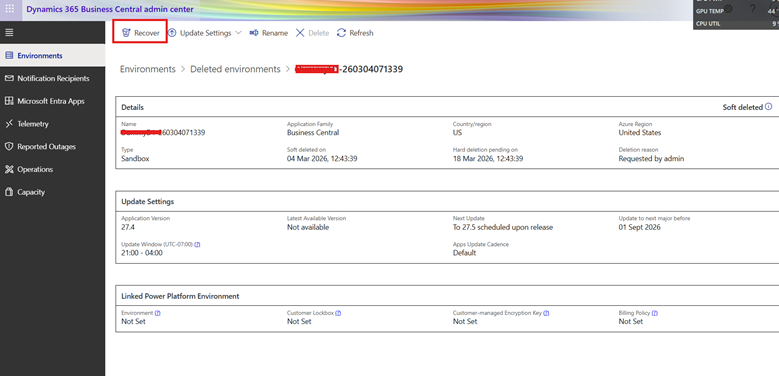
Review environment details.
Optional: Postpone Updates
If there are pending updates and you don’t want them applied during recovery:
The system will restore:
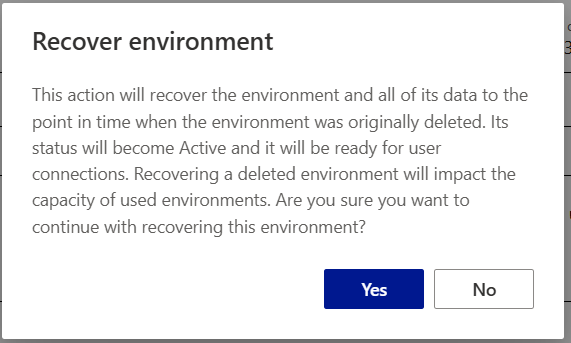
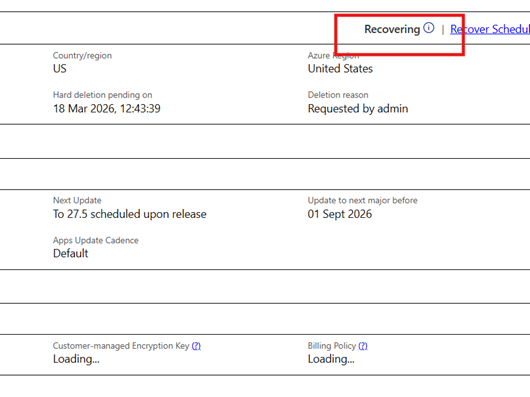
Status Will be changed to the Recovering.
Thanks For Reading…!!
Regards,
Khushbu Rajvi
In this blog, we will see how to recover a deleted environment and understand what happens during the recovery process.
Deleting an environment does not immediately remove it permanently. Business Central provides a retention window that allows administrators to restore it if needed.
Understanding the Recovery Window
When you delete an environment:- It enters a 14-day retention period (Soft Delete).
- During this period, the environment can be fully restored.
- After 14 days, it is permanently deleted (Hard Delete) and cannot be recovered.
Important Things to Know Before Recovery
Automatic Renaming
When deleted, the environment is renamed automatically using this format:-yyMMddHHmmss
This ensures name uniqueness.
When recovered, the environment does not automatically revert to its original name. You can manually rename it if needed.
Updates During Retention
- Soft-deleted environments do not receive updates.
- However, they remain part of the update schedule.
- When you recover the environment, any pending updates scheduled during retention will run as part of the recovery.
- You can reschedule the update before starting recovery.
Environment Quota Exception
You can recover a soft-deleted production environment even if doing so temporarily exceeds your environment quota.However:
- You can exceed the quota by only one extra production environment.
- You must return within your quota within 30 days.
- This is done by deleting another production environment or purchasing additional capacity.
Special Cases
- Environments with status Creating Failed or Removing Failed are permanently deleted immediately and cannot be recovered.
- Environments linked to Power Platform must be unlinked before deletion (and therefore recovery applies only if deletion was successful).
- Early access preview environments deleted due to failed updates cannot be recovered.
Steps to Recover an Environment
Follow these steps in the Business Central Administration Center:Open the Business Central Administration Center.
In the navigation pane, select Environments.
Choose Recently deleted environments.
Select the environment you want to recover.
Review environment details.
Optional: Postpone Updates
If there are pending updates and you don’t want them applied during recovery:
- Select Update Settings
- Choose Set Update Date
- Schedule it for a later time
The system will restore:
- Application data
- Business data
- Configuration
- Extensions and customizations
Status Will be changed to the Recovering.
After Recovery
Once recovery is complete:- Users regain access.
- Any scheduled updates may be applied (if not postponed).
- You may rename the environment if required.
- Validate integrations and extensions.
- Inform users that the environment is available again.
Thanks For Reading…!!
Regards,
Khushbu Rajvi
*This post is locked for comments