




 3,566
3,566 Like
Like Share
Share
 Report
With a large amount of data collected by companies in the system like items, customers, prospects, they need fast and convenient ability to search. For instance, when you are creating the sales order, you have to find the right product/customer from the list. Full-text search is a great way to simplify the search by examining all of the entities (products, customers, prospects) and matching search criteria to what you have typed in.
The objective of this article is to describe how to leverage D365 capabilities for full-text search.
There are several configurations that should be done in order to work with this feature:

Search parameters
Go to Sales and marketing > Setup > Search > Search parameters.

Number of results: the maximum number of records returned for the search
Automatically fill customer search flag: if only one result is found for the customers through the search, that result will be automatically selected.
Automatically fill item search flag: if only one result is found for the items through the search, that result will be automatically selected.
Search type has 2 options:
Partial Match: if search result is partially match, that result will be returned
Full match: only if search result is fully match, that result will be returned
Select Yes in the Automatically fill customer search field.
Select Yes in the Automatically fill item search field.
Select Yes in the Enable lookup for product search field.
Click Save.
Search criteria
Go to Sales and marketing > Setup > Search > Search criteria.
This setup is used to set the fields (one or multiple) which you will be using for in-line search.
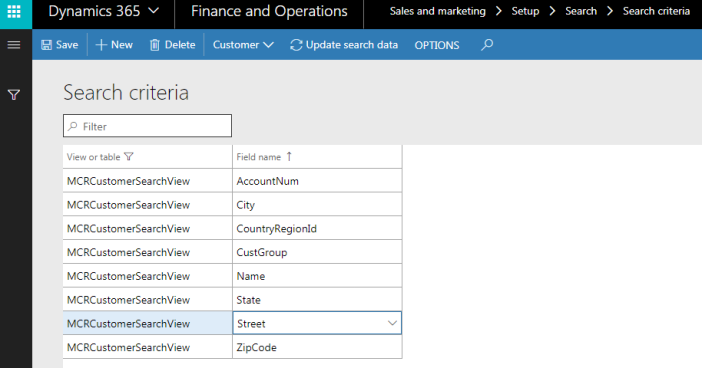
There are three entities where you can configure the search criteria:
- Customer
- Product
- Prospect

Click Product to view product search criteria.

It’s predefined search criteria for usmf demo data. We are going to add additional criteria to search products by vendor account.
Click New.
In the Field name field select PrimaryVendorId value.

We will be searching products by Vendor account that is set on the product.
Click Update search data button to update view.
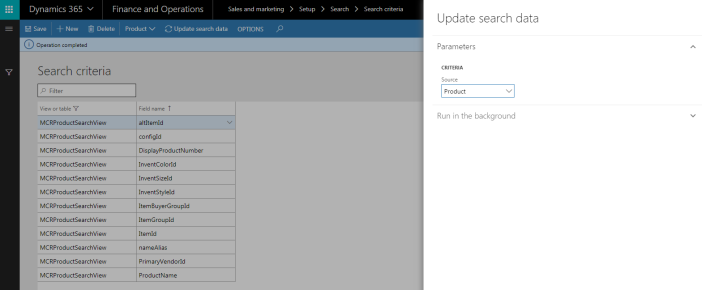
In the Search criteria page, click Customer.
You will see the list of fields that already part of the search engine for customers search.
Click New.
In the Field name field select VATNum value. We will be searching customers by VAT number that is set on the customer.

Do not forget to Refresh search view, once you have completed configuration by clicking Update search data button.

Let’s configure our test data.
We will set specific VAT number on the customer and Vendor on the product.
Go to Customer and make sure that VAT is set.

Go to Product and make sure that Vendor is set.

Walkthrough:
Go to Sales and marketing > Sales orders > All sales orders.
Click New.
In the Search by field there is Keyword option. This option uses full text search engine. All other options just search customers by particular value (like by phone number, customer name etc.).
In this field customers search criteria are used.
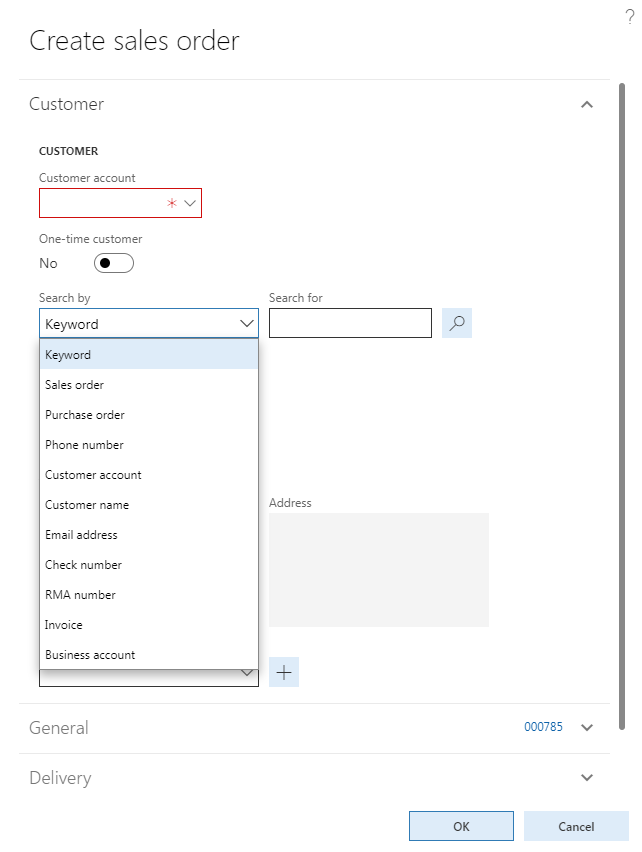
Type in VAT number that we set for the customer.

Click Search icon.

You will notice that Customer account is populated automatically.
Since there is only 1 match (only 1 customer with this VAT number), it’s get populated automatically (Automatically fill customer search flag is set to yes in the parameters)
Let’s type in another text that you would like to start searching on.

Click Search icon.
The list of matched customers will open.

Let’s start reviewing item search.
Go to the sales line detail section.
In the Item number field, type a value.
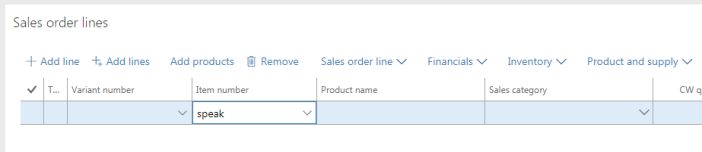
If there is not an exact match on the fields that you are searching on, then the Item Search dialog will be displayed showing you all of the matches.
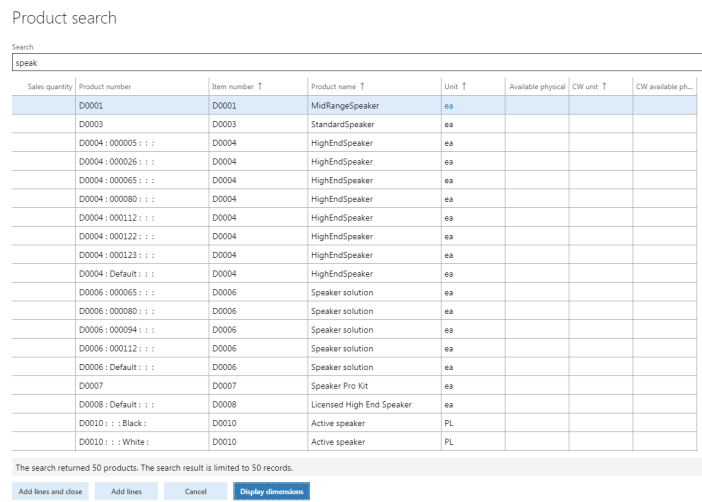
You can notice that search results are limited by Number of results set on the Search parameters. In our case it’s 50 records.
You can further refine the search until you find the product that you want. We have added primary vendor id into our search criteria, so add US-101 vendor into search and watch out the result.

You can add the found product to the order line by typing in a Sales Quantity and then clicking the Create button.

Refresh the Sales order page.

That’s all!
*This post is locked for comments