







Outlook Integration with Field Service for Dynamics 365
Views (4494)

 Like
Like Share
Share
 Report
Introduction:
This blog explains how to configure work order bookings for Field technicians who need them to show in Outlook calendar
Prerequisites:
1. Dynamics 365 Field Service licenses
2. Office 365 Enterprise E3 licenses
Configuration:
Enable and Test email mailbox for relevant Users is successful.
Working:
Below are steps for setting up Outlook Integration with Field Service to set this up in the system
- Login to Dynamics 365 Field Service environment as a “Administrator”.
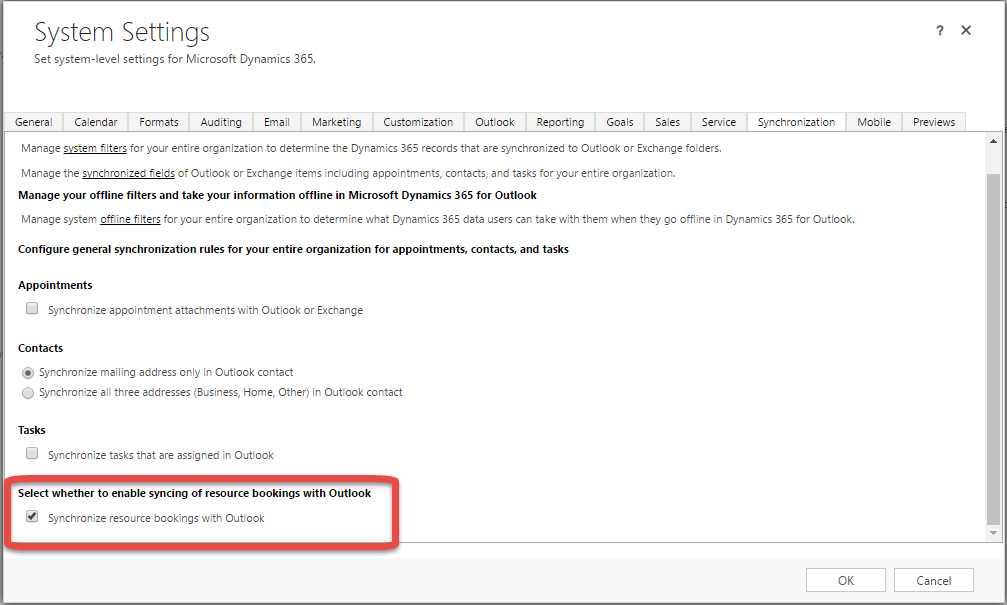
- Next, go to Settings > Administration > System Settings > Synchronization and check Synchronize resource bookings with Outlook.
- Login to Dynamics 365 Field Service environment as a “Technician”.
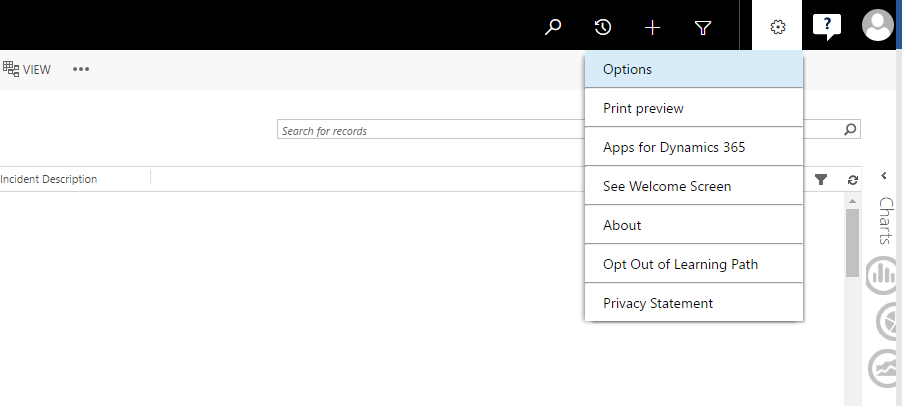
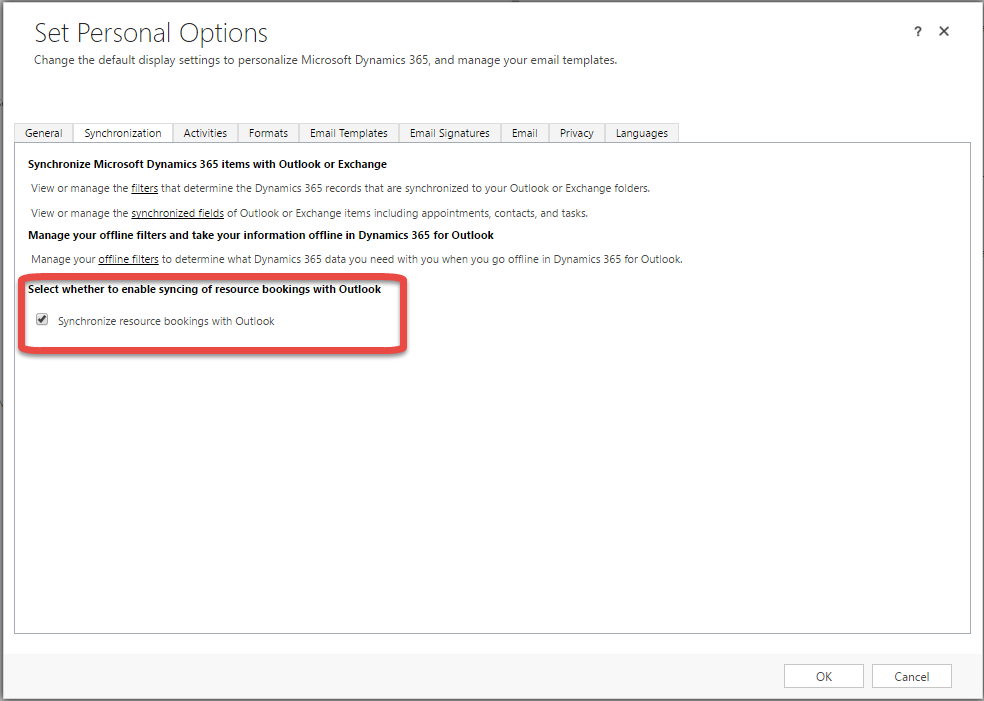
- Navigate to Options > Synchronization.
And check Synchronize resource bookings with Outlook.
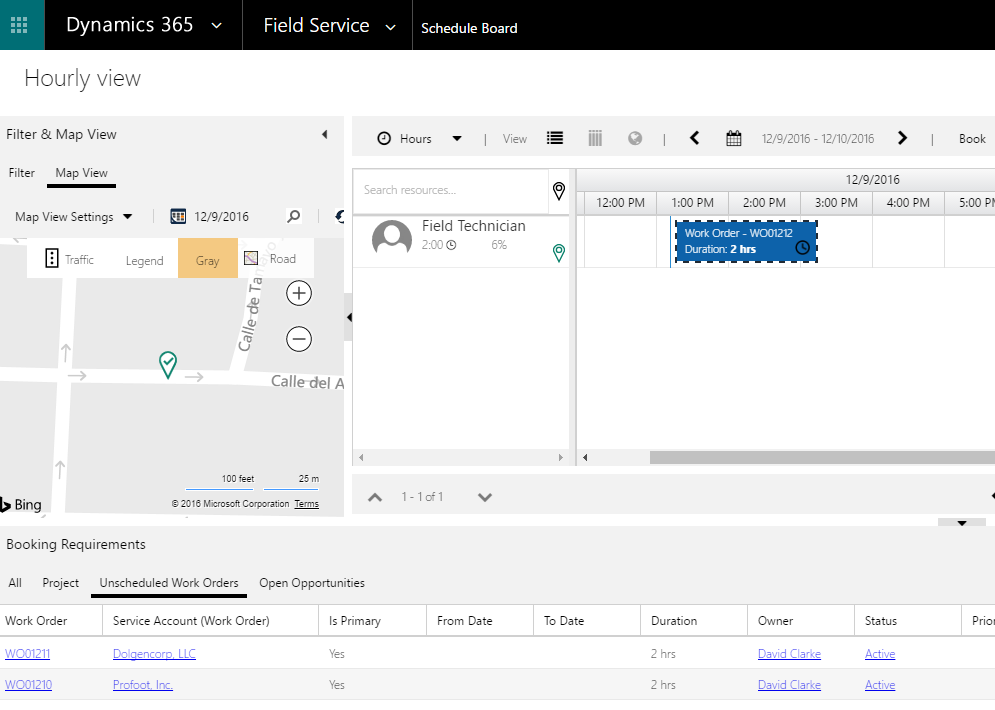
- Login to Dynamics 365 Field Service environment as a “Administrator” and schedule a Work Order to Technician.
- Login into Outlook with the User related to that “Field technician”.
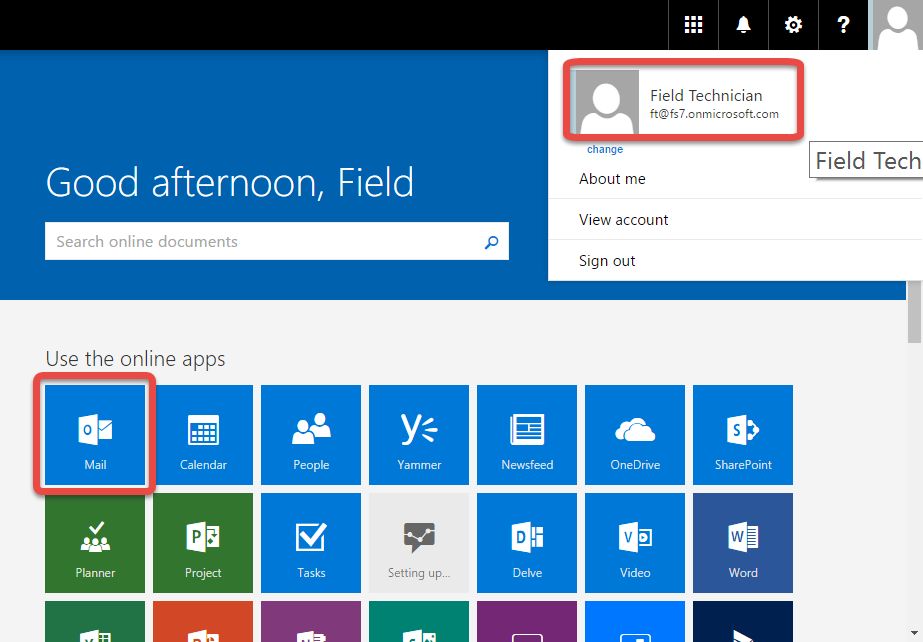
- Open Calendar and booking is shown as below.
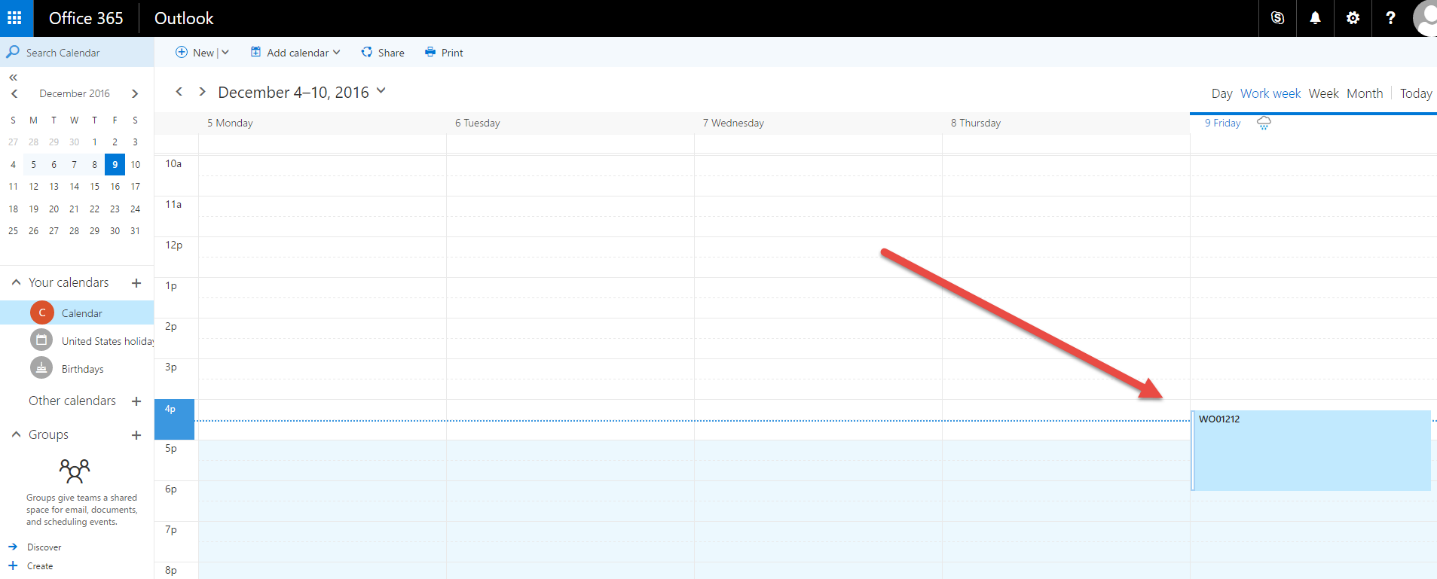
Note: The Booking may take 10+ minutes to show in Outlook. This is because it is an asynchronous service.
The post Outlook Integration with Field Service for Dynamics 365 appeared first on CloudFronts - Microsoft Dynamics 365 | Power BI | Azure.
*This post is locked for comments