




 884
884 Like
Like Share
Share
 Report
Hi All,
Greetings!
Welcome to the world of D365F&O, the update is (Sorry for getting a bit late though) that now we have one separate stand-alone Tax module in Dynamic 365 Finance and Operation. This module will cover VAT and WTH. These taxes are calculated and documented during purchase and sales transactions. Periodically, they must be reported and paid to tax authorities.
Below is the SS for the new Tax module. It covers the basic setups and configurations, inquiries, and reports
Step By Step | Pre-Requisite Setups and Configurations
We need to perform the setup and configuration for the Tax module based on the below-mentioned flow chart
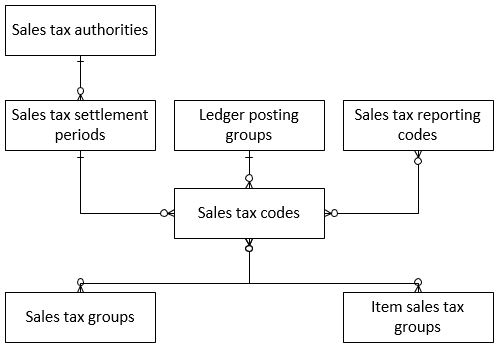
Sale Tax Authority: A sales tax authority represents the entity that sales tax is reported and paid to. It also defines the layout for the sales tax report. Sales tax authorities can be related to vendor accounts.
Sales Tax Settlement Period: Sales tax settlement periods define the intervals at which sales tax must be reported and paid to the sales tax authority. Every sales tax settlement period must be assigned to a sales tax authority.
Ledger Posting Group: A ledger posting group specifies the main accounts that amount for the sales tax codes will be posted to. Create GL accounts for the following
- VAT Tax payable account
- VAT Tax receivable account
Sales Tax Code: For every sales tax that a company must account for, a sales tax code must be defined. A sales tax code stores the tax rates and calculation rules for the sales tax. Every sales tax code must also be linked to a ledger posting group.
Every sales tax code must be linked to a sales tax settlement period.
|
DXB-EXT |
SHR-EXT |
ABD-EXT |
ALN-EXT |
RAK-EXT |
AJM-EXT |
UAQ-EXT |
FJR-EXT |
LNR-EXT |
|
DXB-STD |
SHR-STD |
ABD-STD |
ALN-STD |
RAK-STD |
AJM-STD |
UAQ-STD |
FJR-STD |
LNR-STD |
|
DXB-ZRO |
SHR-ZRO |
ABD-ZRO |
ALN-ZRO |
RAK-ZRO |
AJM-ZRO |
UAQ-ZRO |
FJR-ZRO |
LNR-ZRO |
Sales Tax Group: All customers and vendors will be linked with sales tax groups, below are the groups which we created that is one for each emirate. The below coding structure will be helpful for creating the VAT return reports.
|
Dubai |
Sharjah |
Abudabi |
Al ain |
Rasul khaimah |
Ajman |
Umul quain |
Fujairah |
Local Non registered |
|
DXB |
SHR |
ABD |
ALN |
RAK |
AJM |
UAQ |
FJR |
LNR |
Item Sales Tax Group: Item sales tax group will be linked to the item master.
|
Name |
CODE |
|
Exempt |
EXT |
|
Standard |
STD |
|
Zero |
ZRO |
Create Purchase order
- Create the purchase order for the vendor which is already linked with sales tax group (DXB)
- Select the item (Mobile) which is linked with item sales tax group (STD)
- Once the vendor and item selected for the purchase order, the system will automatically pick the default sales tax group(DXB) and item sales tax group(STD) in the purchase order lines
After the purchase order is confirmed, the system will calculate the purchase order sales tax, below is the SS for the sales tax transaction. Once the purchase order is invoiced, the system will post the sales tax amount in VAT receivable account
Purchase Order Reverse Charge Mechanism(RCG)
What is the Reverse Charge Mechanism(RCM)?
RCM Applied: RCM is applicable when imports are made from outside UAE and Vendor is from another country, which may or may not have a business in UAE.
RCM Not Applied: If all purchases are made locally, the reverse charge is not applicable.
Article (48) (1) Reverse Charge
1) If the Taxable Person Imports Concerned Goods or Concerned Services for the purposes of his Business, then he shall be treated as making a Taxable Supply to himself and shall be responsible for all applicable Tax obligations and accounting for Due Tax in respect of these supplies.
- Create the purchase order for Vendor outside UAE, Sales tax group(RCM) must be selected for Vendor
- Select the standard item in purchase order line, item sales tax must be associated with item master.
- Confirm the purchase order, the system will automatically pick the value (+5% and -5%) for RCM defined in the item sales tax codes
- If the item belongs to the standard category, the system will automatically pick the STD code for item sales tax group. Also, the sales tax group will be "RCM" if the Vendor is RCM vendor.
Once the Purchase Order is confirmed, the Sales Tax Transaction will be created for the Reverse Charge Mechanism(RCG). Because of RCM, the net value of VAT receivable account is zero.
Sales Order Creation: Once the sales order is created system will automatically pick the following groups from customer and item master
- Sales tax group from customer master (DXB)
- Item sales tax group from item master (STD)
Once the sales order confirmation is posted, the sales tax transaction will be calculated by the system, below is the SS. Also, generating the invoice for the sales order the system will post the tax amount in VAT payable account.
Free Text Invoice - Fixed Asset Sale: The business user needs to create the free text invoice in order to sale the fixed asset. Select the fixed asset number in the line details section. Also, make sure to select the correct item sales tax group. The sales tax group will be selected automatically(Default from customer master)
Before posting the Free Text Invoice, the business user can verify the Sales Tax Transactions
Sales Tax Payments: Run the job for sales tax payments. This job will calculate the sales tax that is due for a given period. The calculations in this form include only the sales tax that has not yet being paid to the sales tax authority.
Tax - Inquiries And Reports: Here are the list of inquiries and reports available in the Tax module
Points To Remember:
- Every transaction that sales tax needs to be calculated and posted for must have a sales tax group and an item sales tax group. Sales tax groups are related to the party (for example, customer or vendor) of the transaction, whereas item sales tax groups are related to the resource (for example, item or procurement category) of the transaction.
- On every transaction (sales/purchase document lines, journals, and so on), you must enter a sales tax group and an item sales tax group to calculate sales tax.
- Default groups are specified in master data (for example, customer, vendor, item, and procurement category), but you can manually change the groups on a transaction if you must.
- On every transaction, you can look up the calculated sales tax by opening the Sales tax transaction page.
In case if you missed the last two parts of the blog series "Let's talk UAE VAT" here are the links
Part I: https://community.dynamics.com/ax/b/microsoftoperationsscmguide/archive/2017/12/25/vat
Part II: https://community.dynamics.com/ax/b/microsoftoperationsscmguide/archive/2017/12/27/let-39-s-talk-uae-vat-reverse-charge-mechanism-part-ii
Feel free to share your valuable feedback
Cheers!
Ali Danish
Microsoft Dynamics D365F&O Consultant
Mobile: +971554912688
*This post is locked for comments