






Power Platform Tool for Visual Studio 2019/2022

 107
107 Like
Like Share
Share
 Report
Power Platform Tool for Visual Studio 2019/2022
We have a new Visual Studio Extension Power Platform Tool.
Creation and deployment of Plugins, Custom Workflows and WebResources is going to be easy and time saving.
This article is going to focus on how to connect to your environment and create your Visual Studio Solution. In a subsequent article I will try to cover on how to Create and deploy your components to your environment.

Installation is straight forward go to
Tools→ Manage Extensions→ Search for Power Platform Tools
You will Need Visual Studio 2019 or later version
Subsciption to Pawer App/Dataverse or trial
.Net Framework 4.6.2
Now we will go over how to create a Project and connect it to your Environment
Open Visual Studio 2019 →New Project
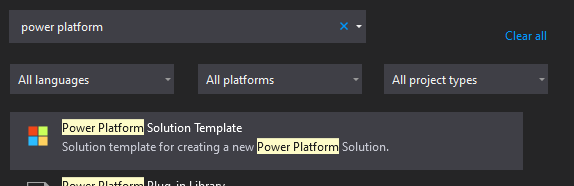
Search for Power Platform Solution Template
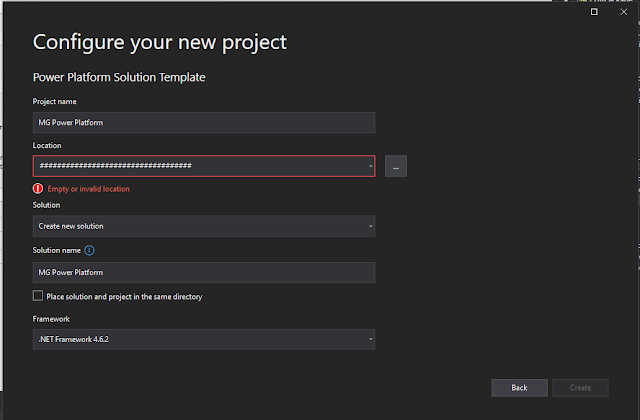
Add Project Name and Location →Create
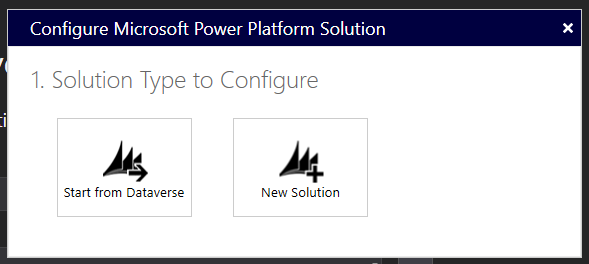
Click on Start from Dataverse to connect to your environment
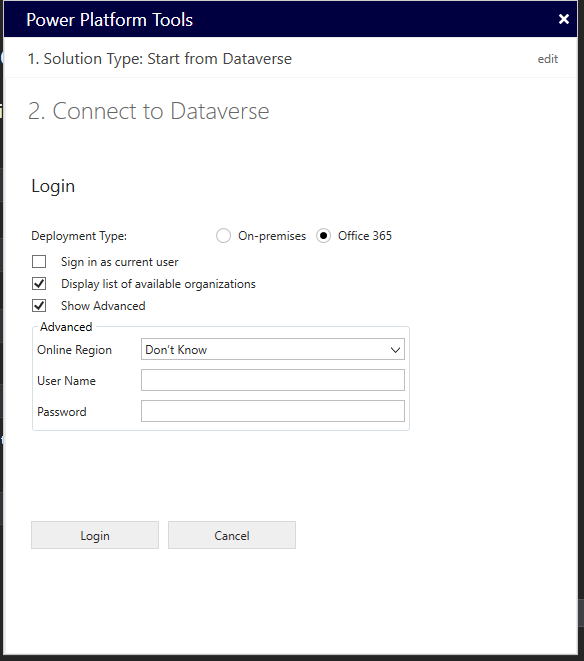
Enter the following and → Login
Online Region
User Name
Password
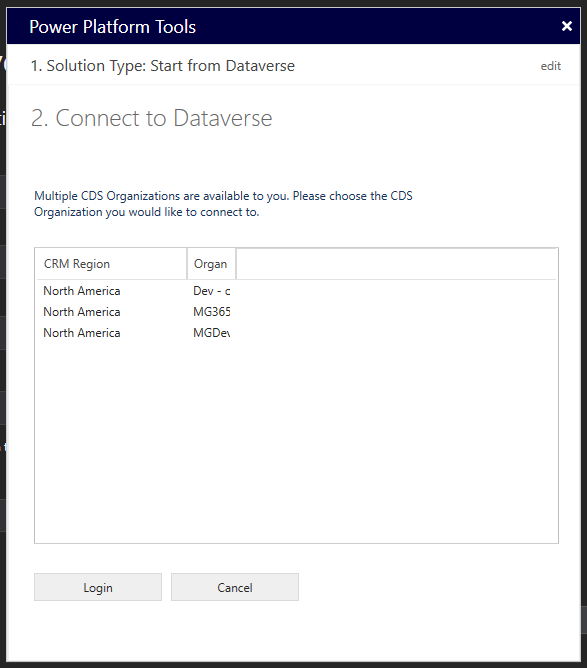
Here is a list of environments available for you select your Dev environment and → Login
Next window will prompt you a confirmation of the environment you are connecting → Next
From the drop down select your solution and → Done
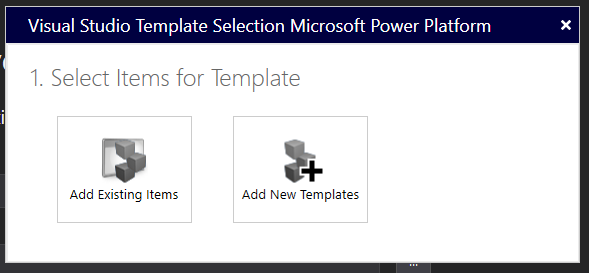
Click Add New Template
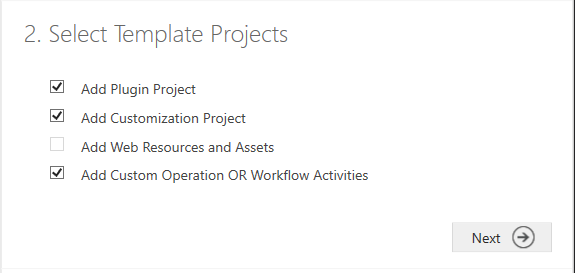
Select Check boxes they names are self explanatory → Next
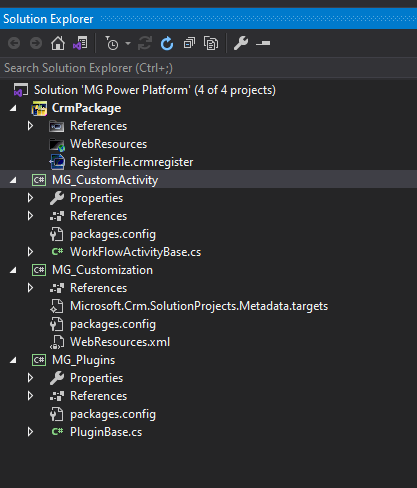
Name your projects → Done


Thank you for reading :)
This was originally posted here.
*This post is locked for comments