web
You’re offline. This is a read only version of the page.
close
Skip to main content

Notifications

Announcements

No record found.

Community site session details

Community site session details

Session Id :
Service | Customer Service, Contact Center, Fie...
Suggested Answer

How to Display Booked and Pending Hours on Field Service Schedule Board

(3) ShareShare
ReportReport
Posted on by 162

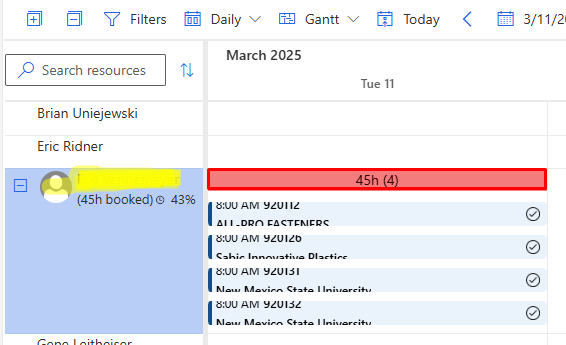
We are currently using Dynamics 365 Field Service and leveraging the Schedule Board to manage our resource bookings. By default, when switching to the weekly or monthly view, the Schedule Board displays only the total number of hours booked for each resource.

However, our business requirement is to enhance the visibility of resource utilization. Specifically, we need the Schedule Board to display both:

The total number of hours booked.

The number of hours of pending or incomplete work (work orders that are scheduled but not yet completed).

The goal is to easily identify resources who have bookings but still have pending tasks or idle time.

For e.g. Here resource is booked for 45 hours but he has completed all the task, What we wanted to see is to pending work based on the hours assigned and completed workorder. Here it should show Booked 45 hours and pending 0 hours.
Challenge:

How can we customize or extend the Schedule Board (e.g., via custom queries, views, plugins, or JavaScript extensions) to display this additional information per resource, alongside the existing booked hours?

Is there a recommended approach from Microsoft or best practices to implement this kind of resource utilization visualization?

Any guidance, steps, or examples would be greatly appreciated!


I have the same question (0)
  • Suggested answer
    Dharanidharan Profile Picture
    638 Super User 2025 Season 2 on at
    Hi Amit,
     
    This is a great requirement for improving resource visibility on the Schedule Board. Below are some possible approaches to achieve this customization:
     
    1. Custom FetchXML for Booking Indicators
    You can extend the Schedule Board’s Booking Indicators to show additional calculated values like "Pending Hours."
    • The Booking Indicators allow you to display calculated values using FetchXML queries.
    • You can create a FetchXML query that:
      • Retrieves total booked hours.
      • Calculates pending work orders by subtracting completed work order hours from booked hours.
      • Displays this value on the Schedule Board.
    2. JavaScript Customization on Schedule Board
    You can leverage JavaScript and Schedule Board extensibility options to manipulate the resource booking display.
    • Use a custom JavaScript function that pulls data via the Web API.
    • Fetch bookings and completed work orders, then calculate pending hours dynamically.
    • Inject the calculated pending hours into the Schedule Board UI.
    3. Power Automate / Plugin-Based Calculation
    Another approach is to maintain a custom field on the Bookable Resource Booking entity:
    • Plugin Approach:
    1. Create a plugin triggered on status updates of Work Orders.
    2. Calculate the pending hours by checking the booked vs. completed hours.
    3. Store this value in a custom field on the Bookable Resource Booking entity.
    • Power Automate Approach:
    1. Set up a scheduled flow to calculate pending hours and update the custom field periodically.
    2. Sync this field to a custom Schedule Board view.
    4. Custom Schedule Board View
    • You can customize the Schedule Board view layout to include a column displaying Pending Hours.
    • Use Custom FetchXML views or OData queries to pull in the required calculations.
    5. Microsoft Recommended Approach
    Microsoft provides extensibility via Schedule Board Plugins and Booking Indicators, which are the best practice methods to customize UI elements dynamically. You may also want to check Resource Scheduling Optimization (RSO) if advanced scheduling calculations are needed.
     
    Hope this helps! Let me know if you need further details.
  • Suggested answer
    Tom_Gioielli Profile Picture
    2,800 Super User 2025 Season 2 on at
    Unfortunately, I'm not aware of any way to achieve this without creating a custom Schedule Board. The OOB Board does not have this functionality, and while they continue to make improvements, I have not seen anything to this level of configuration in the roadmap.


Under review

Thank you for your reply! To ensure a great experience for everyone, your content is awaiting approval by our Community Managers. Please check back later.

Helpful resources

Quick Links

Responsible AI policies

As AI tools become more common, we’re introducing a Responsible AI Use…

Neeraj Kumar – Community Spotlight

We are honored to recognize Neeraj Kumar as our Community Spotlight honoree for…

Leaderboard > Service | Customer Service, Contact Center, Field Service, Guides

#1
Tom_Gioielli Profile Picture

Tom_Gioielli 35 Super User 2025 Season 2

#2
Daniyal Khaleel Profile Picture

Daniyal Khaleel 27 Most Valuable Professional

#3
Gerardo Rentería García Profile Picture

Gerardo Rentería Ga... 13 Most Valuable Professional

Last 30 days Overall leaderboard

Featured topics

Product updates

Dynamics 365 release plans



