web
You’re offline. This is a read only version of the page.
close
Skip to main content

Notifications

Announcements

No record found.

Community site session details

Community site session details

Session Id :
Customer experience | Sales, Customer Insights,...
Suggested Answer

How do I add a new field to a contact record?

(0) ShareShare
ReportReport
Posted on by 15

Hi there, 


I am trying to add a new field to the contact record, so we are able to ask on our forms if someone is from a government or private business. 

We would then split the customer journey based on their answer... however I am stuck at being able to add the new field at the moment. 

Any help will be greatly appreciated. 

Thank you, 
James 

I have the same question (0)
  • Stephani Profile Picture
    on at

    Hi James, 

    If I understand correctly, you are trying to add a new field to the Contact record and then to a Marketing Form for use in a Customer Journey?

    Here is a detailed article on how to add a new field.  Typically a CRM Admin would do this

    https://docs.microsoft.com/en-us/dynamics365/customerengagement/on-premises/customize/create-edit-fields

    If you want to see the field after you create it, you'll also need to add it to the Contact Form.

    https://docs.microsoft.com/en-us/dynamics365/customerengagement/on-premises/customize/add-field-form

    Once you add the field to CRM and then display it on the Contact record, you can add a new Form Field for a Marketing Form.  You can build segments based on their answers to trigger Customer Journeys.

  • Suggested answer
    cloflyMao Profile Picture
    25,210 on at

    Hi James,

    You could add a new field for contact entity in modern editor:

    1. Create a new field for contact entity.

    1.1 Open https://make.powerapps.com/

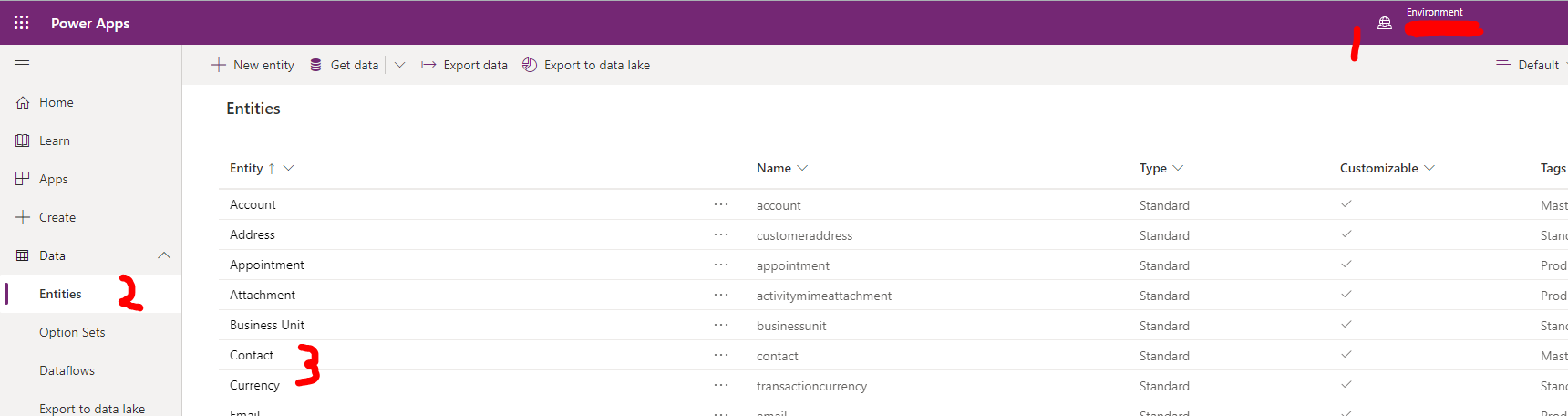
    1.2 Switch the environment to your marketing instance,(1)

    open Data -> Entities,(2) choose Contact(3).
    pastedimage1576128076306v1.png

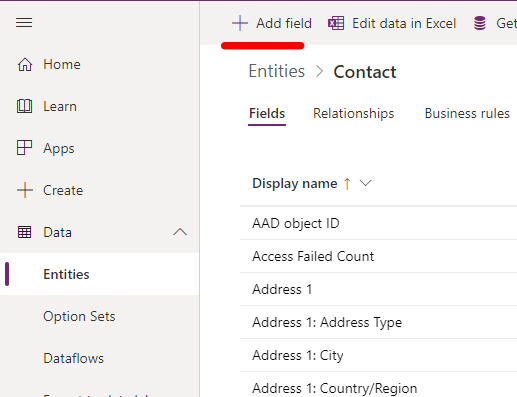
    1.3 Click + Add field:

    pastedimage1576128239085v2.png

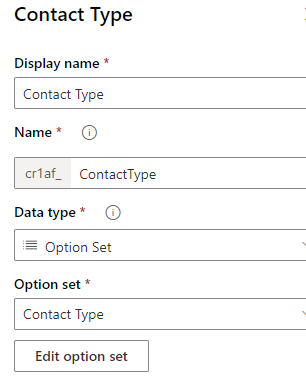
    1.4 Create an option set field for contact type:
    pastedimage1576128440735v3.png

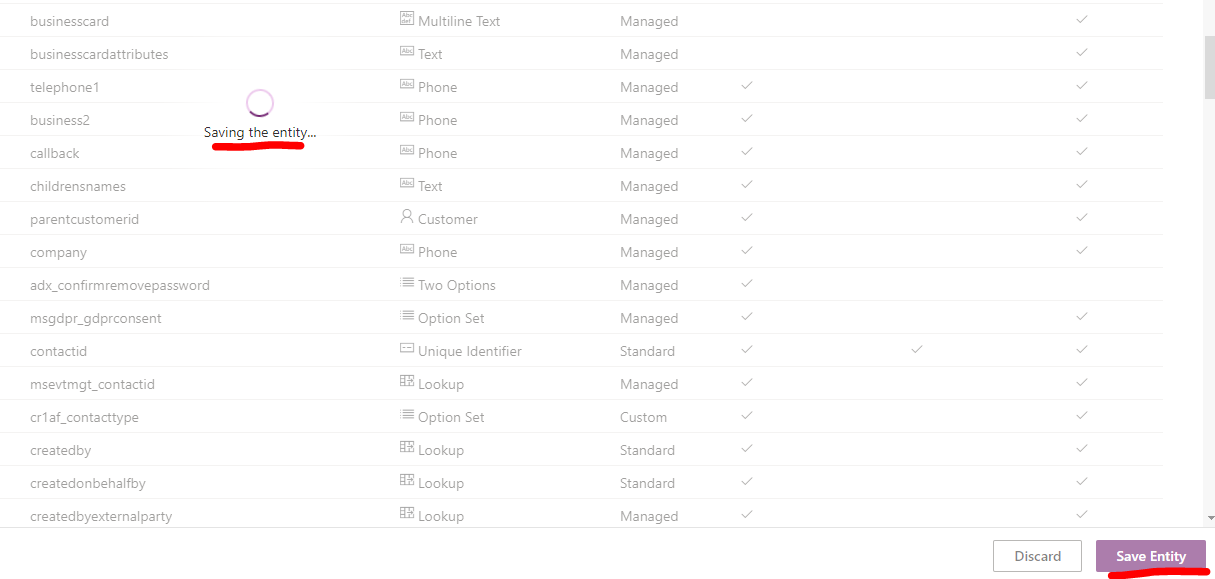
    1.5 Save change:

    pastedimage1576128500290v4.png

    2. Add the field to Contact form

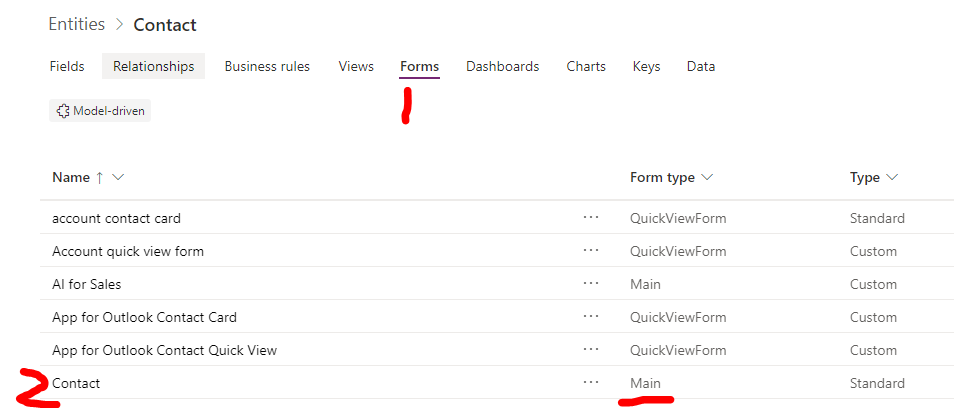
    2.1 Back to Contact entity,

    switch to Forms tab,(1)

    open Contact (Main) form.(2)
    pastedimage1576128553432v5.png

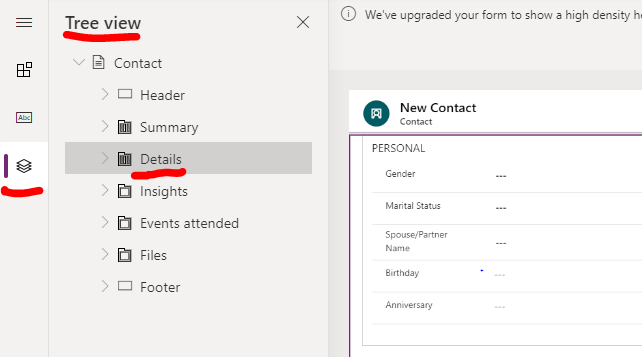
    2.2 Opeb Tree view, switch to Details tab
    pastedimage1576128686198v6.png

    2.3 Switch back to Fields, drag the custom field to section you want.
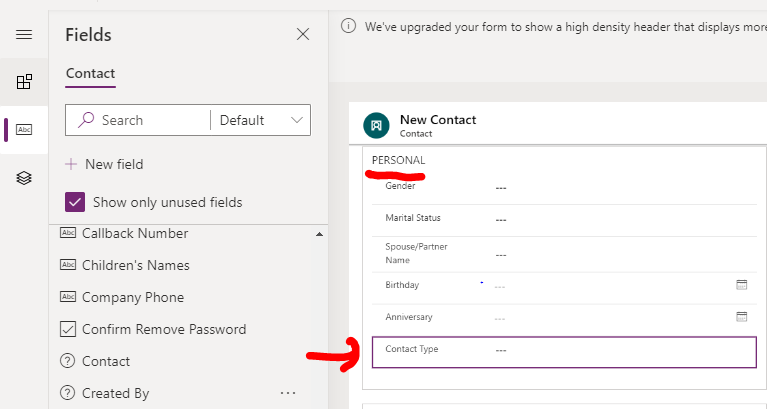
    pastedimage1576128761495v7.png

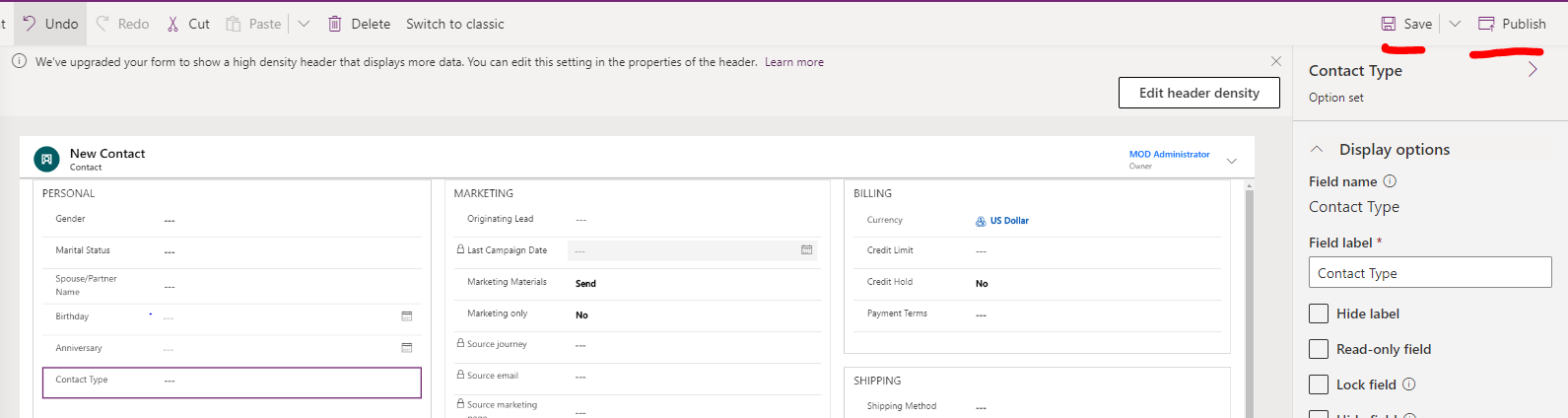
    2.4 Save then Publish

    pastedimage1576128816311v8.png

    3. See result in Contact -> contact form in corrensponding tab and section:

    pastedimage1576128993481v9.png

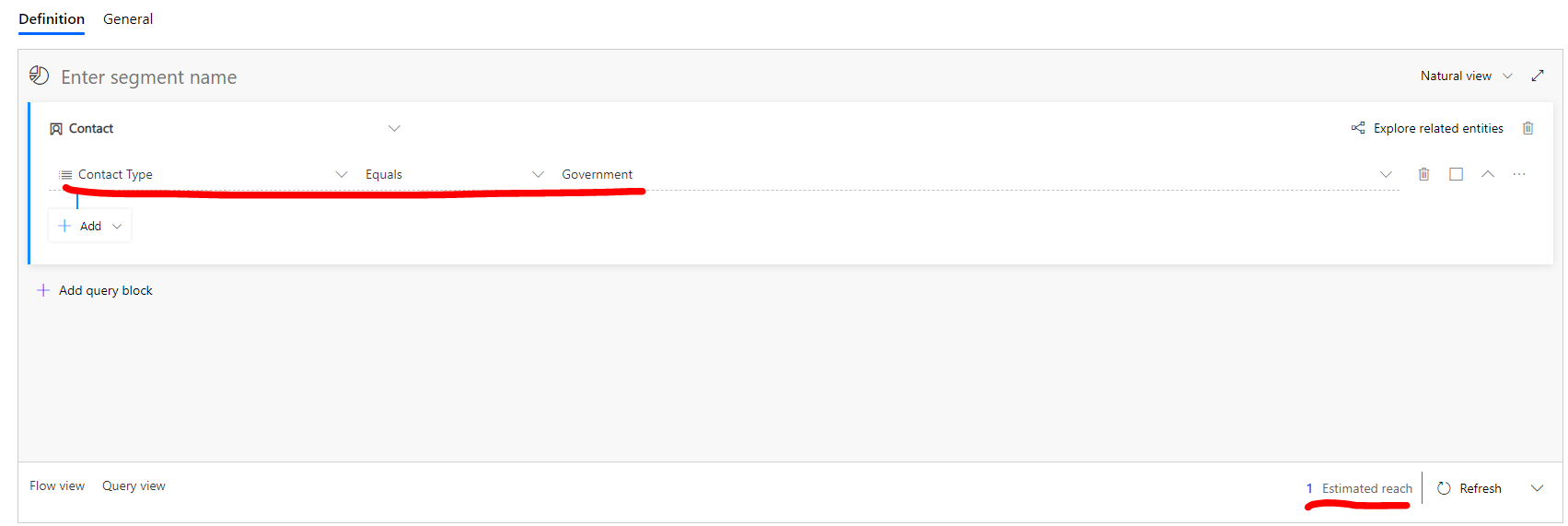
    4. Build segment based on the field:

    pastedimage1576129092031v10.png

    5. Now you can add these segments into customer journey for marketing campaign.

    In addition, you might had found that icons were missing at upper right corner at top bar,

    pastedimage1576129229526v11.png

    if so, you could open settings UI directly by input URL below:

    https://<org>.crm.dynamics.com/main.aspx?settingsonly=true

    then you'll enter traditional settings UI, and do customization too with Stephani's links.

    Regards,

    Clofly

  • cloflyMao Profile Picture
    25,210 on at

    Hi James,

    Please kindly let us know that whether your problem could be solved or 

    point out that whether we didn't understand your requirement correctly.

    Regards,

    Clofly

Under review

Thank you for your reply! To ensure a great experience for everyone, your content is awaiting approval by our Community Managers. Please check back later.

Helpful resources

Quick Links

Responsible AI policies

As AI tools become more common, we’re introducing a Responsible AI Use…

Neeraj Kumar – Community Spotlight

We are honored to recognize Neeraj Kumar as our Community Spotlight honoree for…

Leaderboard > Customer experience | Sales, Customer Insights, CRM

#1
Tom_Gioielli Profile Picture

Tom_Gioielli 170 Super User 2025 Season 2

#2
#ManoVerse Profile Picture

#ManoVerse 61

#3
Gerardo Rentería García Profile Picture

Gerardo Rentería Ga... 52 Most Valuable Professional

Last 30 days Overall leaderboard

Product updates

Dynamics 365 release plans