web
You’re offline. This is a read only version of the page.
close
Skip to main content

Announcements

News and Announcements icon
Community site session details

Community site session details

Session Id :
Service | Customer Service, Contact Center, Fie...
Answered

Update Custom Fields

(0) ShareShare
ReportReport
Posted on by 35

I have custom fields in account. but I can't see this custom fields when I setting up a process.

pastedimage1616501484952v1.png

When I go to set properties of account. Custom Fields doesn't appear in the form.

I have the same question (0)
  • Suggested answer
    a33ik Profile Picture
    84,331 Most Valuable Professional on at

    Hello,

    As far as I remember even the field is not placed on the for it should be available in the "Other field" section at the very bottom of the form.

  • Verified answer
    Community Member Profile Picture
    on at

    Hi Amanson,

    Through my test, all fields of the account will appear in the ‘Set Properties’ Dialog.

    In the Dialog, you can view all tabs of the ‘Account’ form and one ‘Additional’ tab, you can view fields in it if you don’t add fields to the ‘Account’ form(default form show in the dialog).

    For example, I have a custom field named ‘custom field’,

    1.If it doesn’t add to the ‘Account’ form, you can view it in the ‘Additional’ tab.
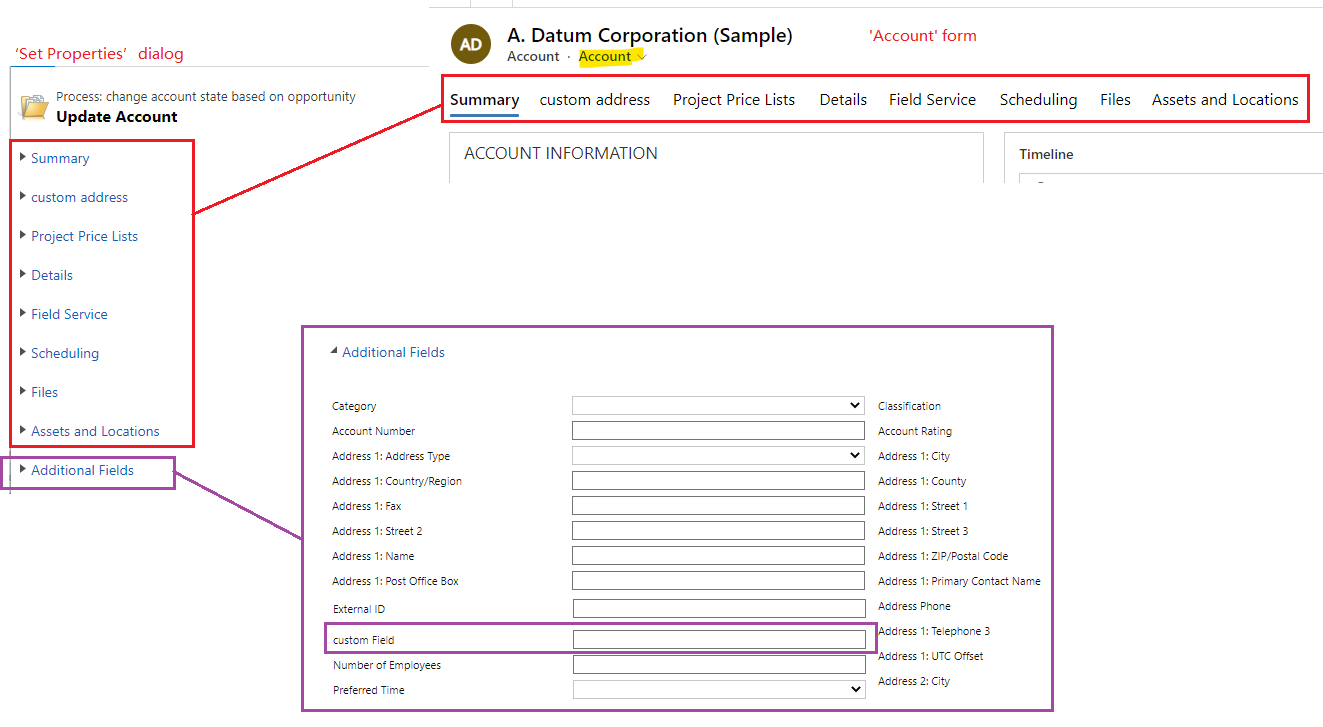
     pastedimage1616550477956v1.png

    Note: If you add the field to other forms, you also need find it under 'Additional' tab.

    2.If you want to directly view it in the dialog, you can add it to the ‘Summary’ tab of ‘Account’ form.

    Go Settings > Customization > Customize the system > Entities > Account > Forms > Account to add the field to 'Summary' tab.
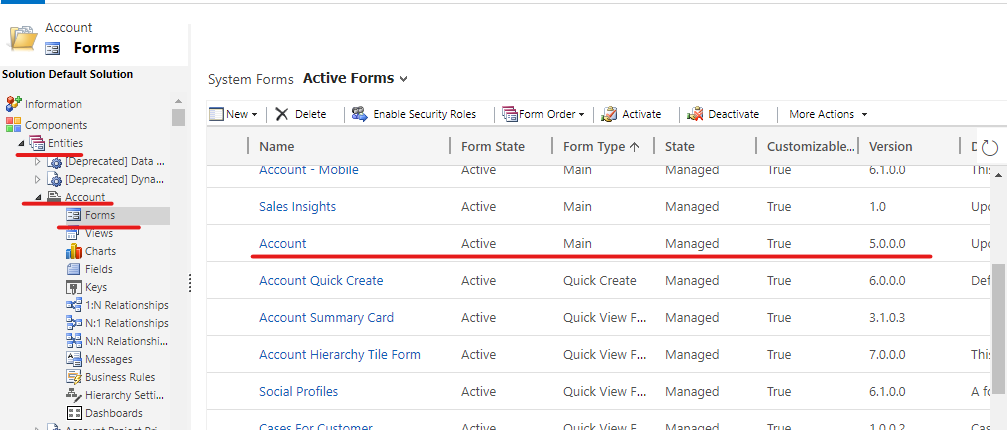
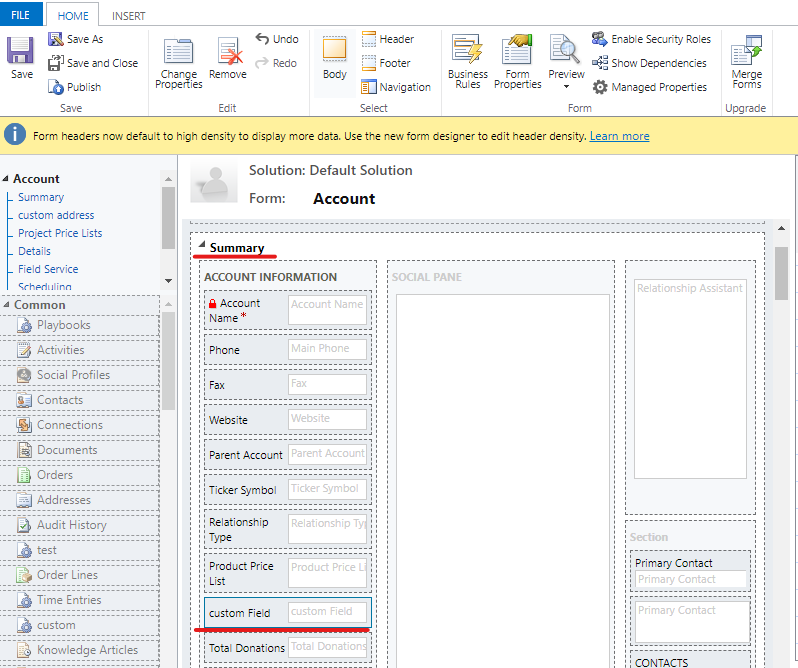
    pastedimage1616550510088v2.png

    pastedimage1616550607024v3.png

    Save and publish it, then refresh current dialog, the field will appear under 'summary' tab, you can also add it to other tab.
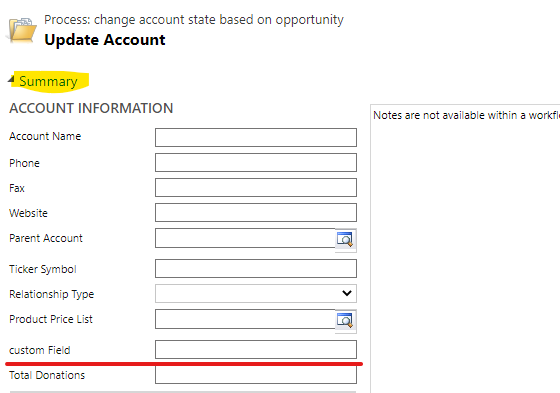
    pastedimage1616550829291v4.png

    Regards,

    Leah Ju

    Please mark as verified if the answer is helpful. Welcome to join hot discussions in Dynamics 365 Forums.

  • Amanson Profile Picture
    35 on at
    It's very weird or maybe I'm not accessing where I should.
    I have created a new custom field "campoNuevo" to prove it.
    I have added it in the Account form and published. It appears in Account and also in the update account form.
    I have the "Estado de la cuenta" field in the account form but when I go to the update account form it does not appear ...
    I can see it in the right vertical bar but from there I can't add the field. Neither is further down.
    pastedimage1616590153000v1.png
    pastedimage1616590169568v2.png
    pastedimage1616590204446v3.pngpastedimage1616590348907v4.png

  • Suggested answer
    Fubar Profile Picture
    2,761 on at

    If you add a field to a form, it may not be the form that the workflow editor is actually using.  The field will usually still be on the form in the editor but lower down towards the bottom in an unordered list of fields that are not on the form the editor is utilising (i.e. scroll down and look/search again).

  • Amanson Profile Picture
    35 on at

    It's not there

    I use search and I can't find it

  • Amanson Profile Picture
    35 on at

    I tried to delete from the form Filed "Estado de la cuenta"

    Show not used fields

    Add again in another position

    pastedimage1616756105869v1.png
    I can see in the account form
    pastedimage1616756133826v2.png
    But not in the update account form...
    pastedimage1616756160226v3.png
    This is the field
    pastedimage1616756180614v4.png


  • Amanson Profile Picture
    35 on at

    It works with this

    Cambiar el estado del registro a:

    Thanks!!!!!

Under review

Thank you for your reply! To ensure a great experience for everyone, your content is awaiting approval by our Community Managers. Please check back later.

Helpful resources

Quick Links

Season of Sharing Community Challenge Launch!

Jump in, show your community spirit, and win prizes!

Women in Power Builds Momentum

Expanding mentorship, skilling, and AI innovation

Congratulations to the May Top 10 Community Leaders

These are the community rock stars!

Leaderboard > Service | Customer Service, Contact Center, Field Service, Guides

#1
Abhilash Warrier Profile Picture

Abhilash Warrier 51 Super User 2026 Season 1

#1
Muhammad Shahzad Shafique Profile Picture

Muhammad Shahzad Sh... 51 Most Valuable Professional

#3
Nagaraju_Matta Profile Picture

Nagaraju_Matta 50

Last 30 days Overall leaderboard

Featured topics

Product updates

Dynamics 365 release plans



