web
You’re offline. This is a read only version of the page.
close
Skip to main content

Announcements

News and Announcements icon
Community site session details

Community site session details

Session Id :
Finance | Project Operations, Human Resources, ...
Suggested Answer

How to change the state definitions and order?

(2) ShareShare
ReportReport
Posted on by 12

Dear community,

In Intelligent Order Management, the sales order has these standard states, going from new sales order, to on hold to in process etc. etc. now I'm trying to customize this

pastedimage1674208906910v1.png

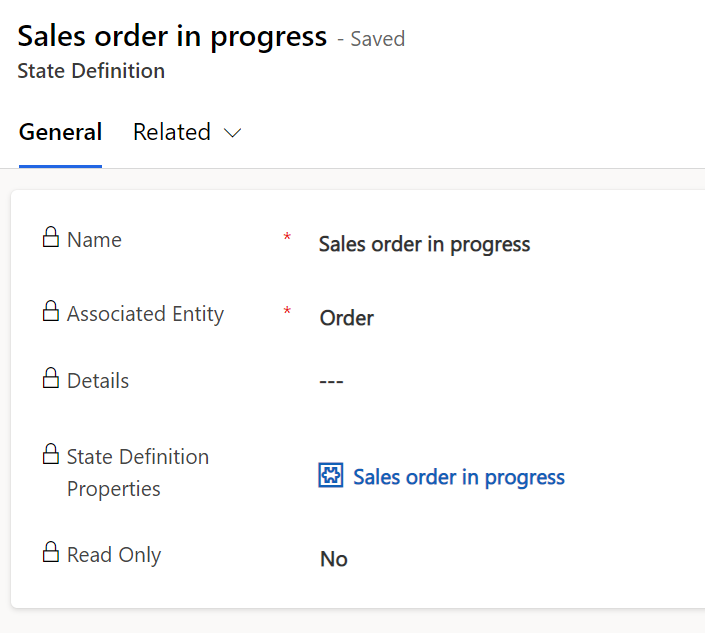
I want different states in different orders however, even when I finally find the state entities (and state reasons underneath), they're uneditable despite me being the owner and sole user of the entire product.
pastedimage1674208935371v2.png

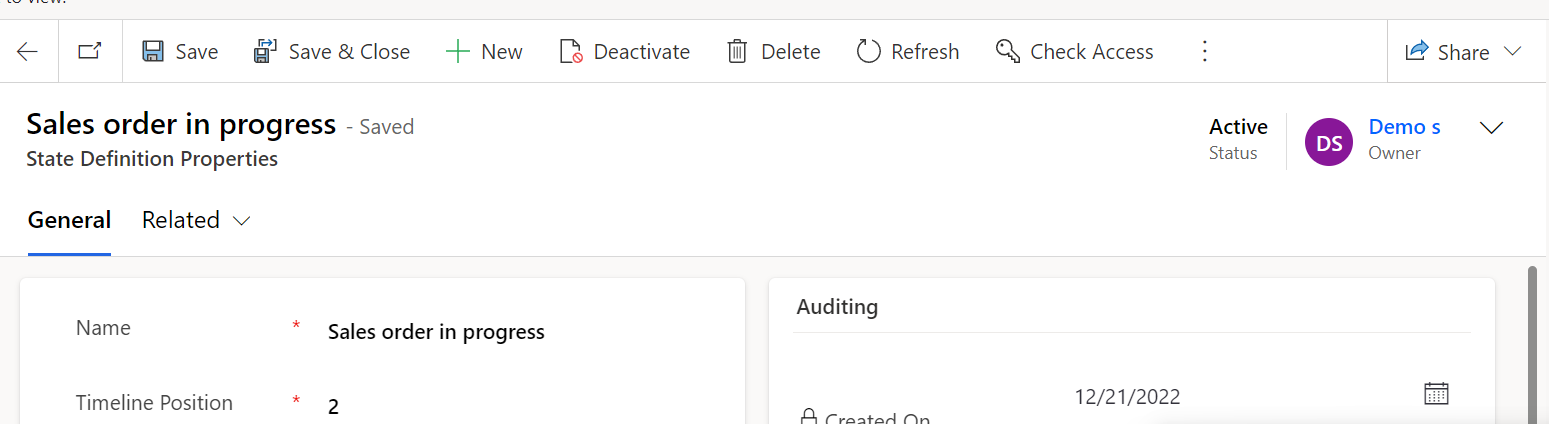
As you can see, all fields are locked; I checked access and have full access. Now if I drill down onto the State Definition Properties, I can edit that property detail:
pastedimage1674208988910v3.png

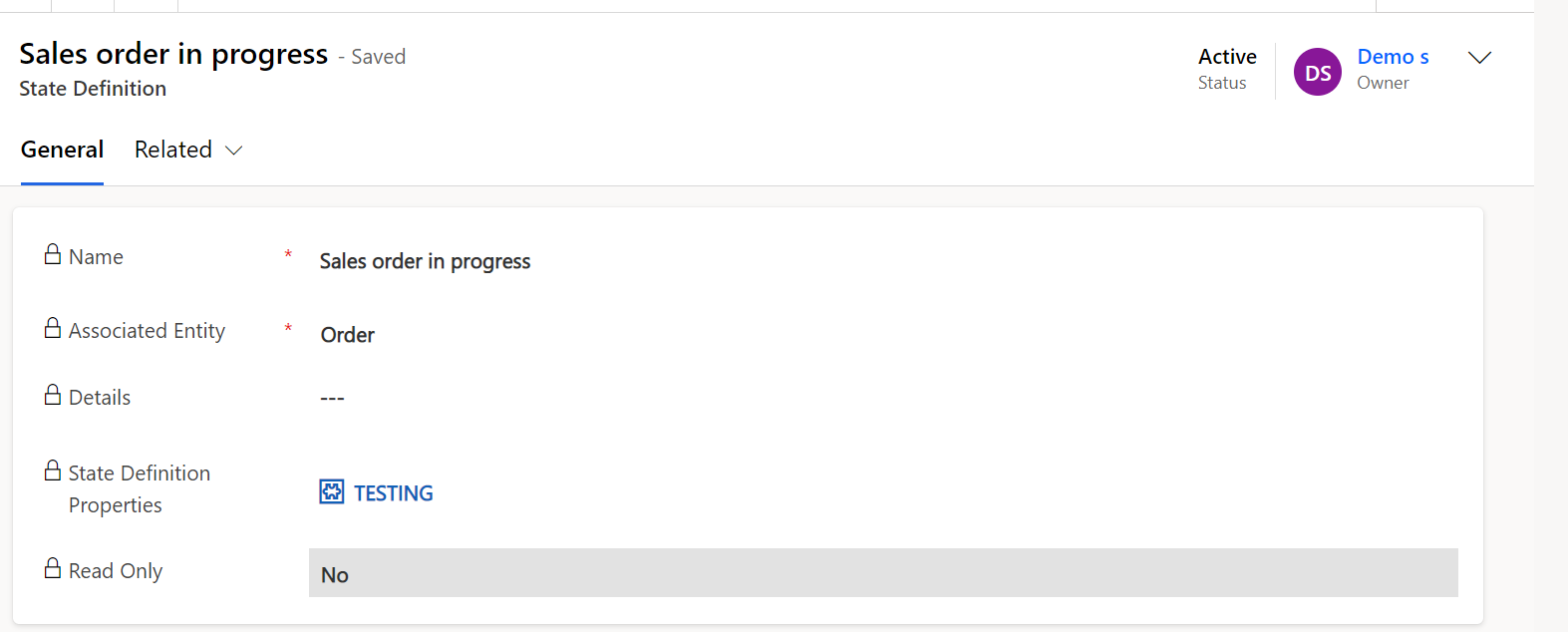
BUT, changing this, has absolutely no impact on the State reason above:
pastedimage1674209036256v4.png

Does anybody here know how I can customize these states, state reasons and flow? I would really appreciate some guidance, I've been stuck with this for days.

Thank you

I have the same question (0)
  • RayBennett Profile Picture
    Microsoft Employee on at

    You cannot edit out of the box State/State Reasons as or product depends on those states for our core functionality. You can add new states and state transitions.

    To do this currently, you will need to do this from PP by navigating to the table, and using the Edit > Edit in Excel button at the top. You can add your new rows in excel and publish and the changes should be there.

    Thanks

    Ray

  • MaartenG Profile Picture
    12 on at

    Hi Ray,

    Thank you, it was puzzling but I managed to add some states to the existing table. However, still can't figure out how to use them or replace the original flow. Now they're just entries in the table, only visible in the dataverse, not in the UI itself.

    I wish to replace the process as seen on the first screenshot in my original post.

    Thank you

  • Suggested answer
    RayBennett Profile Picture
    Microsoft Employee on at

    You need to modify the State Definition Properties table and set the TimelinePosition for the correct State Definition. In this example I swapped the order of 2 of them

    pastedimage1674585527175v1.png

  • MaartenG Profile Picture
    12 on at

    Hi Ray,

    Thank you, I was able to change the order of the properties, although, I am not able to link properties to the newly created state definitions as we did in step 1.

    These are unable to get linked to a state definition property through this method and therefore , unable to be used as desired. They only exist as a new state definition but seem unusable from this point on. They cant appear anywhere in the U.I..

    In the Excel File, when trying to fill in an (at the time empty) state definition property for the newly created states, they disappear after a refresh. Publishing gives no error code but simply seems ineffective. So now the state definitions will not have a property and therefore also not an order.

    Again, thank you so much for your help, I really appreciate it. Apologies for the many boomerangs back but I have yet to figure it out.

  • MaartenG Profile Picture
    12 on at

    Hi Ray,

    Thanks again for your previous responses, do you have any idea about my comment below? I can change the order for existing states, but not for new states as they require a state definition, which can't be linked due to read only restrictions.

  • RayBennett Profile Picture
    Microsoft Employee on at

    I just tried, and I don't see any issues. Can you post screenshots of your State Definition and State Definition Properties?

    pastedimage1675975266373v1.png

Under review

Thank you for your reply! To ensure a great experience for everyone, your content is awaiting approval by our Community Managers. Please check back later.

Helpful resources

Quick Links

Season of Sharing Community Challenge Launch!

Jump in, show your community spirit, and win prizes!

Women in Power Builds Momentum

Expanding mentorship, skilling, and AI innovation

Congratulations to the May Top 10 Community Leaders

These are the community rock stars!

Leaderboard > Finance | Project Operations, Human Resources, AX, GP, SL

#1
Subra Profile Picture

Subra 500

#2
André Arnaud de Calavon Profile Picture

André Arnaud de Cal... 462 Super User 2026 Season 1

#3
Abhilash Warrier Profile Picture

Abhilash Warrier 461 Super User 2026 Season 1

Last 30 days Overall leaderboard

Product updates

Dynamics 365 release plans



