






What's new or changed in Invoice capture with D365F&O
Views (527)
 Subhad365
 21
User Group Leader
21
User Group Leader
 Like
Like Share
Share
 Report
What's new or changed in Invoice capture with D365F&O
Invoice Capture in D365 F&O (Dynamics 365 Finance & Operations) is an automated solution using AI (like OCR and AI Builder) to extract data from vendor invoices (PDFs, emails, etc.), validate it against purchase orders, and seamlessly post it into D365 Finance, eliminating manual data entry, reducing errors, and accelerating the accounts payable process for greater efficiency. It centralizes invoice processing from various sources and uses a side-by-side viewer for easy review of extracted data against the original document.
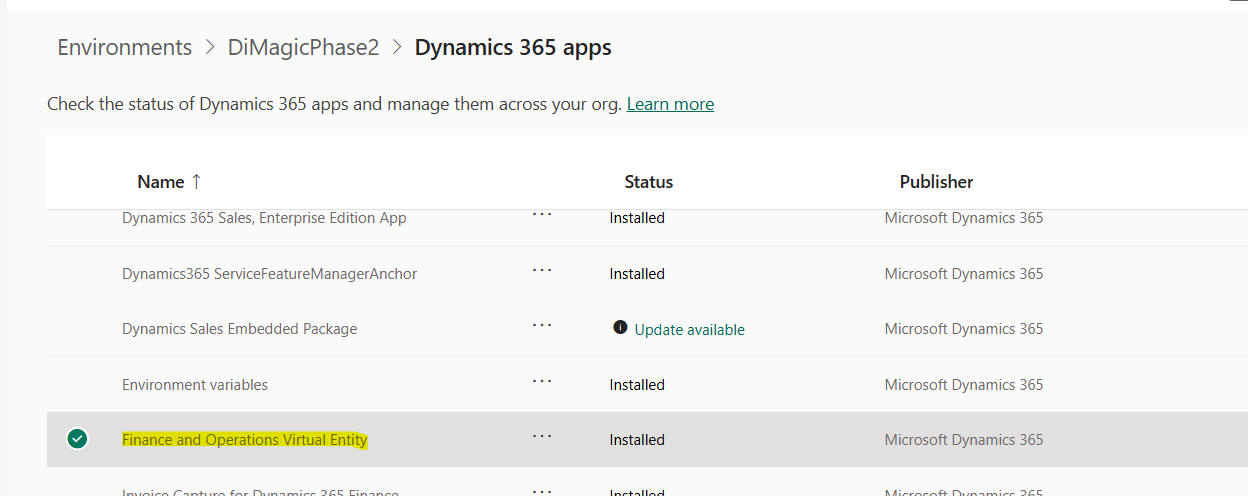
Check if any update is available.

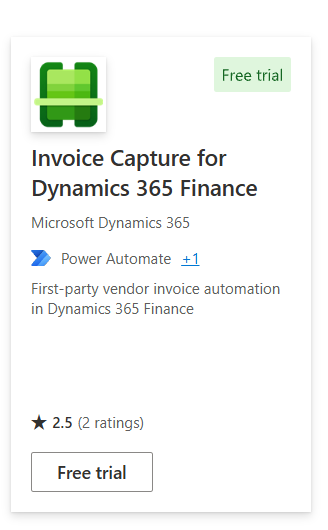
Select Free trial >> select the instance for which you want to use the application and click on Install to continue. Wait till the installation is over.
This will eventually make the application be visible on the PPAC:
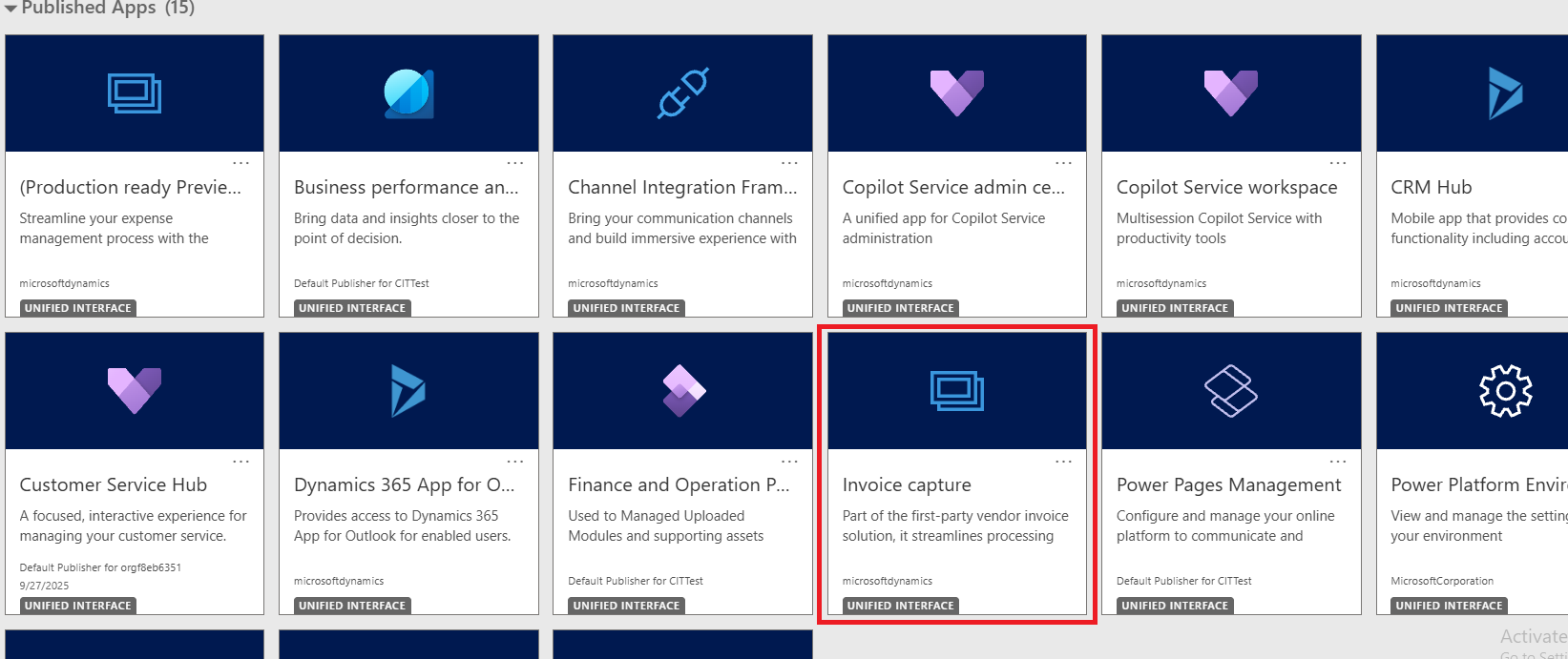
And this will also make the Invoice Capture Module be appearing in D365F&O end as well:
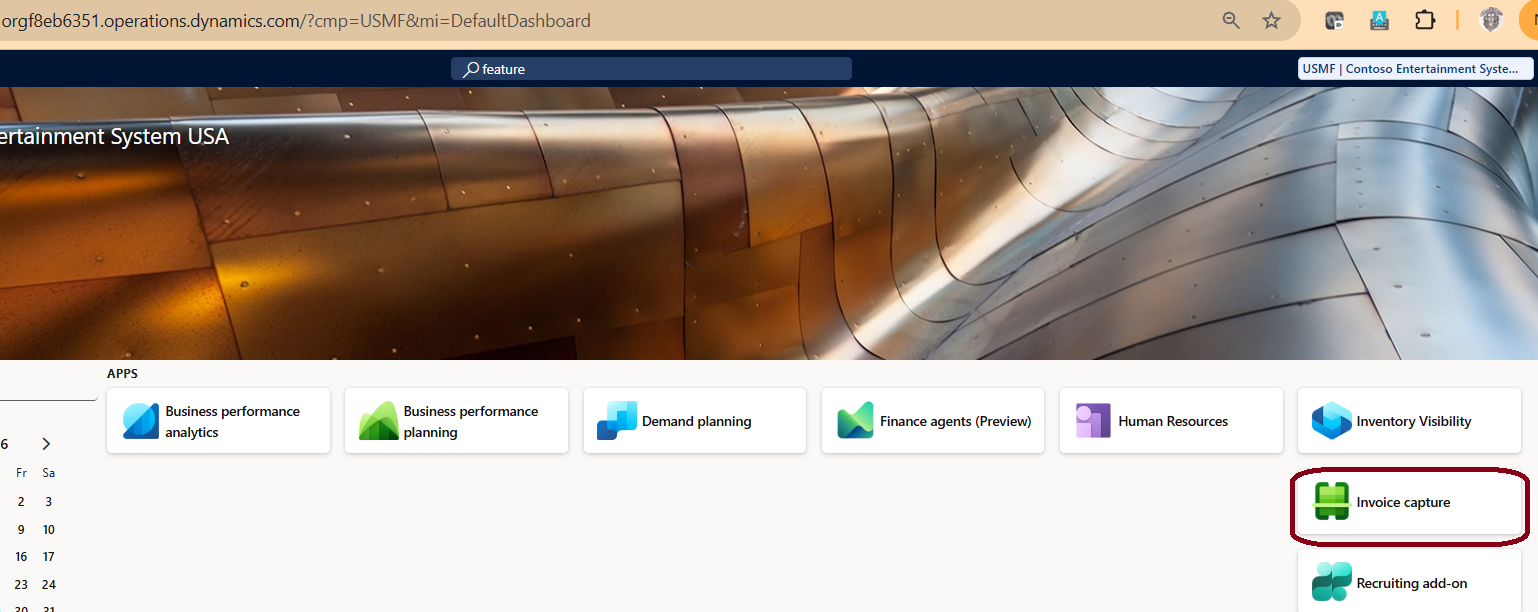
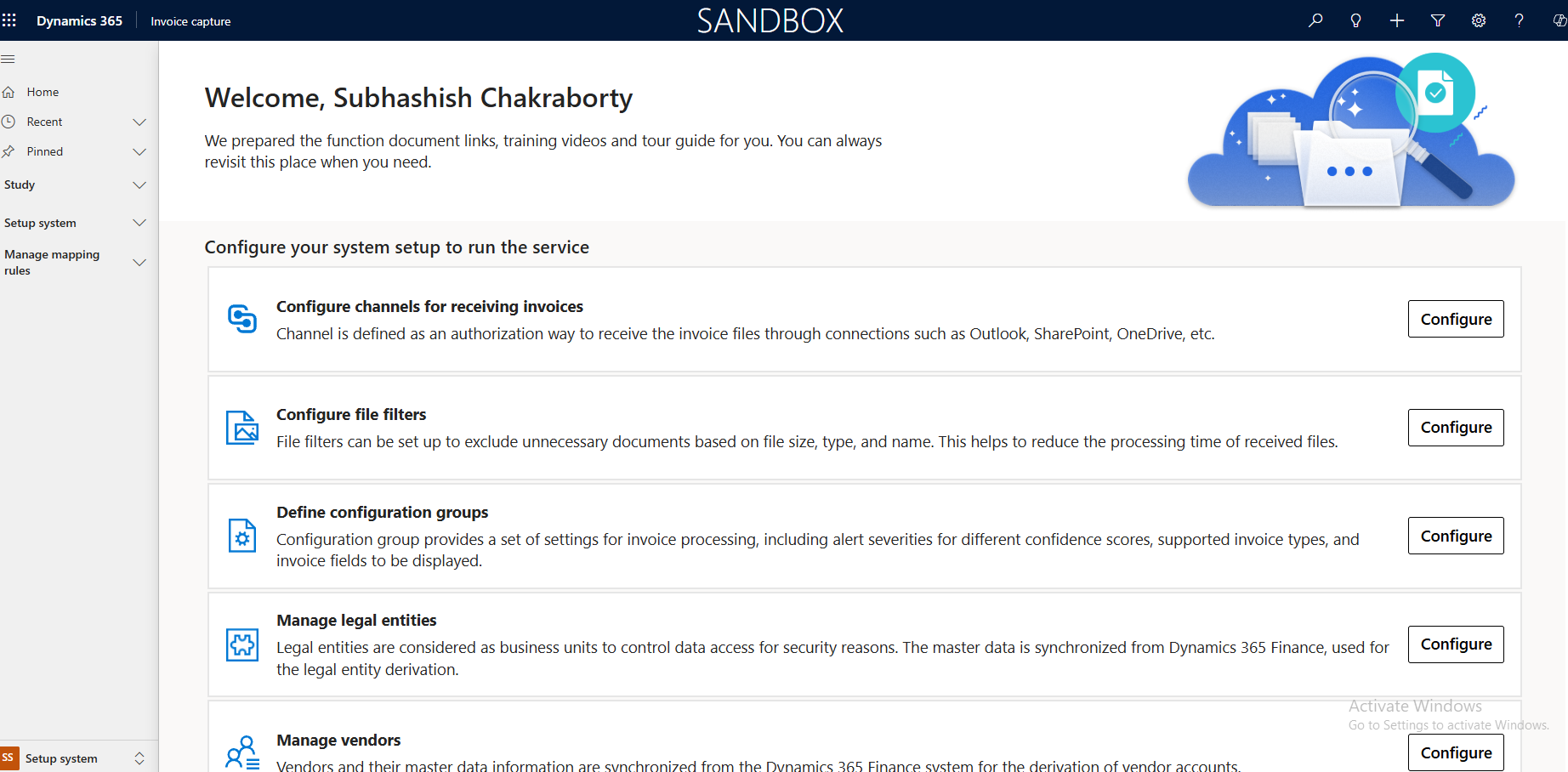
This is the startup page, and you can start all the configurations, right from here. Let us start from each section that comes on the left side pane:
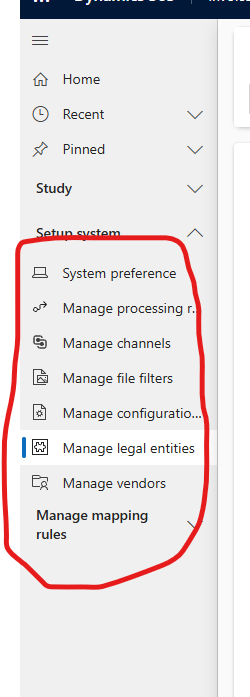

You can enable as many legal entities as you want, ensure that transfer attachment is enabled, and you have the following invoice type wise details be entered/selected.
You need to select ‘Sync all vendors’ and attachment Document as ‘File’. Click save to continue.
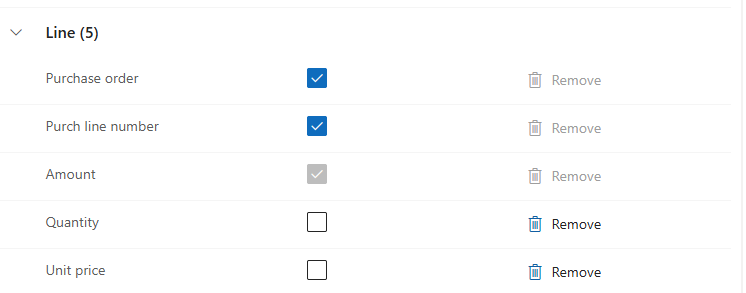
Feel free to remove what is not needed, clicking on the remove link.
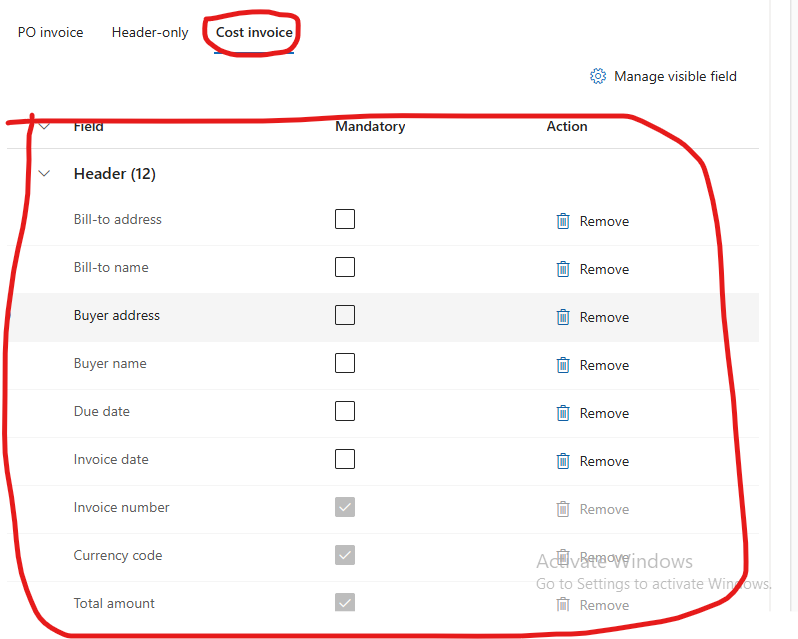
You can do the same exercise for the Cost invoice as well:
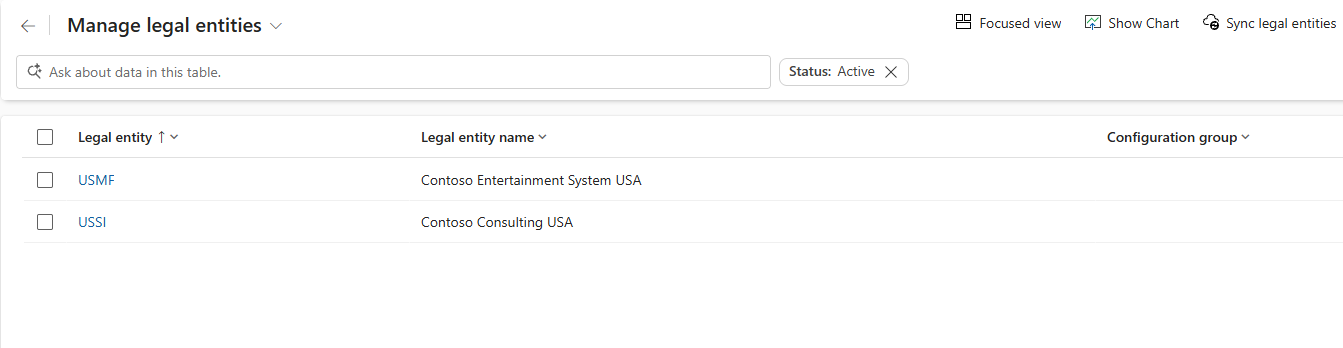
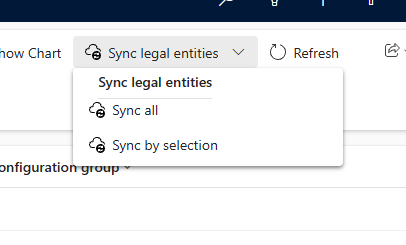
You can sync on the legal entities, if you want the changes be reflected:
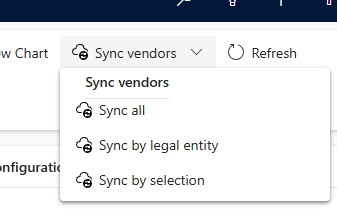
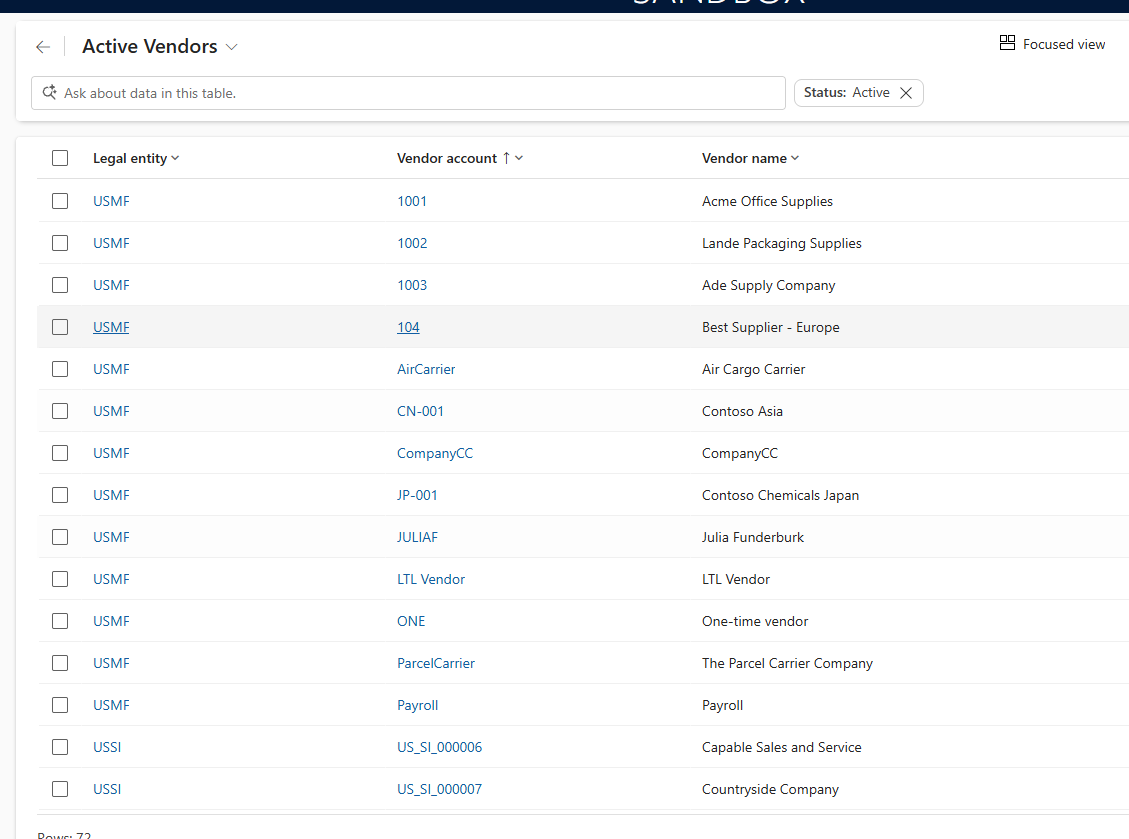
I prefer to select ‘Sync by Legal entity’ and then choosing vendors, part by part (not all of them at one go). This will make the screen be populated with all the vendors from D365F&O:
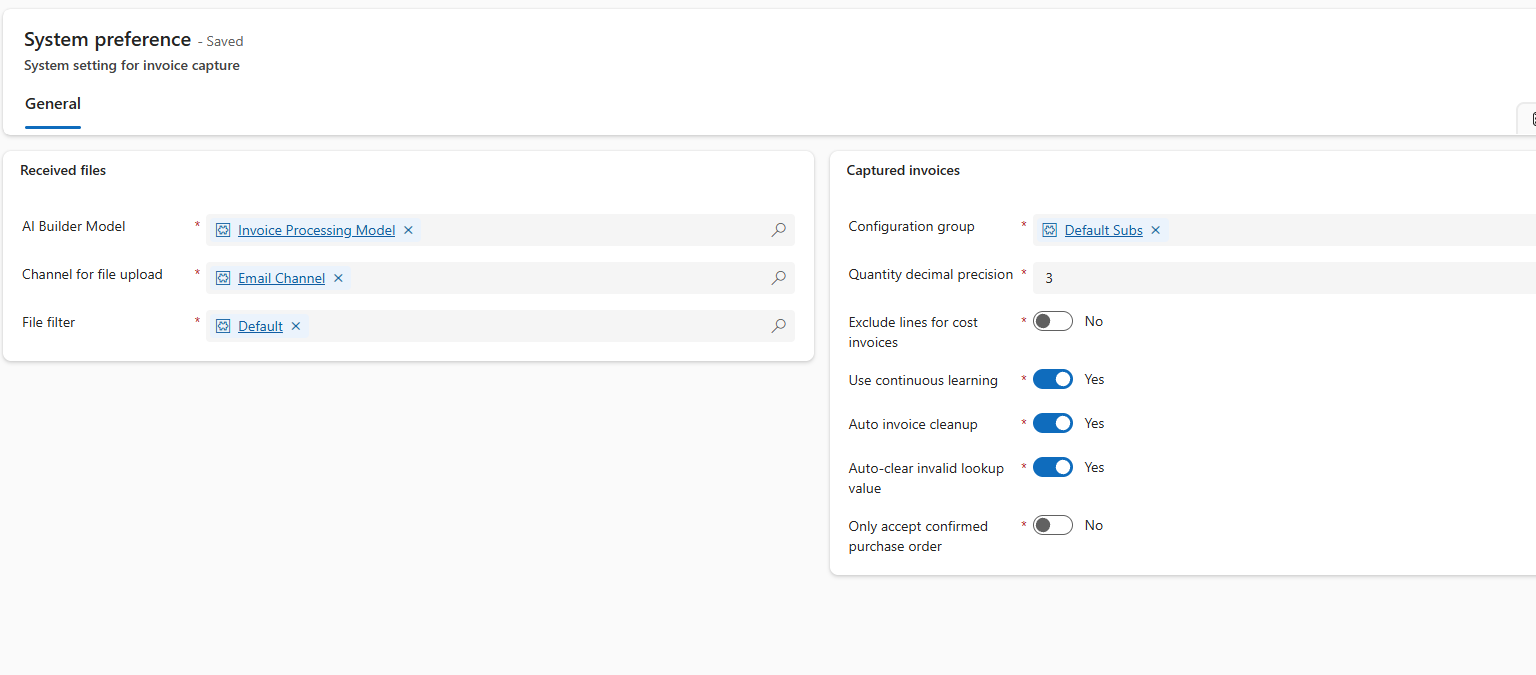
With the configuration group, Builder Model, Channel for communication, etc. Ensure that you have selected ‘Use continuous learning’.
Click on ‘Save and close to continue’.
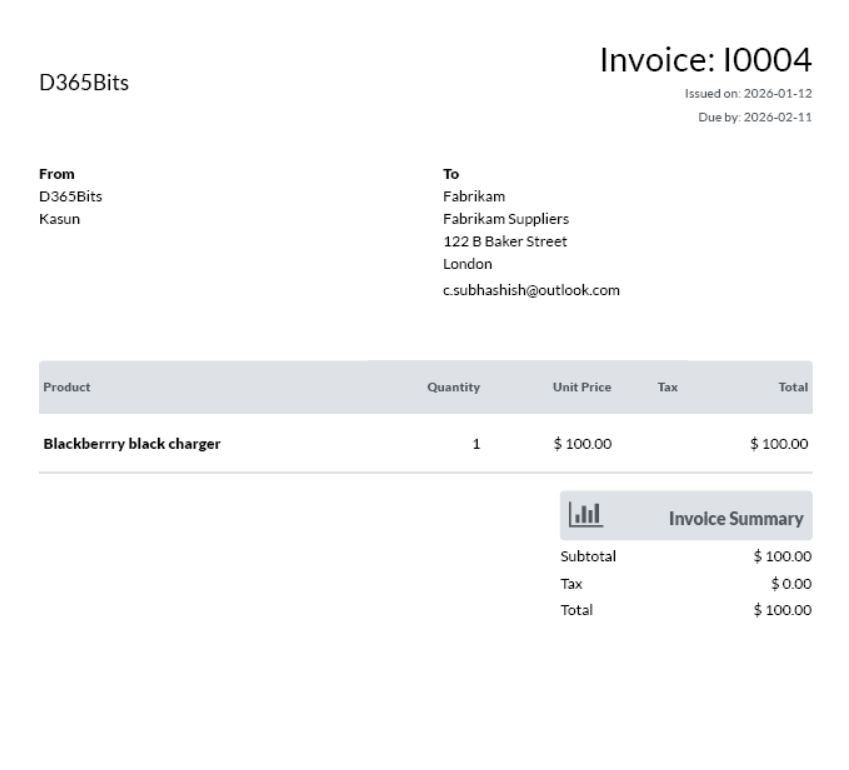
I am attaching this as a mailer and waiting for the flow in the app to detect the same:
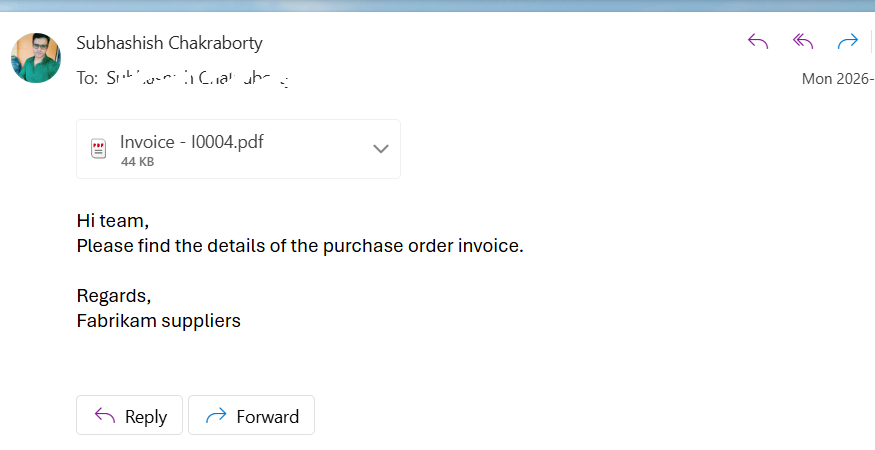
The mailer is immediately recognised by the application and you could see the following record under received file:

Once the status is ‘Captured’, this could be seen in the ‘Captured invoice’ list:
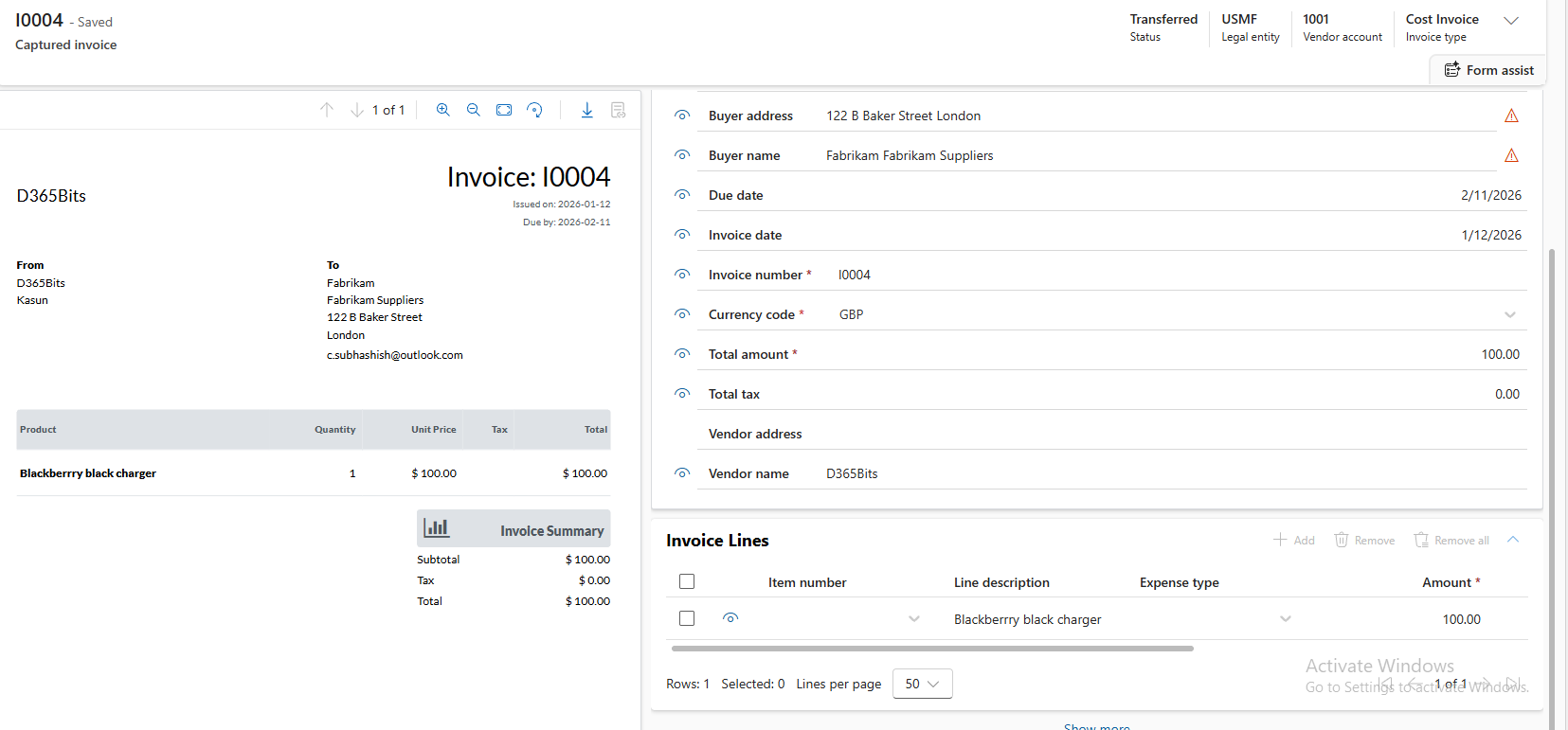
You can start review, whereby you could see all the invoice components and fields are getting detected automatically. Once you’re done, click on ‘Complete review’:

Once done, Click on ‘Transfer invoice’, and the status becomes ‘Transferred’, it will make an invoice journal in D365F&O. Click on ‘Open in Dynamics 365’:
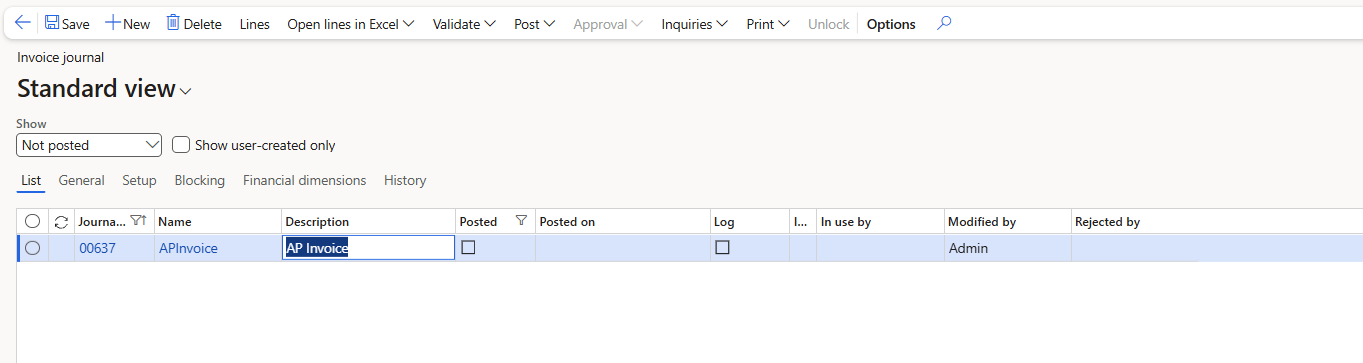
Click on the Journal and you would get the details of the journal crated from the invoice:
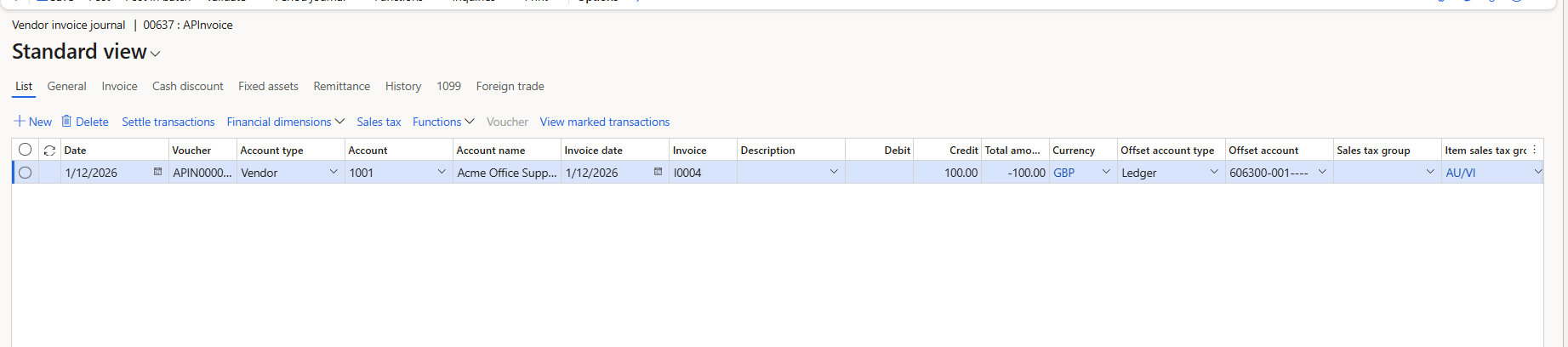
Well, that’s it. Would request you to try the setup and testing once, and let me know if you get any issues. Much love and Namaste J
Invoice Capture in D365 F&O (Dynamics 365 Finance & Operations) is an automated solution using AI (like OCR and AI Builder) to extract data from vendor invoices (PDFs, emails, etc.), validate it against purchase orders, and seamlessly post it into D365 Finance, eliminating manual data entry, reducing errors, and accelerating the accounts payable process for greater efficiency. It centralizes invoice processing from various sources and uses a side-by-side viewer for easy review of extracted data against the original document.
Features:
- AI & OCR: Uses AI Builder and Azure Form Recognizer technology to read and understand invoice layouts.
- Multi-Channel Ingestion: Accepts invoices from email, SharePoint, OneDrive, and manual uploads.
- Automated Matching: Automatically matches invoice details (vendor, amount, line items) with purchase orders (POs) and product receipts.
- Rule-Based Validation: Employs a flexible rule engine for business-specific checks and exception handling.
- Side-by-Side Viewer: Allows users to compare the original document with the extracted data for quick verification.
- Touchless Processing: Aims for full automation, reducing manual work for AP clerks.
- Customization: Supports custom AI models and field mapping for unique business needs.
How can it help you with?
- Faster Cycle Times: Significantly speeds up invoice processing and payment cycles.
- Reduced Errors: Minimizes manual data entry mistakes.
- Improved Spend Control: Offers better visibility and audit trails.
- Enhanced Efficiency: Frees up AP teams for more strategic tasks.
Prerequisites
Before we begin, let us review we have the following enabled on our D365 instance, on both PPAC and F&O sides:- You have Microsoft virtual entity installed in your PPAC instance resources:
Check if any update is available.
- Ensure the following feature is enabled:
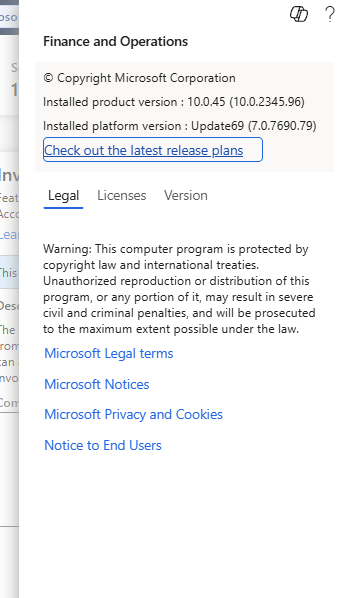
- Ensure you are already on a version that is greater than or equals 10.0.36 for your D365F&O instance:
- Ensure that you have an active mailbox assigned to the admin with whom you are configuring the installation.
Installation
Reach out to Appsource and find for the following application:Select Free trial >> select the instance for which you want to use the application and click on Install to continue. Wait till the installation is over.
This will eventually make the application be visible on the PPAC:
And this will also make the Invoice Capture Module be appearing in D365F&O end as well:
Configuration
Let us now move into configuring the app, by launching the same from PPAC. By default rhe following window is expected:This is the startup page, and you can start all the configurations, right from here. Let us start from each section that comes on the left side pane:
Defining the legal entities
In D365F&O instance, go to Accounts Payable >> Setup >> Invoice Capture:You can enable as many legal entities as you want, ensure that transfer attachment is enabled, and you have the following invoice type wise details be entered/selected.
You need to select ‘Sync all vendors’ and attachment Document as ‘File’. Click save to continue.
Manage channel:
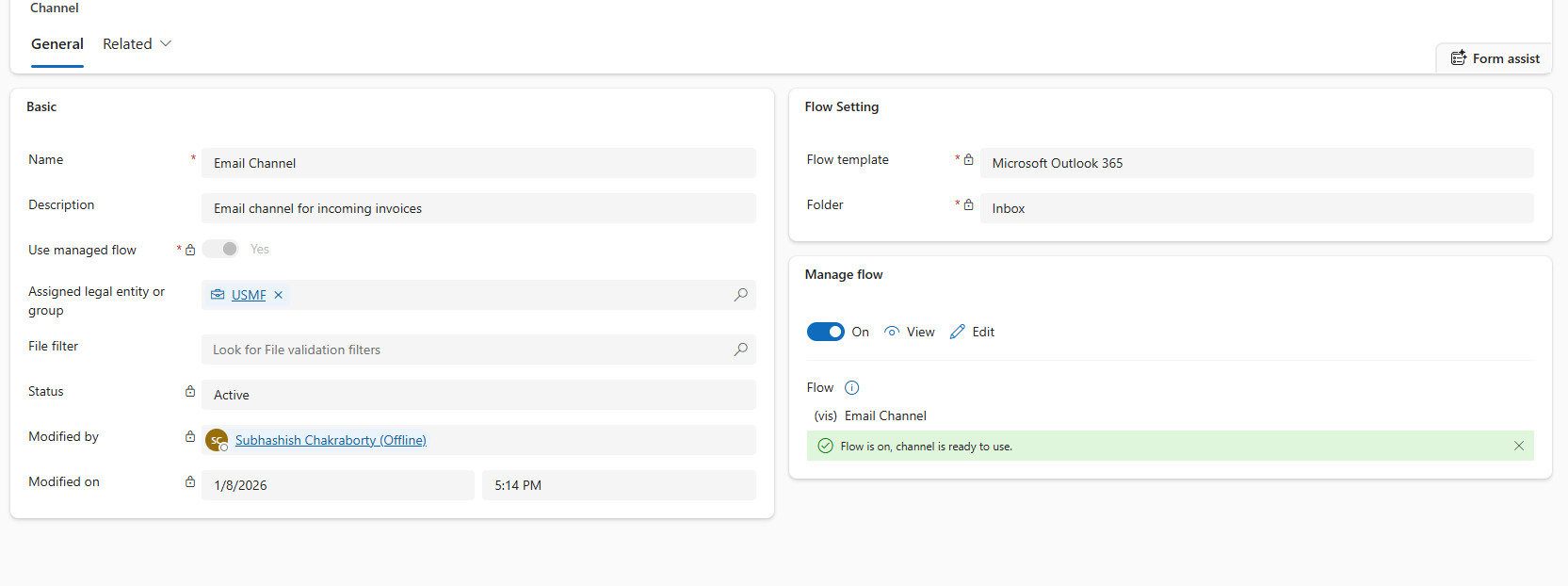
Coming to PPAC, select your instance >> start with defining the preferred channel (means of communication). I created the following Email channel as an inbound channel:Manage File filters:
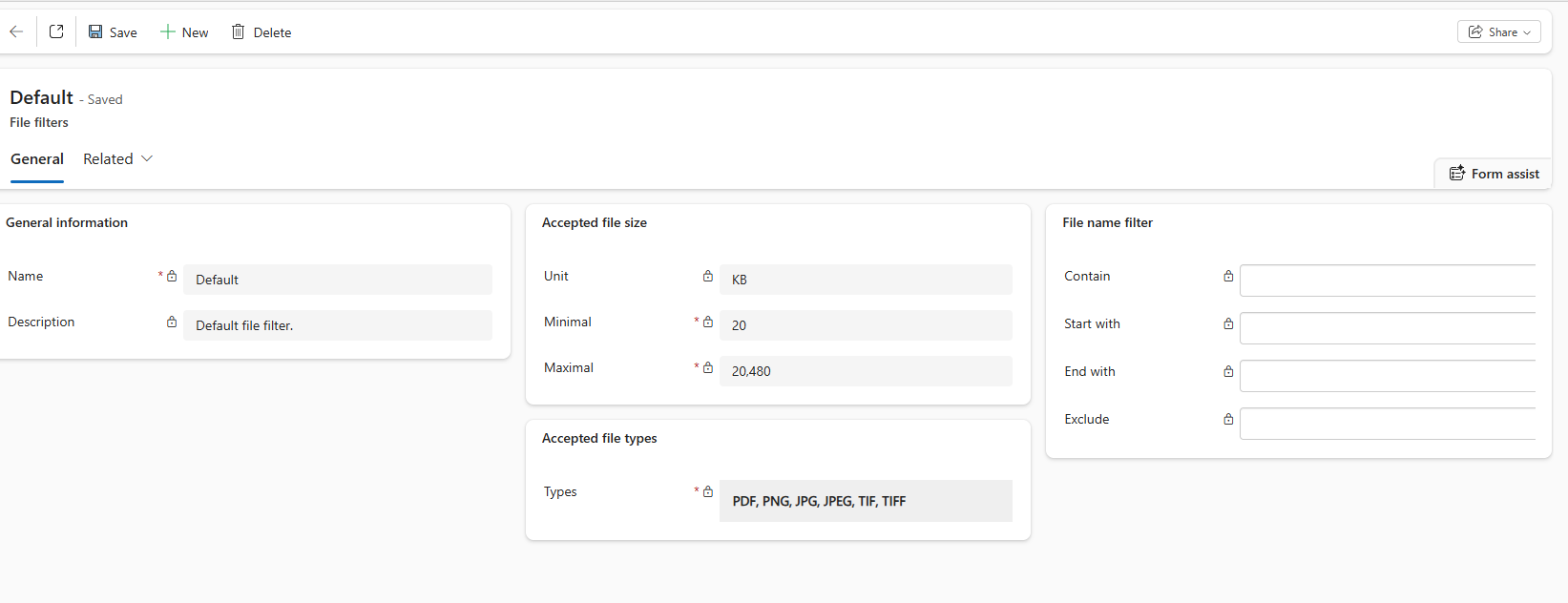
You can create your new file filters and supported types:Manage Configuration:
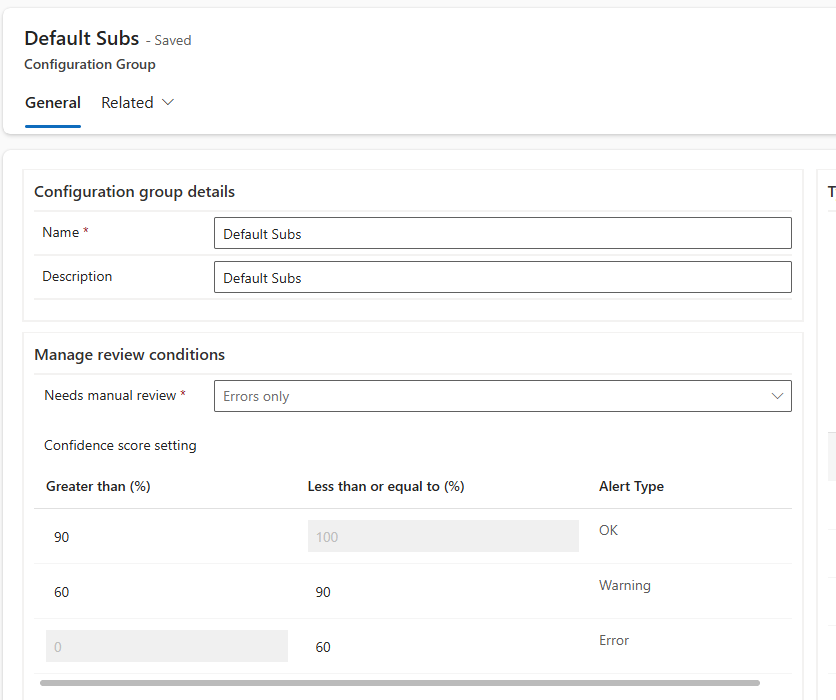
This is the most important part of the entire configuration, where you can specify what are the mandatory components of the invoice that you should capture, what is all that is needed and what is not:Define acceptable percentages:
You can define the aggregable percentage in the app as follows:Define header components
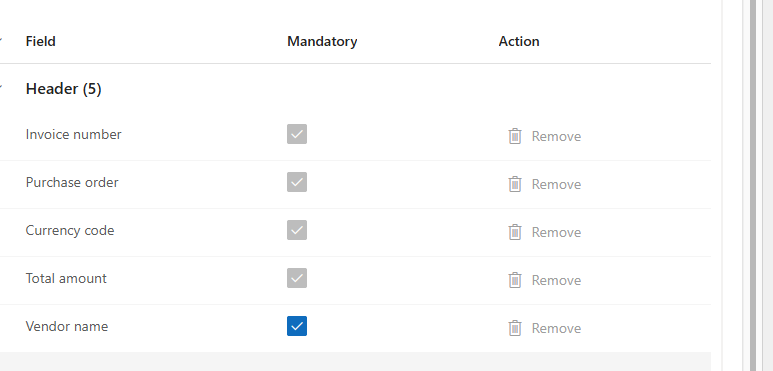
For PO invoices, here are the checkpoints that I have selected:Define line components:
Feel free to remove what is not needed, clicking on the remove link.
You can do the same exercise for the Cost invoice as well:
Manage legal entities
You can see the legal entities that you chosen in D365F&O:You can sync on the legal entities, if you want the changes be reflected:
Manage vendors:
On this screen, select on Sync vendors, to move the vendors be coming by and seating in the application:I prefer to select ‘Sync by Legal entity’ and then choosing vendors, part by part (not all of them at one go). This will make the screen be populated with all the vendors from D365F&O:
System preferences:
Specify here the all the details that you have given above:With the configuration group, Builder Model, Channel for communication, etc. Ensure that you have selected ‘Use continuous learning’.
Click on ‘Save and close to continue’.
Testing the application
Let me mail to my email Id associated with the application with the following invoice:I am attaching this as a mailer and waiting for the flow in the app to detect the same:
The mailer is immediately recognised by the application and you could see the following record under received file:
Once the status is ‘Captured’, this could be seen in the ‘Captured invoice’ list:
You can start review, whereby you could see all the invoice components and fields are getting detected automatically. Once you’re done, click on ‘Complete review’:
Once done, Click on ‘Transfer invoice’, and the status becomes ‘Transferred’, it will make an invoice journal in D365F&O. Click on ‘Open in Dynamics 365’:
Click on the Journal and you would get the details of the journal crated from the invoice:
Well, that’s it. Would request you to try the setup and testing once, and let me know if you get any issues. Much love and Namaste J
*This post is locked for comments