




 Like
Like Share
Share
 Report
❗️If you find the image below missing, you should be able to see image when you login with your account.
Introduction
In my previous blog post, I introduced how to use Playwright for regression testing scenarios such as Microsoft Dynamics 365 Finance and Operations automation. At that time, Microsoft Playwright Testing was available as the Microsoft-managed cloud execution service for Playwright tests. However, Microsoft Playwright Testing has now been retired, and the replacement service is Playwright Workspaces.
Playwright Workspaces is a fully managed Azure service built on top of the open-source Playwright framework. It allows us to run Playwright tests on cloud-hosted browsers, scale test execution using parallel workers, and integrate automated tests into CI/CD pipelines such as Azure DevOps.
What is Playwright Workspaces?
Playwright Workspaces provides managed cloud browsers for Playwright test execution. Instead of running all browsers locally on a developer machine or build agent, your tests can connect to Playwright Workspaces and execute in Azure-managed browser infrastructure.
This is especially useful for regression testing because it provides:
- Faster execution through parallel cloud browsers
- Support for CI/CD automation
- Centralized test results and troubleshooting
- Better scalability for large regression test suites
For Dynamics 365 regression testing, this means we can continue using Playwright scripts for business process validation while moving execution to a cloud-based and scalable platform.
Prerequisites
- Azure subscription
- Permission to create Azure resources
- Visual Studio Code with Azure CLI installed
- Existing Playwright project, or a new Playwright project
- Playwright Test for VS Code extension, optional but recommended
If you do not already have a Playwright project, you can create one using:
npm init playwright@latestCreate and get the Playwright Workspace endpoint
Creating a Playwright Workspace is straightforward. Create the Azure resource, assign the required workspace permissions, and complete the workspace configuration before connecting your local Playwright project.
You do not need to provision cloud browsers yourself because Playwright Workspaces manages the browser infrastructure for you. You can run your scenarios across different operating systems and browsers based on your test requirements.
After the workspace is created, we need the service endpoint so our Playwright project can connect to the cloud browsers.
- Open the Playwright Workspace resource in Azure portal.
- Go to Get Started.
- Copy the regional endpoint URL.
- Save this value as an environment variable named PLAYWRIGHT_SERVICE_URL.
As a best practice, create a .env file in your Playwright project:
PLAYWRIGHT_SERVICE_URL=<your-playwright-workspace-endpoint>Playwright Workspaces supports Microsoft Entra ID authentication and access token authentication. Microsoft recommends Microsoft Entra ID because it is more secure.
Configure Playwright Workspaces for Regression Testing
After the Playwright Workspace is created in Azure, install the Playwright Workspaces package in your VS Code project. From your Playwright project folder, run:
npm init @azure/playwright@latestThis creates a playwright.service.config.ts file. This file tells Playwright how to connect to Playwright Workspaces.
The important parts are:
The important parts are:
| Setting | Why it matters |
createAzurePlaywrightConfig | Connects your local Playwright configuration to Playwright Workspaces |
PLAYWRIGHT_SERVICE_URL | The workspace endpoint; without it, Playwright cannot find the target workspace |
credential: new DefaultAzureCredential() | Uses Microsoft Entra ID authentication, recommended over access tokens |
os: ServiceOS.WINDOWS or ServiceOS.LINUX | Controls whether the cloud-hosted browser runs on Windows or Linux |
connectTimeout | Prevents timeout issues when connecting to cloud browsers |
exposeNetwork: '<loopback>' | Useful when tests need access to local or private application endpoints |
By default, the generated service configuration uses ServiceOS.LINUX. In my setup, I changed the configuration to Windows to align the test execution environment with my Dynamics 365 scenarios, and I limited the project to Chromium for this test run. Choose the operating system and browser projects based on your test requirements.
Prepare Dynamics 365 regression scenarios
For this latest blog post, I prepared 3 Playwright regression scripts to test with Playwright Workspaces.
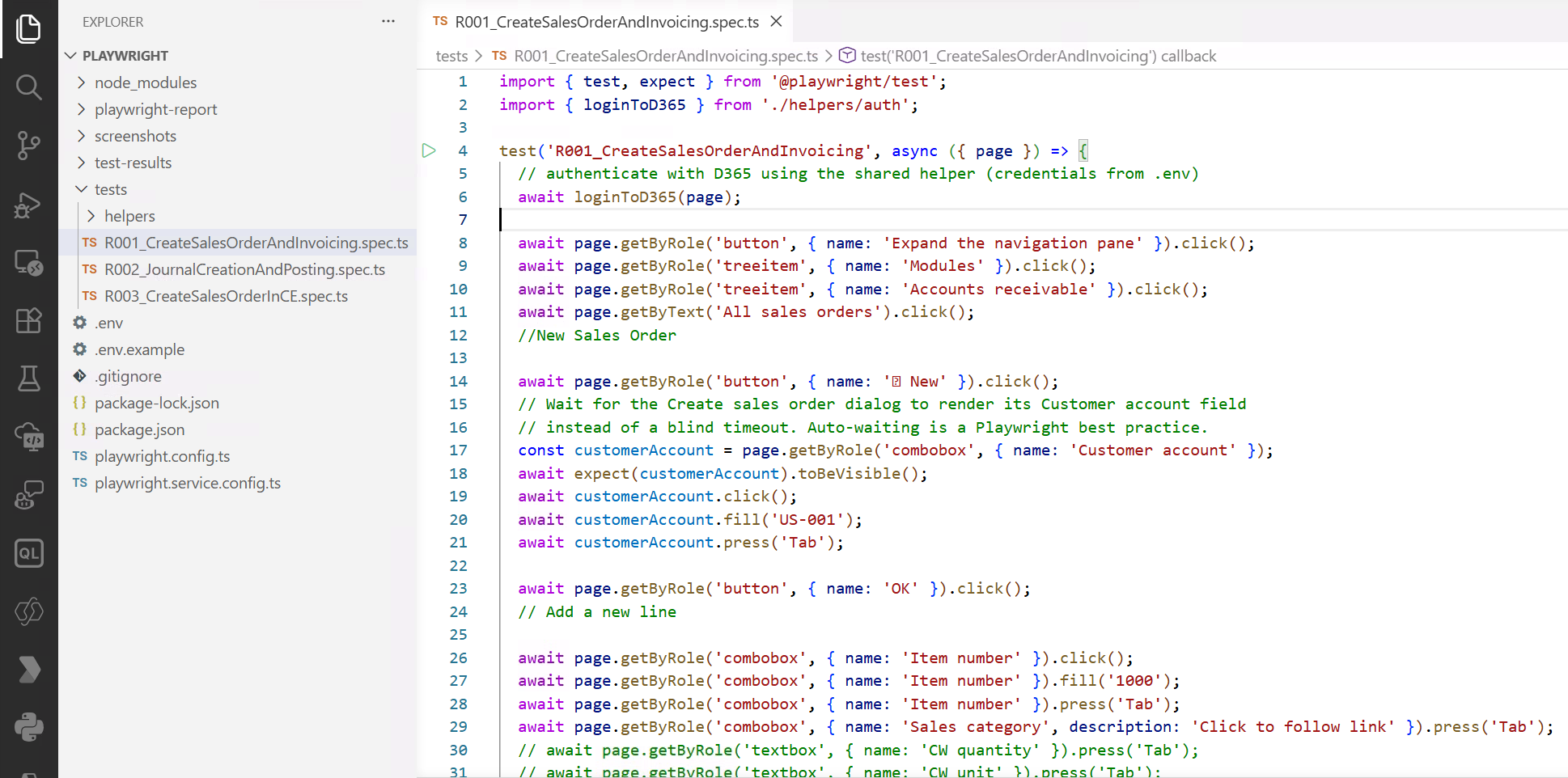
The following screenshot or code snippet shows the R001_CreateSalesOrderAndInvoicing scenario.
![]()
For Dynamics 365 (Finance and Operations, and Dataverse) regression testing, this provides a practical path to modernize automated testing beyond local execution. We can record or write Playwright tests locally, connect them to Playwright Workspaces, run them in the cloud, and finally integrate them into Azure DevOps pipelines.
For this latest blog post, I prepared 3 Playwright regression scripts to test with Playwright Workspaces.
- R001_CreateSalesOrderAndInvoicing (F&O)
- R002_JournalCreationAndPosting (F&O)
- R003_CreateSalesOrderInCE (CE)
The following screenshot or code snippet shows the R001_CreateSalesOrderAndInvoicing scenario.
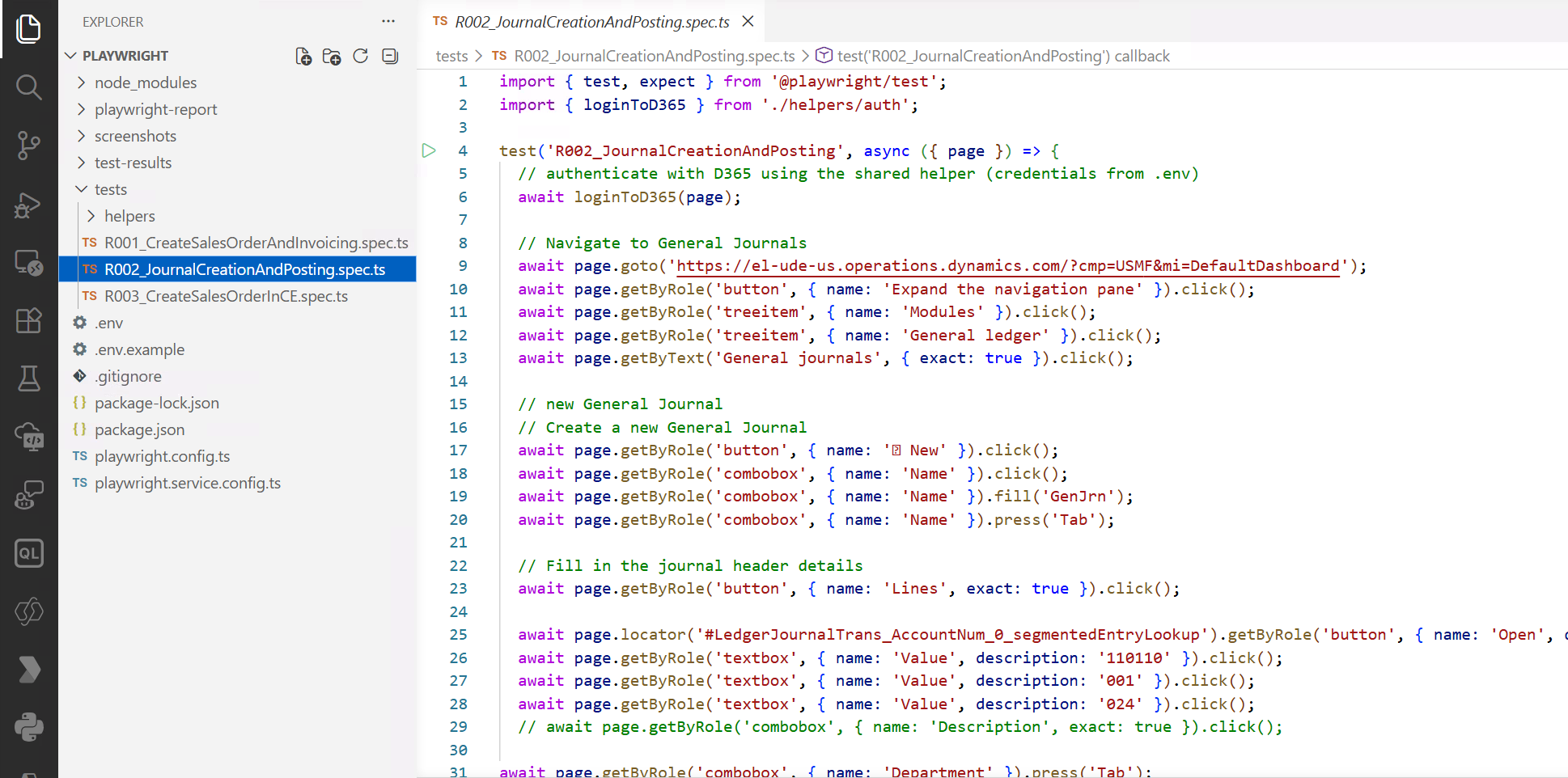
The following screenshot or code snippet shows the R002_JournalCreationAndPosting scenario.
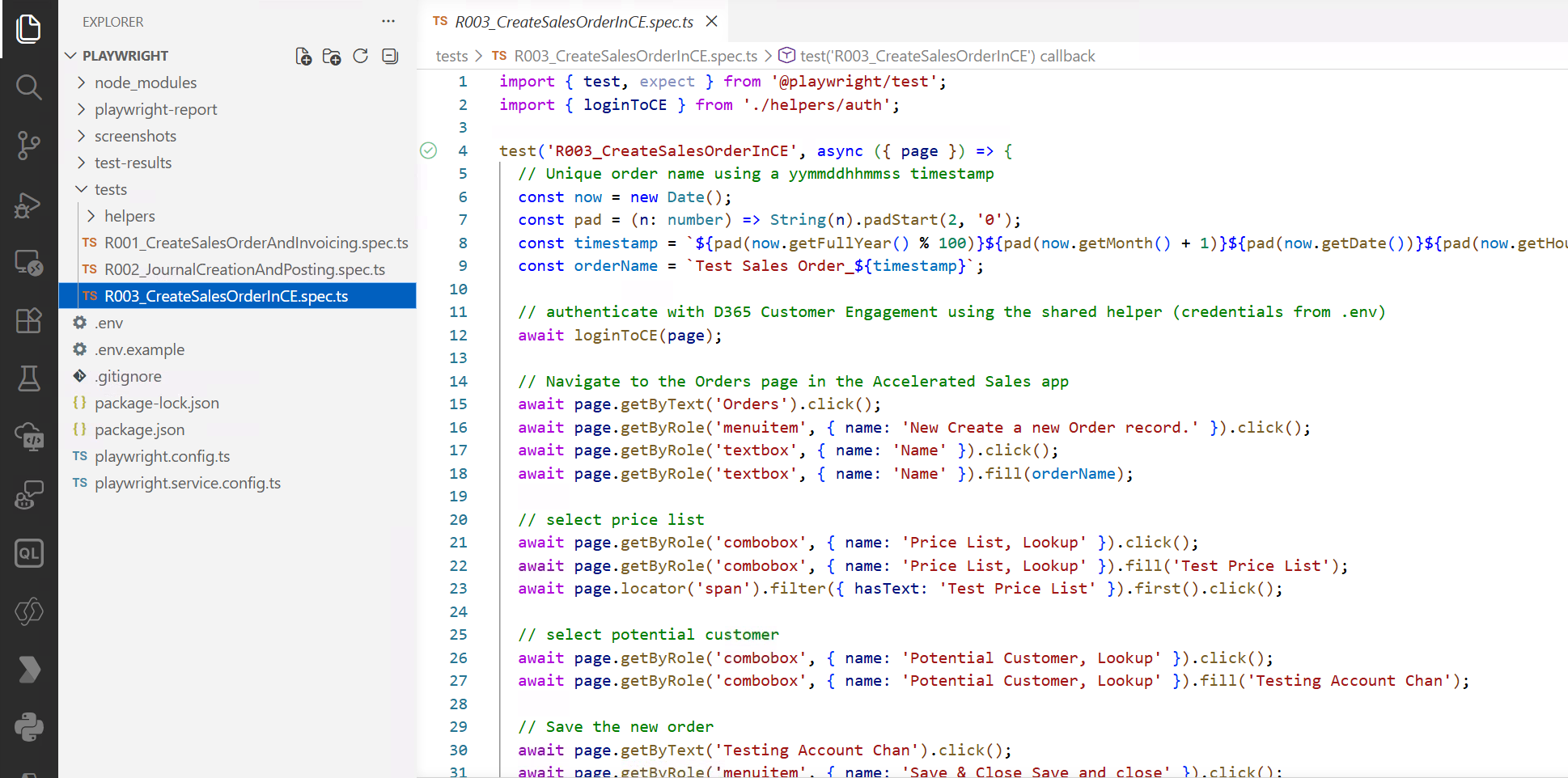
The following screenshot or code snippet shows the R003_CreateSalesOrderInCE scenario.
Run tests in Playwright Workspaces
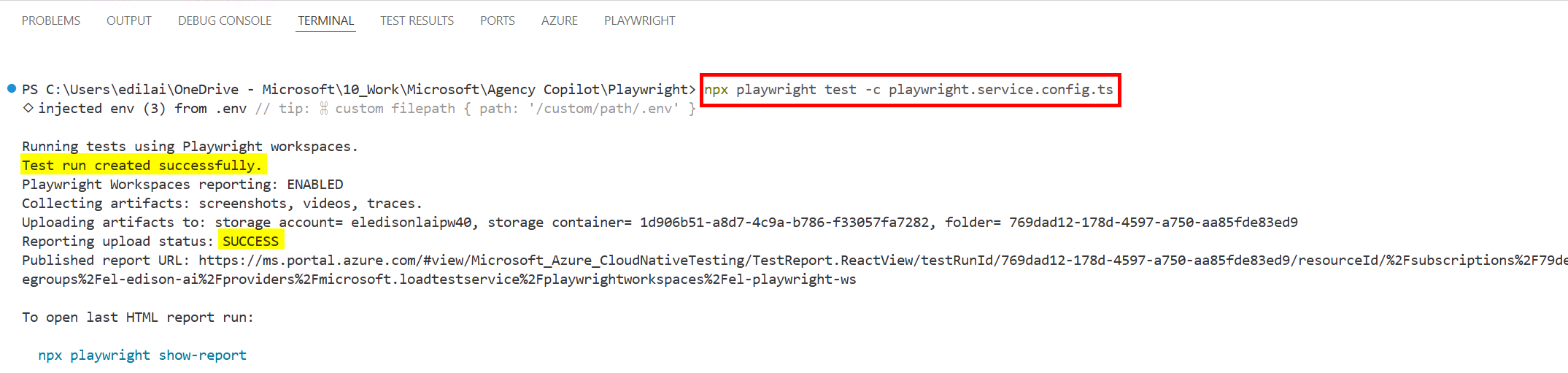
When you are ready to run scenario scripts in Playwright Workspaces, ensure you have sign-in (az login) in your terminal, then start with a single test file:
When you are ready to run scenario scripts in Playwright Workspaces, ensure you have sign-in (az login) in your terminal, then start with a single test file:
npx playwright test tests/R001_CreateSalesOrderAndInvoicing.spec.ts --config=playwright.service.config.tsOr run all test files using Playwright Workspaces:
![]()
npx playwright test --config=playwright.service.config.tsPlaywright Workspaces supports parallel execution, which can significantly reduce test execution time for larger regression test suites.
Note: Playwright Workspaces is charged based on test minutes, so start with a small test set before running the full suite.
Note: Playwright Workspaces is charged based on test minutes, so start with a small test set before running the full suite.
Review test results and reports
If the setup is correct, Playwright connects to cloud-hosted browsers and runs the test from the workspace. This is a good first validation step before running the full regression suite, and the test report is uploaded to the workspace for review.
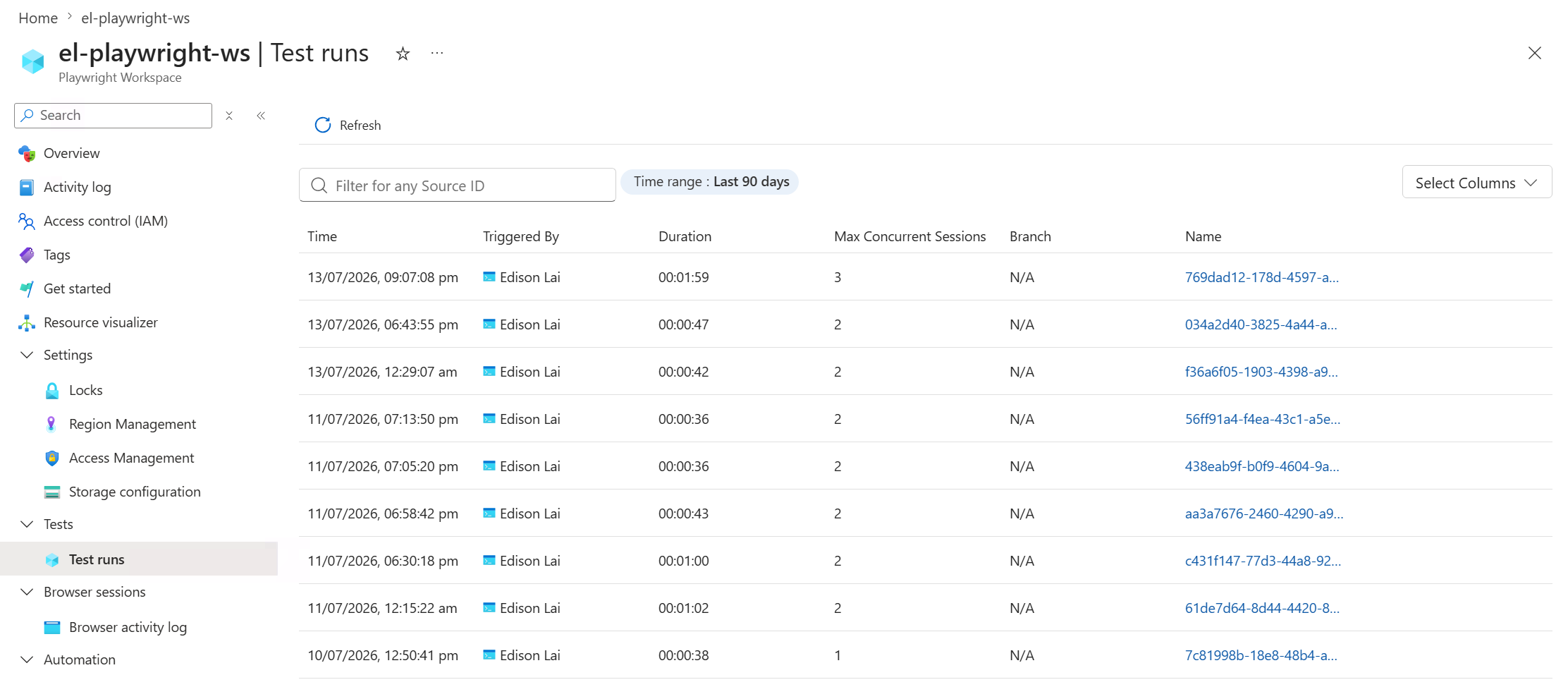
In the Azure portal, go to your Playwright Workspace > Tests > Test runs to view all executed test runs.
If the setup is correct, Playwright connects to cloud-hosted browsers and runs the test from the workspace. This is a good first validation step before running the full regression suite, and the test report is uploaded to the workspace for review.
In the Azure portal, go to your Playwright Workspace > Tests > Test runs to view all executed test runs.
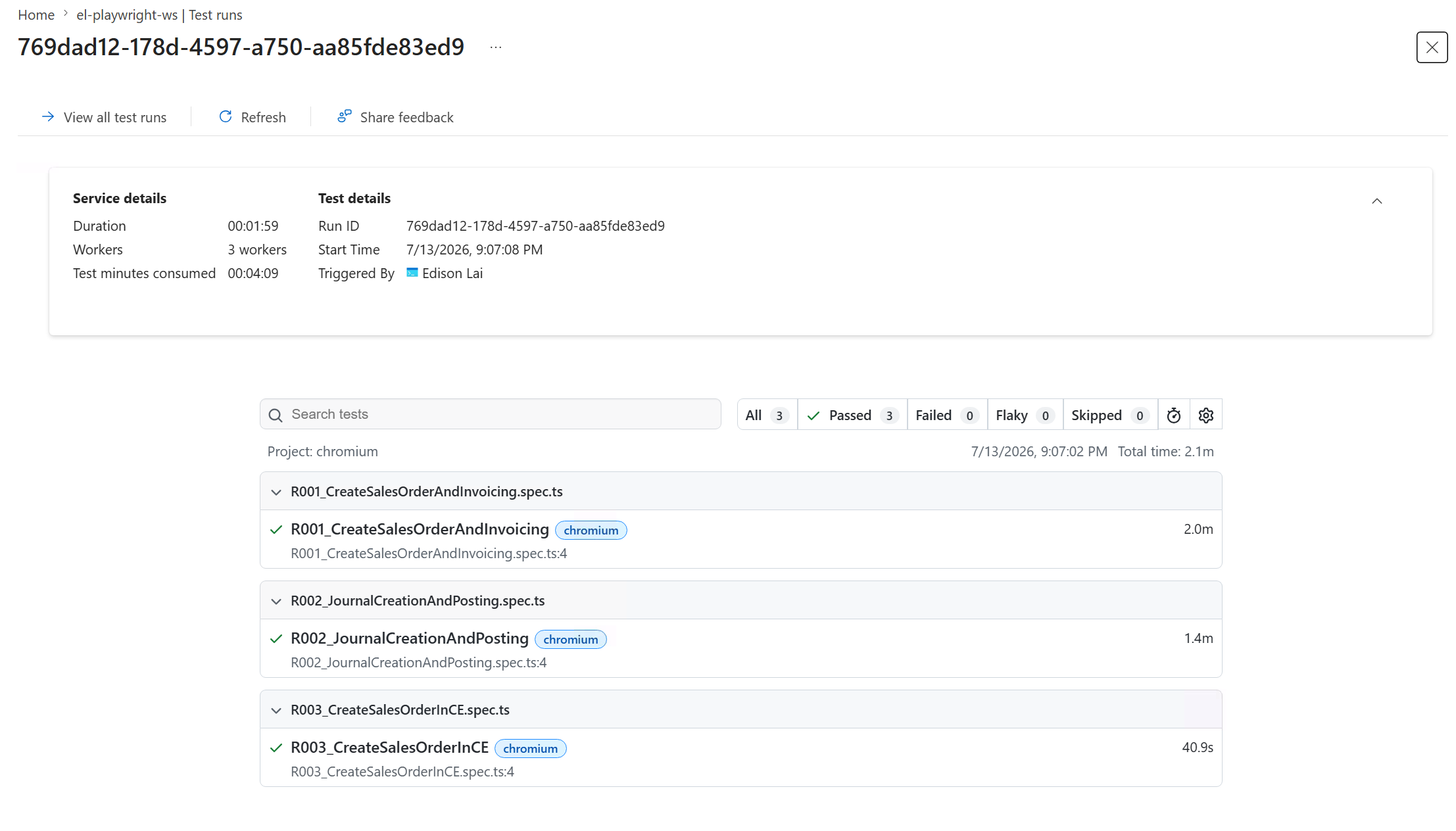
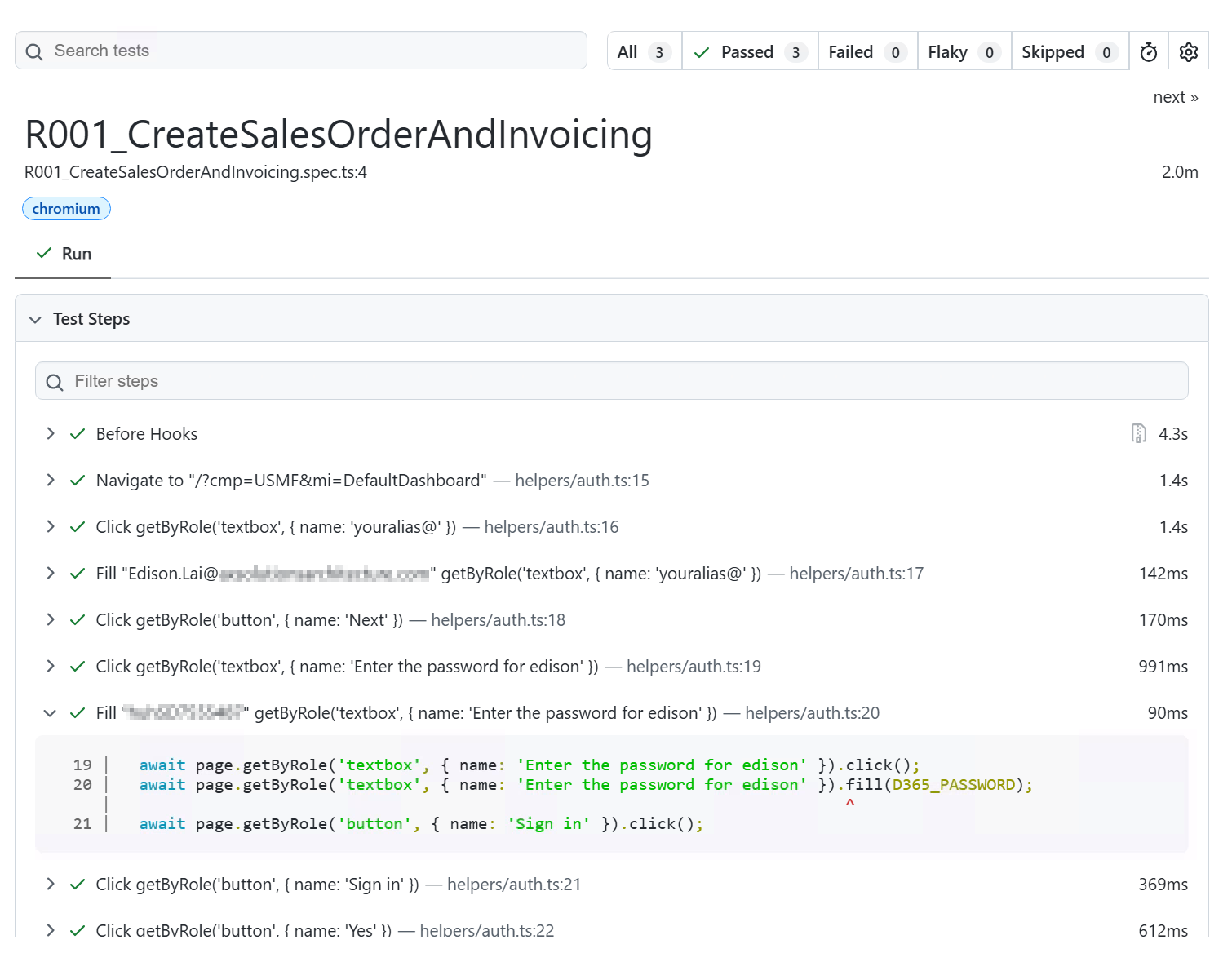
The scenario report is attached to each test run. You can open a run ID (769dad12-178d-4597-a750-aa85fde83ed9) to review the test status, duration, trace, screenshots, and other artifacts.
All scenario steps are listed in the test run details, making it easier to identify which step passed, failed, or needs investigation.
Capture screenshot evidence
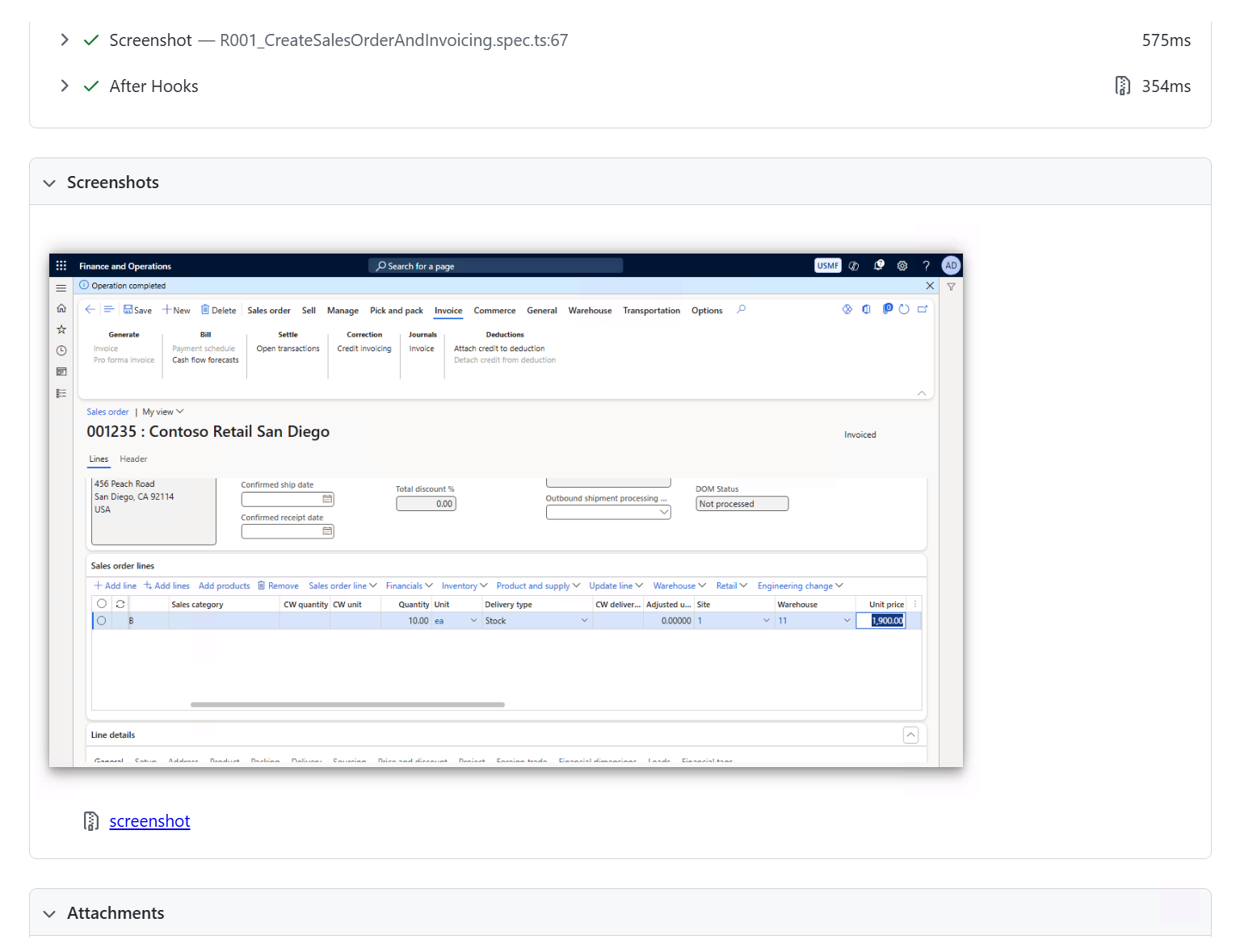
I also added screenshot capture in the script to record the final business result. For example, in the R001_CreateSalesOrderAndInvoicing scenario, it captured a screenshot after the sales order is invoiced successfully.
This provides evidence that the business operation completed successfully and makes the test result easier to review later.
I also added screenshot capture in the script to record the final business result. For example, in the R001_CreateSalesOrderAndInvoicing scenario, it captured a screenshot after the sales order is invoiced successfully.
This provides evidence that the business operation completed successfully and makes the test result easier to review later.
Best Practices for Dynamics 365 Testing
When using Playwright for Dynamics 365 regression testing, I recommend the following practices:
When using Playwright for Dynamics 365 regression testing, I recommend the following practices:
- Keep login logic reusable by creating a helper function or shared fixture.
- Use stable locators where possible, such as role-based locators or test IDs for custom controls.
- Add assertions after each important business step.
- Keep credentials, endpoints, and environment-specific values out of source code.
- Store test data separately from test logic.
- Run a small smoke test first before executing a full regression suite.
- Use parallel workers carefully if tests modify shared data or depend on the same test records.
- Capture screenshots, videos, and traces for troubleshooting.
Conclusion
Playwright Workspaces is the current Microsoft-managed cloud execution option for Playwright tests. It allows teams to continue using Playwright while gaining scalable cloud execution, parallel test runs, and CI/CD integration.
Playwright Workspaces is the current Microsoft-managed cloud execution option for Playwright tests. It allows teams to continue using Playwright while gaining scalable cloud execution, parallel test runs, and CI/CD integration.
For Dynamics 365 (Finance and Operations, and Dataverse) regression testing, this provides a practical path to modernize automated testing beyond local execution. We can record or write Playwright tests locally, connect them to Playwright Workspaces, run them in the cloud, and finally integrate them into Azure DevOps pipelines.
*This post is locked for comments