




 21
21 Like
Like Share
Share
 Report
Hiya friends, we have already seen the magnificent capabilities of BPA MCP server. It just not acts as an AI abstraction layer, enabling large language models (LLMs) to securely query and analyze ERP financial/dimensional data via natural language. It enables agents to perform instant tasks like variance detection and financial forecasting by providing structured access to BPA data models. I have covered the background, setup and process of handling BPA MCP servers, on a previous blog:
https://community.dynamics.com/blogs/post/?postid=72ab771f-1c08-f111-8407-7c1e52fd2cdc
And there is a very insightful blog by Ramit Paul to setup BPA server:
https://www.youtube.com/watch?v=qWafknUgGqM
https://community.dynamics.com/blogs/post/?postid=72ab771f-1c08-f111-8407-7c1e52fd2cdc
And there is a very insightful blog by Ramit Paul to setup BPA server:
https://www.youtube.com/watch?v=qWafknUgGqM
https://www.youtube.com/watch?v=6LKXuD5QB1E
However BPA MCP servers have certain limitations. For example, if you are asking it to plot any transaction trend:
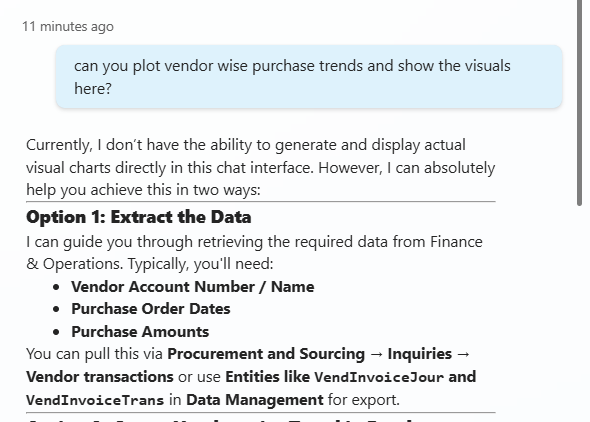
Or with further options like:
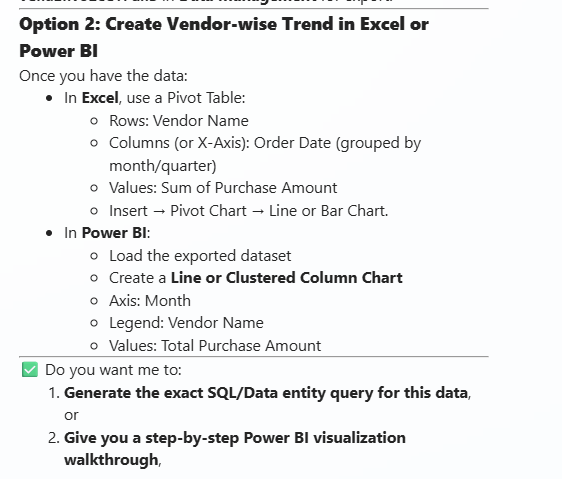
The reason:
Copilot Studio cannot reliably render dynamically generated plot/chart images (for example, images produced at runtime by Python, Power BI export visuals, or external APIs) inside chat responses. When such images are referenced, Copilot Studio often shows a broken image placeholder instead.
However BPA MCP servers have certain limitations. For example, if you are asking it to plot any transaction trend:
Or with further options like:
The reason:
Copilot Studio cannot reliably render dynamically generated plot/chart images (for example, images produced at runtime by Python, Power BI export visuals, or external APIs) inside chat responses. When such images are referenced, Copilot Studio often shows a broken image placeholder instead.
Why this happens (root causes)
1. Copilot Studio chat UI does not support runtime image buffers
Plots generated dynamically (e.g., matplotlib, seaborn, Plotly static images) are typically:- Created in memory
- Saved temporarily
- Referenced via a URL or binary blob
- ✅ Supports static, publicly accessible images
- ❌ Does not support ephemeral or in‑memory images
2. Restricted image sources & sandboxing
Copilot Studio enforces strict security boundaries:Copilot chat cannot display images that are:
- Behind authentication
- Served from localhost / private APIs
- Stored in temp storage
- Generated inline (Base64, binary stream)
- Azure Function output
- Python runtime
- Secure Blob without SAS
- Power BI visual export API
3. Markdown + Adaptive Card limitations
Copilot Studio uses a restricted markdown and Adaptive Card renderer.Unsupported patterns include:
- <img> tags with dynamic URLs
- Markdown images pointing to short‑lived links
- Inline SVG or canvas-based charts
If your “plot image” comes from Power BI:
- Exported visuals are often tenant‑secured
- Share links may require interactive login
- The Copilot chat sandbox cannot authenticate
Quick fixes
Option 1
What can we do is to rephrase our instructions:And then when you ask Copilot Studio to Plot:
Option 2
Another way is to pass on the information as a payload to Adaptive card. Adaptive cards are highly customizable and responsive instruments whereby you can send your JSON payloads to your card, asking it to render the plot as a chat response.Ask me how:
Imagine the following JSON payload like this to an Adaptive card:
{
"type": "AdaptiveCard",
"version": "1.4",
"body": [
{
"type": "TextBlock",
"text": "Vendor-wise Purchase Trends",
"weight": "Bolder",
"size": "Medium"
},
{
"type": "Image",
"url": "https://quickchart.io/chart?c={type:'bar',data:{labels:['Acme Office Supplies','Lande Packaging Supplies','Best Supplier - Europe','Fabrikam Supplier','Datum Receivers'],datasets:[{label:'Total Purchase Amount',data:[1000,100,50893.06,209,7340.2]}]}}",
"size": "Stretch"
}
]
}
Checking this payload on https://adaptivecards.microsoft.com/designer.html (Uh, I love this site), you can paste this payload and you can see the effect:
You can follow the next few steps to make this dynamic in your Agent:
Step 1
Create a Prompt like this:In the Text input, I am defining the JSON which I showed above. Please note that: there is a URL mentioned there. We need to scoop out the URL from the payload and need to pass it on as a variable:
{
"type": "AdaptiveCard",
"version": "1.4",
"body": [
{
type: "TextBlock",
text: “Plot demo on Adaptive cards”
weight: "Bolder",
size: "Medium"
},
{
type: "Image",
url: "${ImageURL}",
size: "Stretch"
}
]
}
Here, you see, ImageURL is a variable which we can pass on containing this info to Adaptive Card. But how would you do that?
Let me show you how.
Step 2
Create a topic that can accept an input variable:And then in the message >> add an adaptive card which has a formula like this:
And finally in the instruction you need to mention something like this:
See here, I am passing the prompt first and then the topic to generate the Adaptive card.
So that when I am trying to ask the agent the same question, this is what I am getting:
That’s cool, ain’t so?
Signing off for now – coming back soon. Take care, much love and Namaste J
*This post is locked for comments