






D365F&O: Implement buttons of your choice on your Flows enabled workflows mailer
Views (1065)
 Subhad365
 21
User Group Leader
21
User Group Leader
 Like
Like Share
Share
 Report
We already have seen the capabilities of Power Automate to enable approval buttons for Workflows itself, while initiating them from D365F&O.

In today’s fast paced world, who has the time to get connected to the system, check for workflow details and take actions based? We are in hurry and always want things on the go. Hence your client would like to see the approvals buttons on their email or on phone directly, instead of stopping down to check the record details every time.
But workflows do have other options like Delegate, Change requests. How can we bring them on your approval email? How can you make your emailer be more responsive, if you want to bring more such custom button responses like ‘Need more info’, etc.?
Here is a cool hack to do. Please read on.
Typically the incoming response from your Business event looks like:
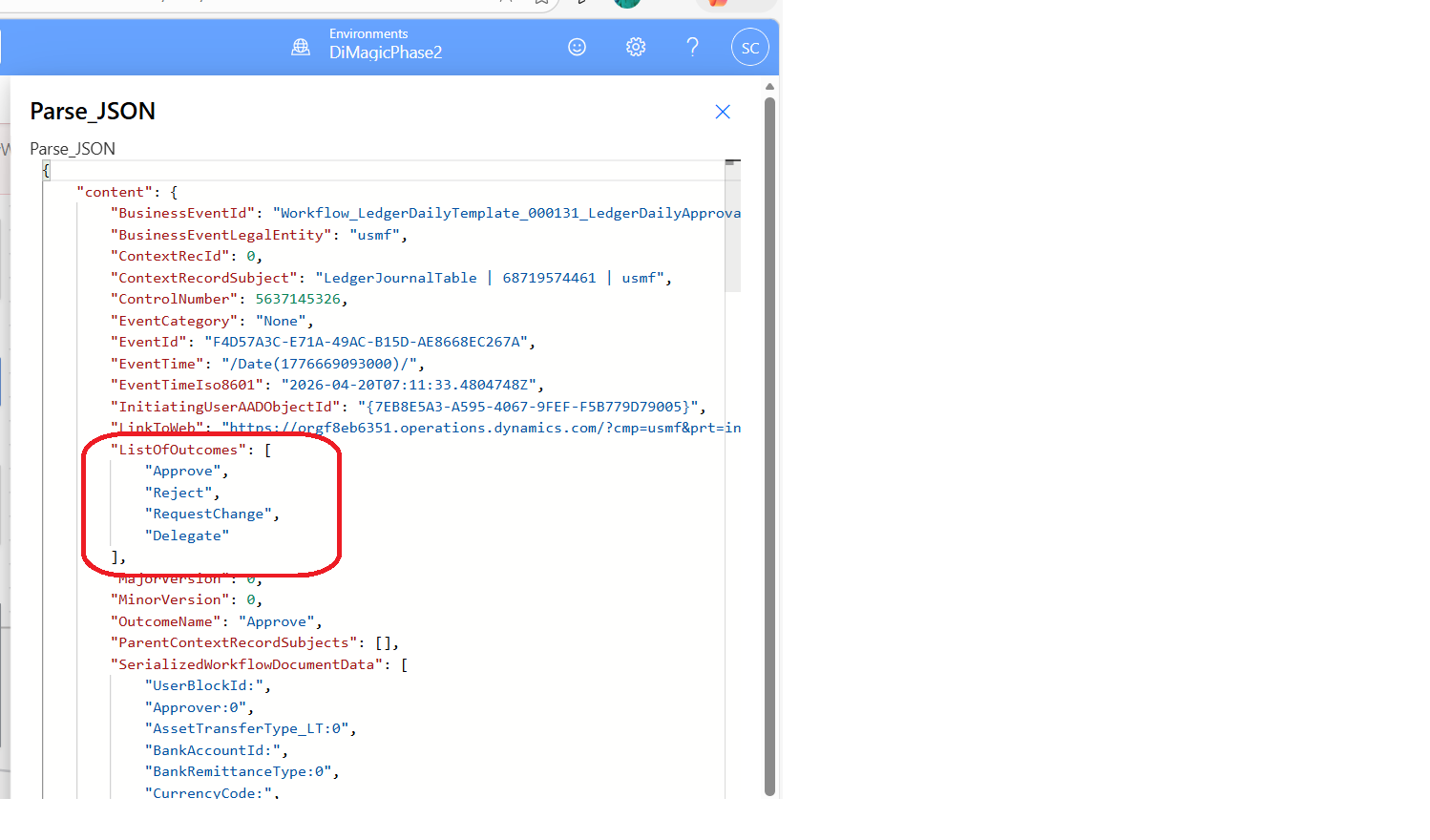
This is what you need to use this in your ‘Start and Wait for Approval’ step. Pass this on as a variable in the Response Options step.
But before that don’t forget to bring in a step to parse the JSON:
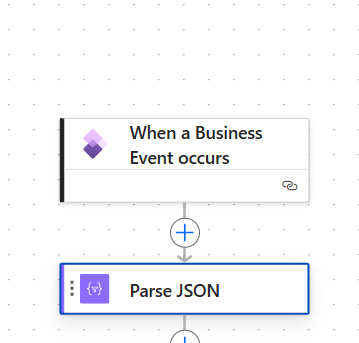

This will make the input dynamic. Instead of hardcoding the input values, you can make it tap down the values from coming as input from Business event.
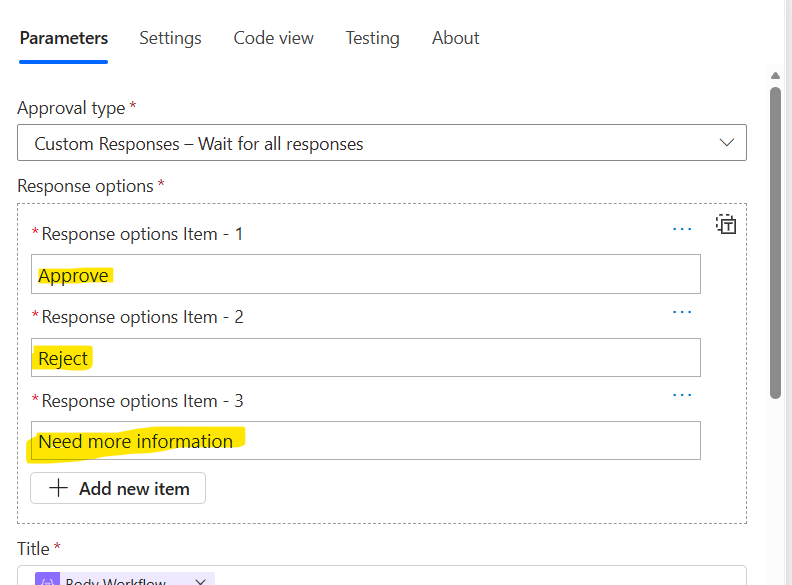
Additionally you can give values like:
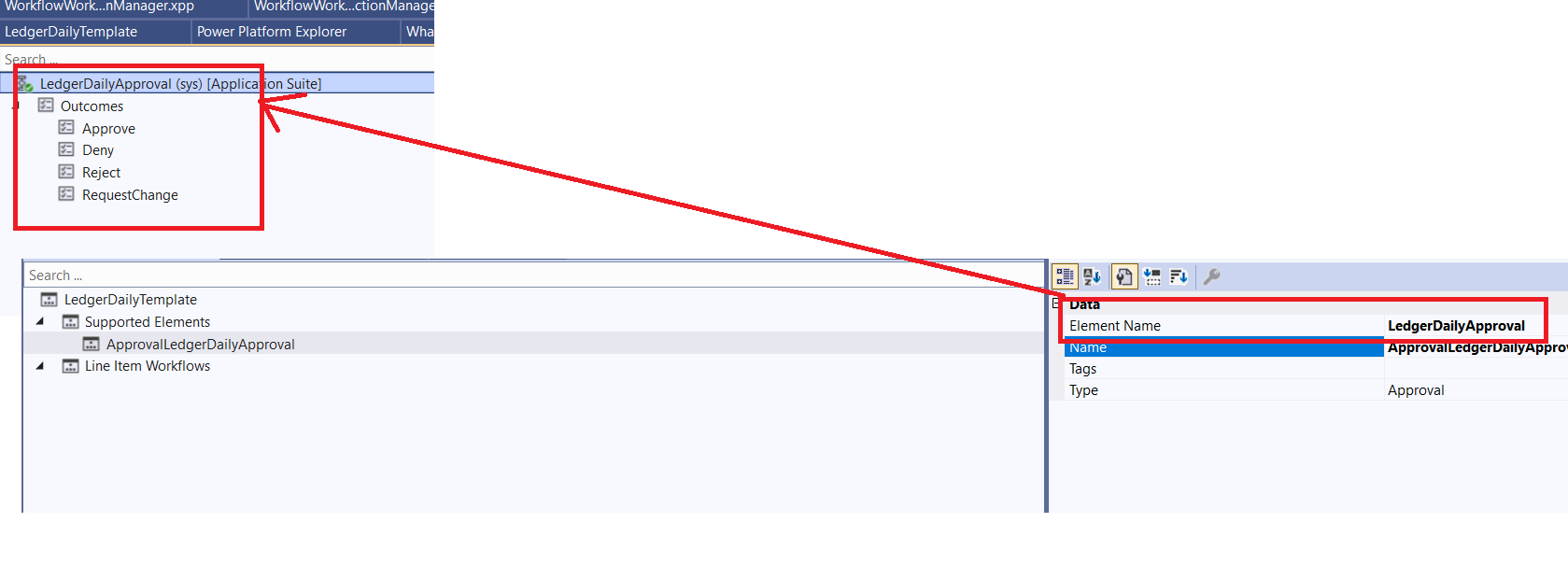
You can add as much as steps you want, provided they are defined in the D365F&O workflow:
Don’t forget to save and publish the flow.
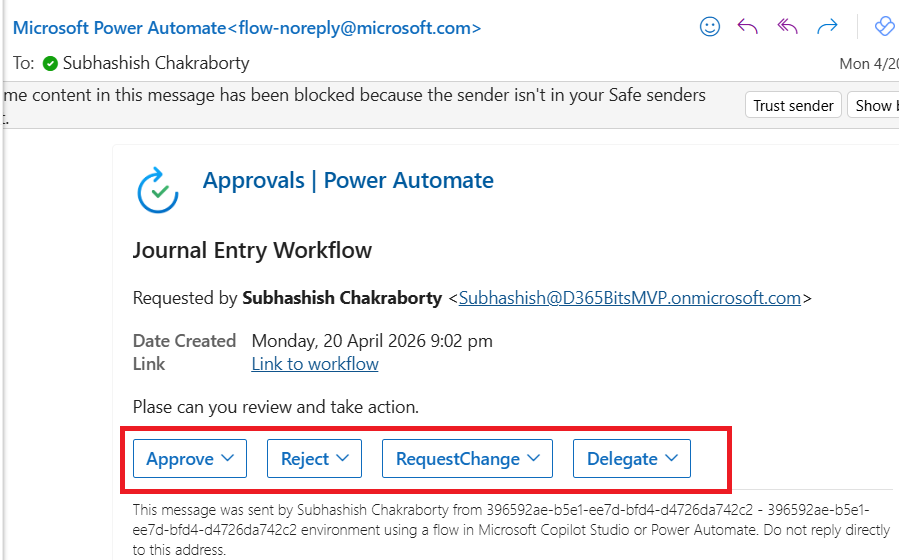
P.S.: Don’t forget to keep the Target user and RunasUser as Workflow originator, just to avoid your workflow crashing down owing to lack of privileges:

Let me know how it goes. Much love and Namaste J
In today’s fast paced world, who has the time to get connected to the system, check for workflow details and take actions based? We are in hurry and always want things on the go. Hence your client would like to see the approvals buttons on their email or on phone directly, instead of stopping down to check the record details every time.
But workflows do have other options like Delegate, Change requests. How can we bring them on your approval email? How can you make your emailer be more responsive, if you want to bring more such custom button responses like ‘Need more info’, etc.?
Here is a cool hack to do. Please read on.
Step 1
Understand the response.Typically the incoming response from your Business event looks like:
This is what you need to use this in your ‘Start and Wait for Approval’ step. Pass this on as a variable in the Response Options step.
But before that don’t forget to bring in a step to parse the JSON:
Step 2:
In the ‘Start and wait for approval’, choose Approval type: custom responses – Wait for all responses or Custom responses – wait for One response. And then click on the ‘T’ icon to convert this into Switch the details input into array item:This will make the input dynamic. Instead of hardcoding the input values, you can make it tap down the values from coming as input from Business event.
Additionally you can give values like:
You can add as much as steps you want, provided they are defined in the D365F&O workflow:
Don’t forget to save and publish the flow.
Testing it:
Once the workflow comes, the business event naturally picks up the event and pushes it for mailers that looks like:P.S.: Don’t forget to keep the Target user and RunasUser as Workflow originator, just to avoid your workflow crashing down owing to lack of privileges:
Let me know how it goes. Much love and Namaste J
*This post is locked for comments