






Introducing the new experience of Copilot Studio: A deep dive
Views (3)
 Subhad365
 21
User Group Leader
21
User Group Leader
 Like
Like Share
Share
 Report
The New Copilot Studio Experience (often called the New Agent Experience) is Microsoft's major redesign of Copilot Studio. It shifts the platform from a chatbot-building model to an AI agent-building model, making it easier to create autonomous, reasoning-based agents without designing complex conversation flows.
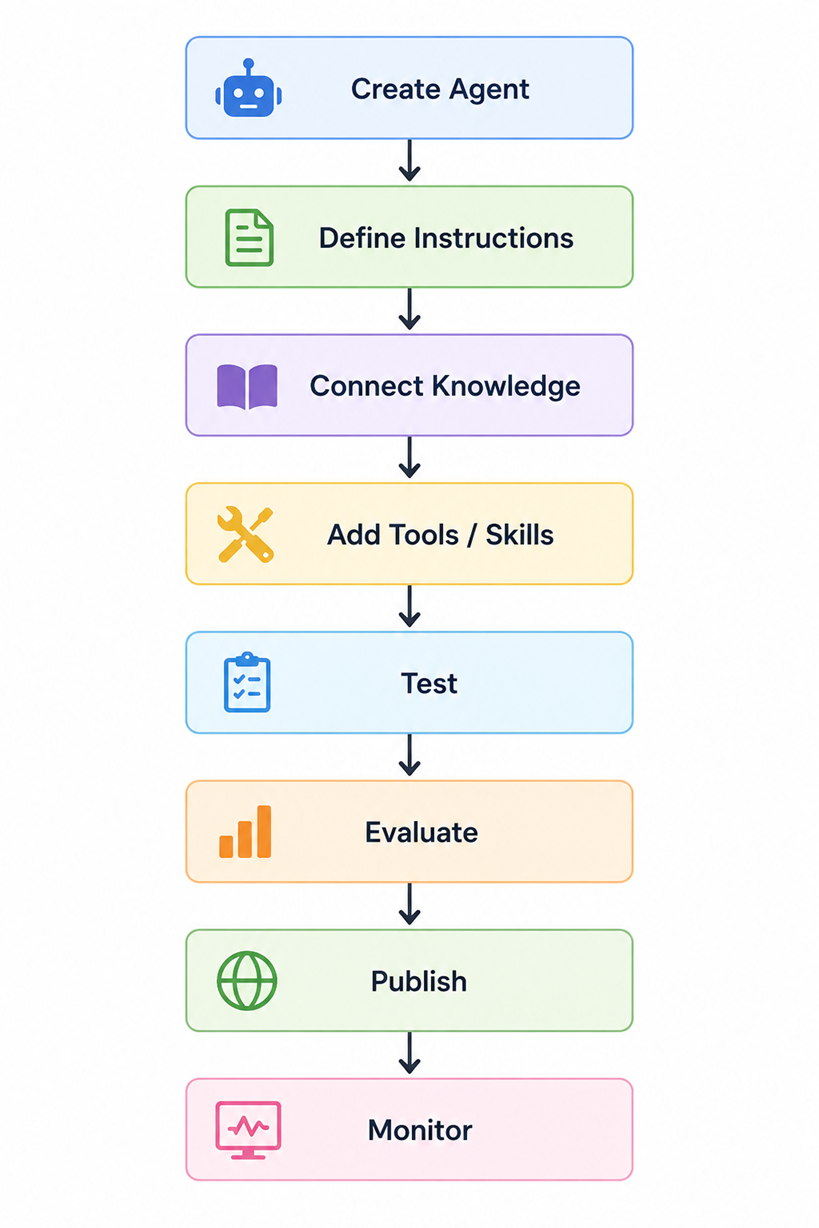
Instead of creating dozens of topics, you describe what the agent should do. The platform generates the behavior using AI orchestration.
Instead of:
If user says X
→ Go to Topic A
You write:
You are an HR assistant.
Help employees with:
- Leave policies
- Benefits
- Payroll questions
Always verify employee identity before
sharing payroll information.
The agent reasons from these instructions.
The agent can ground responses using:
Examples:
Example:
This supports more modular agent development.
Agents can delegate work to other specialized agents.
Example:
HR Agent
↓
Payroll Agent
↓
Benefits Agent
↓
Recruitment Agent
The primary agent can decide which specialized agent should handle a task.
For classic experience:
User Question
↓
Topic Match
↓
Conversation Flow
↓
Response
The agent performs planning and reasoning automatically. Microsoft calls this the enhanced orchestration runtime.
Classic still excels when you need:

And then you can switch back again to the classic style by toggling off:
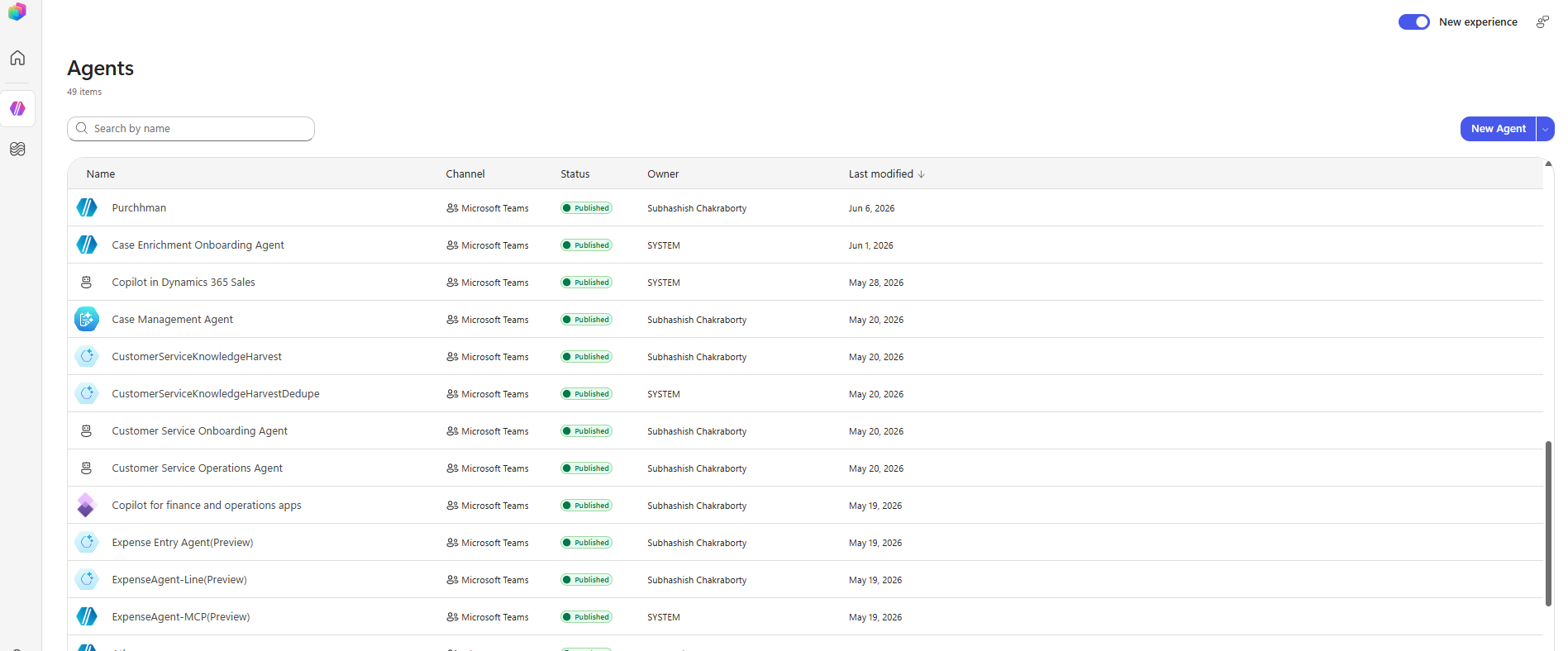
The agents show up in the list with a different flavour of presentation:
You can visit your agent and you would get a littler or new tabs introduced, as well as the older tabs getting represented as a sidecar factbox:
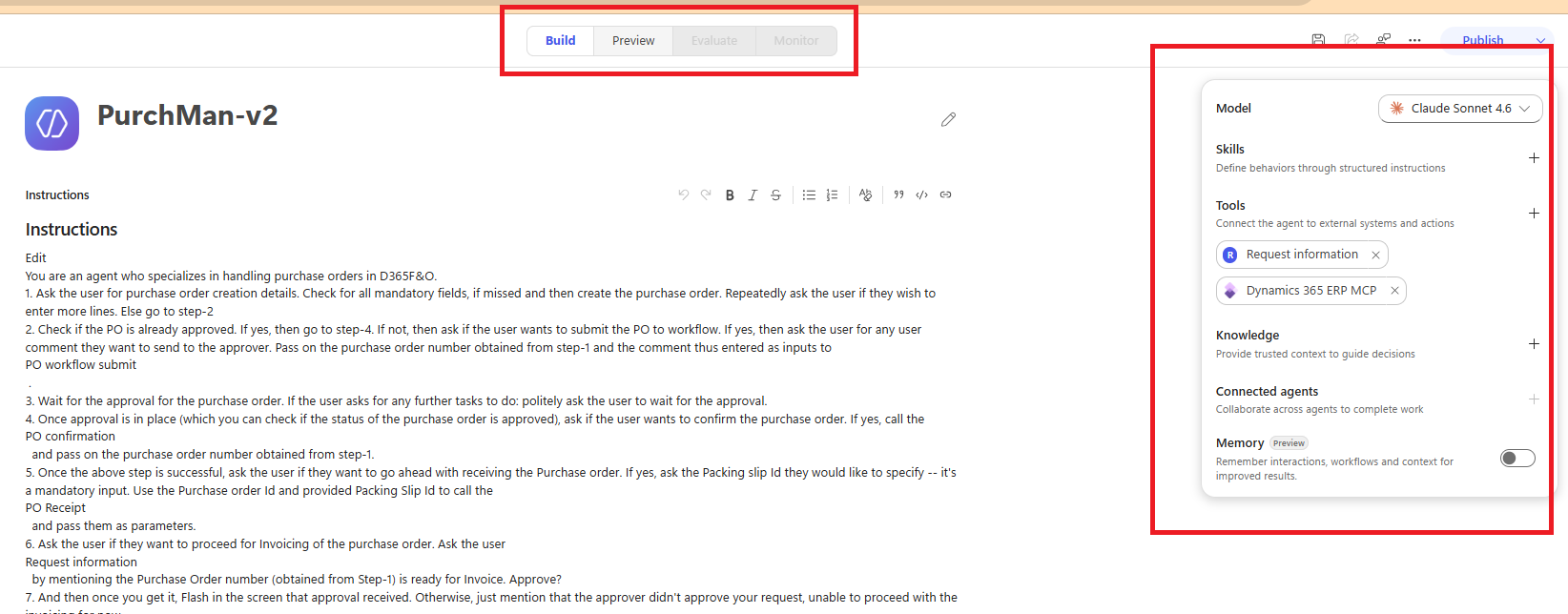
Build: This tab is enabled till the time you are done with keying in the instructions, adding the tools, Skills, Knowledge and your dev components.
Preview: Once you are done with your dev activities, save your instructions/changes, and the agent gets enabled with the Preview tab. Essentially it’s the same test pane that you used to use in your classic experience. You can also turn on the following toggle to check out your end user experience as a preview:

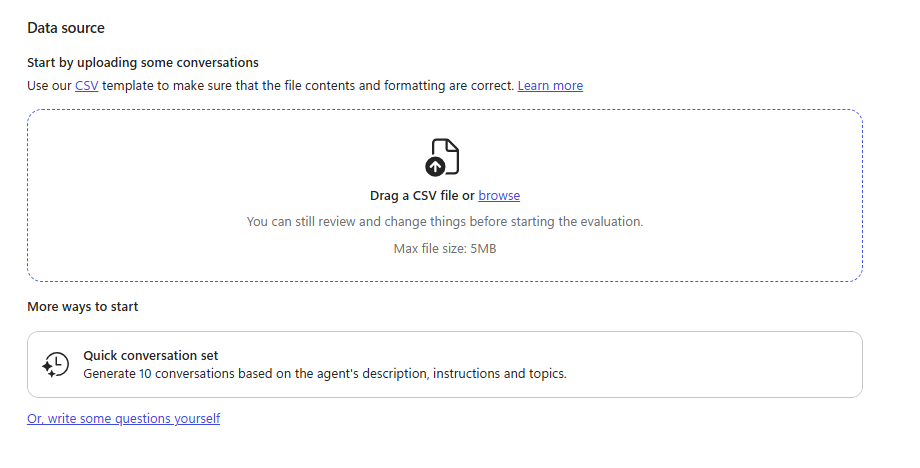
Evaluate: Create and execute test sets to gauge your agent quality:
Monitor: Once you have published your changes, this tab will get enabled and you can review your recent activities, files/resources/agents used.
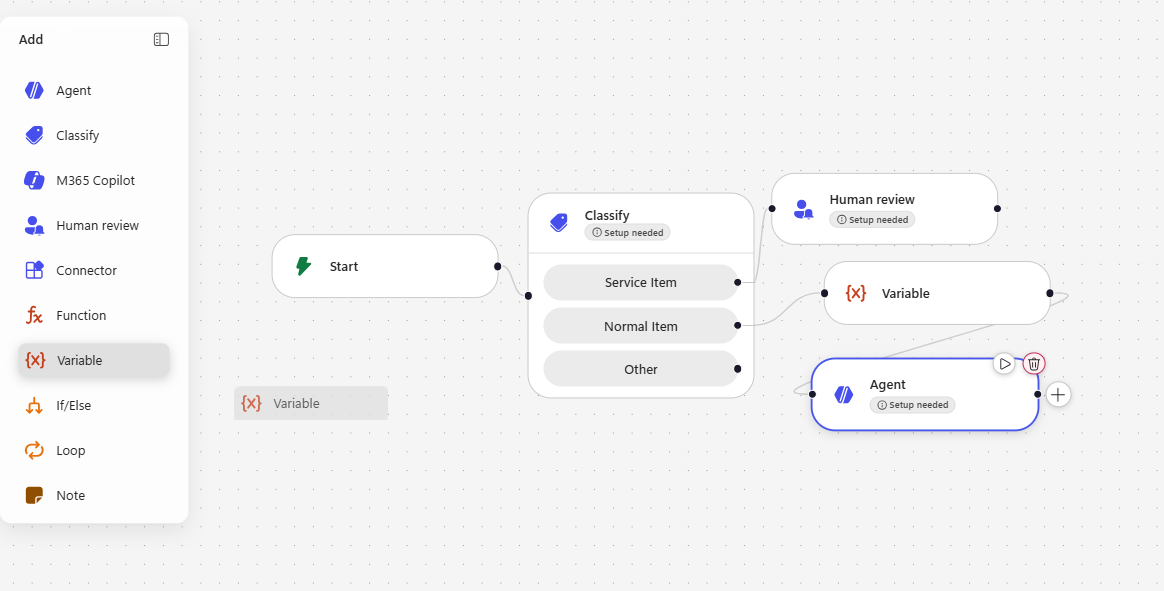
A lot of utilities have been introduced too, for example:
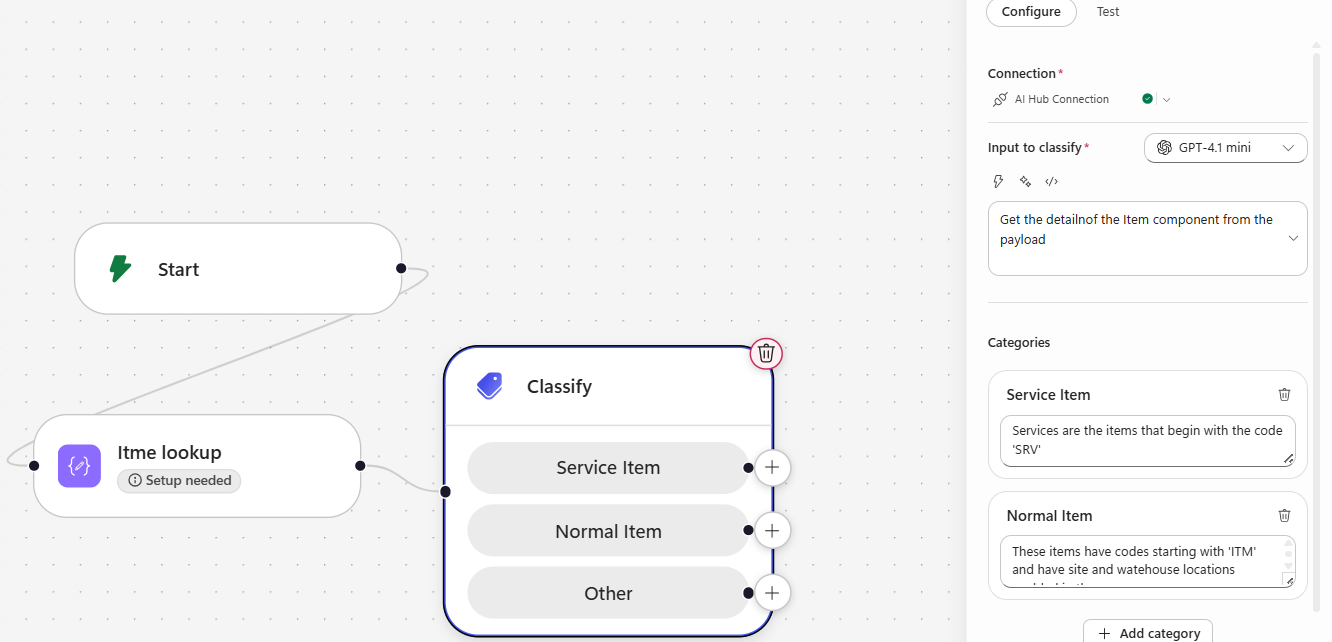
Letting your component under inspection be automatically detected and classed, automatically as a part of power automate AI hub classification algorithm.
Why was this needed
The classic Copilot Studio was built around:- Topics
- Trigger phrases
- Decision trees
- Conversation nodes
- Power Automate flows
- Reason dynamically
- Choose tools automatically
- Search enterprise knowledge
- Collaborate with other agents
- Handle unpredictable user requests
| Classic Experience | New Experience |
| Topic-centric | Agent-centric |
| Flow design | Natural language instructions |
| Trigger phrases | Intent reasoning |
| Manual routing | AI orchestration |
| Separate Knowledge, Actions, Topics | Unified Build experience |
| Conversation trees | Agent reasoning |
| Chatbot mindset | Autonomous agent mindset |
New Agent Lifecycle
The new experience introduces a much simpler lifecycle:Instead of creating dozens of topics, you describe what the agent should do. The platform generates the behavior using AI orchestration.
New UI Structure
The old left-navigation experience is replaced by four major tabs:Build
Everything is configured here:- Instructions
- Knowledge
- Tools
- Skills
- Connected Agents
- Models
Preview
Interactive testing environment.Evaluate
Run automated test cases and quality evaluations.Monitor
Observe agent activity, execution history, performance and runtime behaviour.Core Building Blocks
1. Instructions
This is now the most important component.Instead of:
If user says X
→ Go to Topic A
You write:
You are an HR assistant.
Help employees with:
- Leave policies
- Benefits
- Payroll questions
Always verify employee identity before
sharing payroll information.
The agent reasons from these instructions.
2. Knowledge
Knowledge is no longer an add-on.The agent can ground responses using:
- SharePoint
- OneDrive
- Websites
- Files
- Dataverse
- Microsoft 365 data
- Organizational context
3. Tools
Tools allow the agent to perform actions.Examples:
- Create a ticket
- Update CRM records
- Call REST APIs
- Trigger Power Automate flows
- Execute business processes
4. Skills
Skills are reusable capabilities.Example:
Customer Verification SkillThis supports more modular agent development.
5. Connected Agents
One of the biggest new capabilities.Agents can delegate work to other specialized agents.
Example:
HR Agent
↓
Payroll Agent
↓
Benefits Agent
↓
Recruitment Agent
The primary agent can decide which specialized agent should handle a task.
Enhanced Orchestration
This is arguably the most important change.For classic experience:
User Question
↓
Topic Match
↓
Conversation Flow
↓
Response
In case of New experience
User Question

      ↓

Reasoning Engine

      ↓

Knowledge Search

      ↓

Tool Selection

      ↓

Agent Planning

      ↓

Response
The agent performs planning and reasoning automatically. Microsoft calls this the enhanced orchestration runtime.
What You Lose Compared to Classic
The new experience is not always better.Classic still excels when you need:
- Precise Conversation Control
Question A

 → Ask Question B

 → Validate Answer

 → Branch

→ Complete Process- Deterministic Logic
- Complex Topic Routing
- Visual Conversation Design
When to Use the New Experience
Use it when building:- HR assistants
- Employee help desks
- Knowledge assistants
- IT support agents
- Sales copilots
- Multi-agent solutions
- Autonomous task agents
- Microsoft 365 grounded agents
Demo
The new chat experience could be accessed with the following button:And then you can switch back again to the classic style by toggling off:
The agents show up in the list with a different flavour of presentation:
You can visit your agent and you would get a littler or new tabs introduced, as well as the older tabs getting represented as a sidecar factbox:
Build: This tab is enabled till the time you are done with keying in the instructions, adding the tools, Skills, Knowledge and your dev components.
Preview: Once you are done with your dev activities, save your instructions/changes, and the agent gets enabled with the Preview tab. Essentially it’s the same test pane that you used to use in your classic experience. You can also turn on the following toggle to check out your end user experience as a preview:
Evaluate: Create and execute test sets to gauge your agent quality:
Monitor: Once you have published your changes, this tab will get enabled and you can review your recent activities, files/resources/agents used.
Flows
There is a jaw-dropping change for the Agent flows too, where you can see a toolbox based UI, enabling you to drag and drop your controls in your development pane:A lot of utilities have been introduced too, for example:
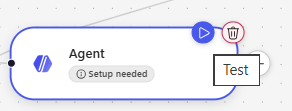
- You can directly do a testing of any agent/connecter component right there in the node itself:
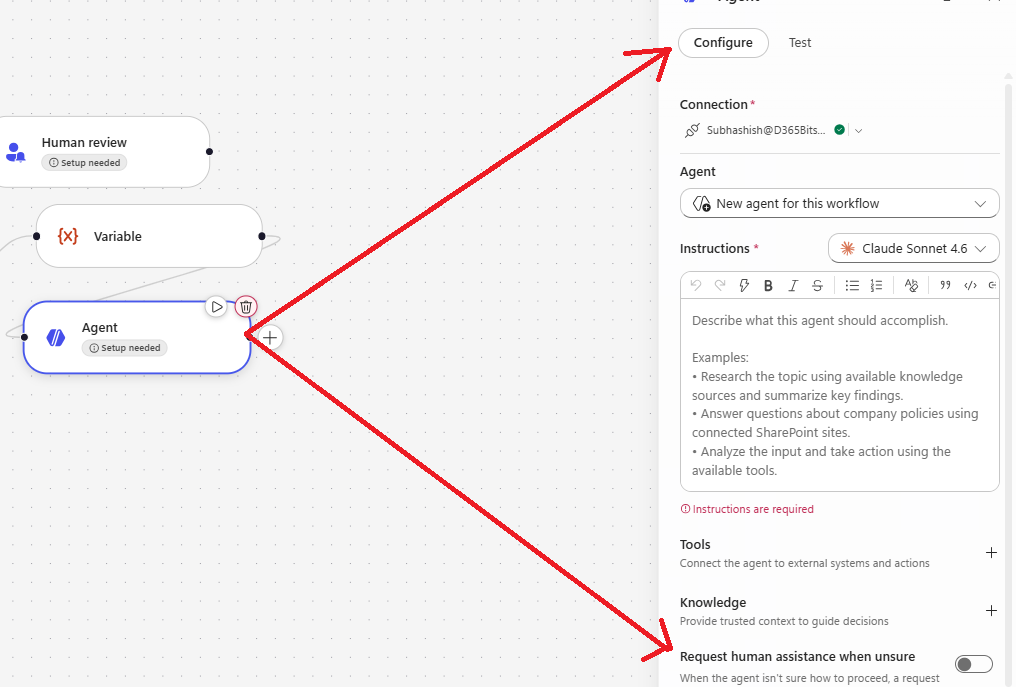
- You can create the agent from the flow itself:
- Use Classify when you are having a number of categorization for a data type to process:
Letting your component under inspection be automatically detected and classed, automatically as a part of power automate AI hub classification algorithm.
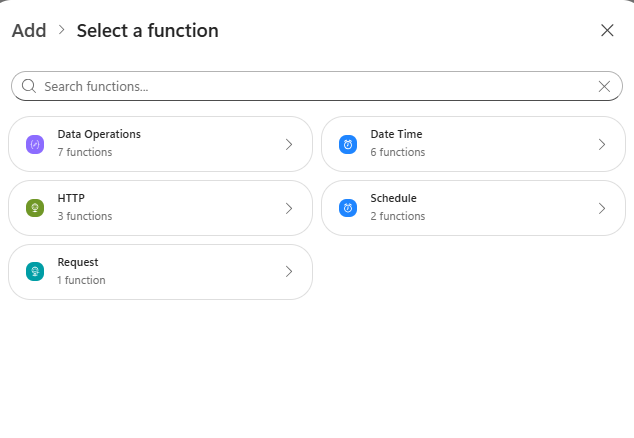
- You can also add Functions like Data operations, HTTP calls, Request HTTP, etc., by dragging the Function node from the tool bar and then dragging and dropping it:
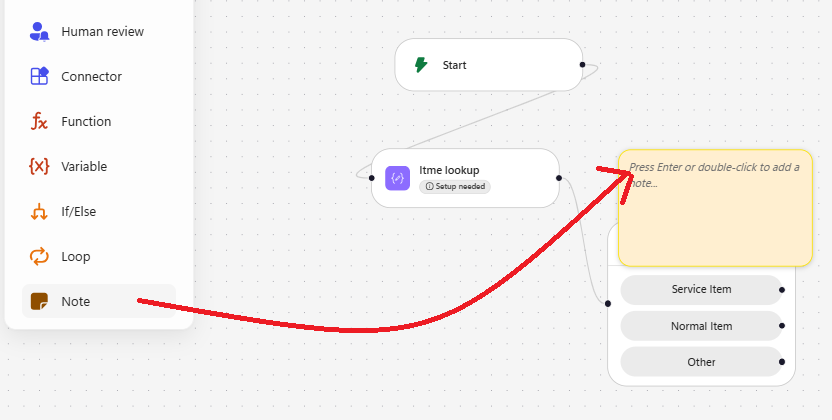
- Leaving Notes for others/later reviews were never been so easy:
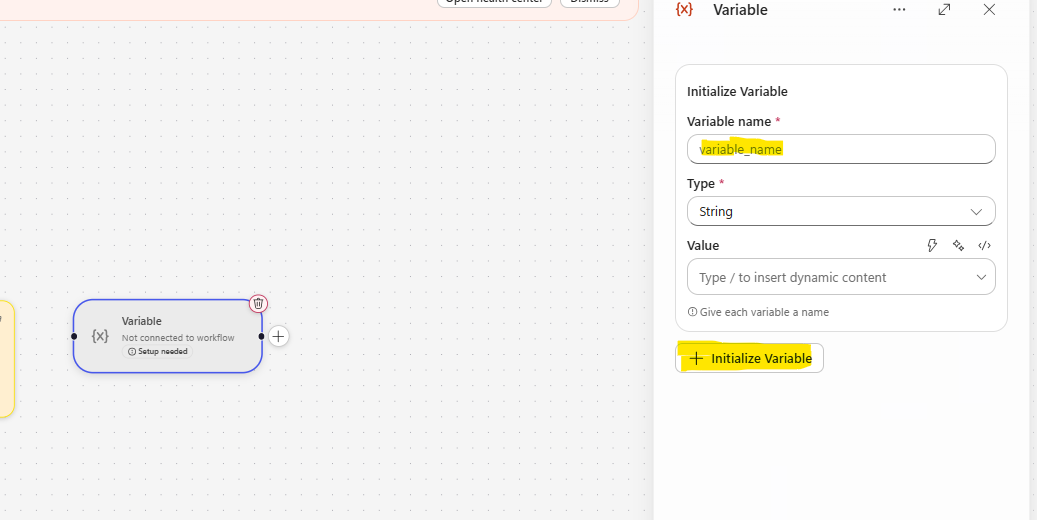
- You can define as many variables you like at one go:
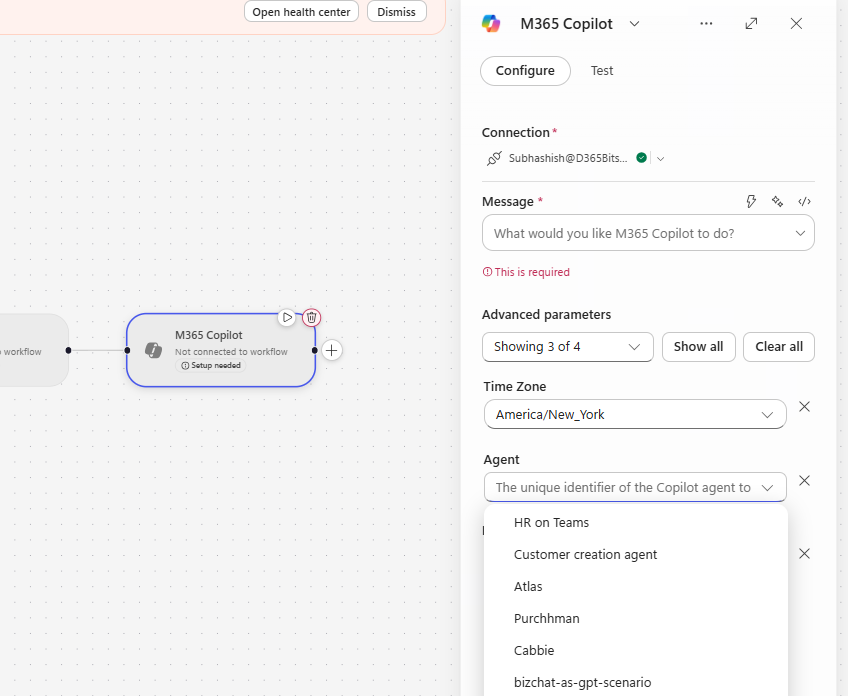
- Call your M365 Copilot agents directly in your Flow, by dragging them in your designer:
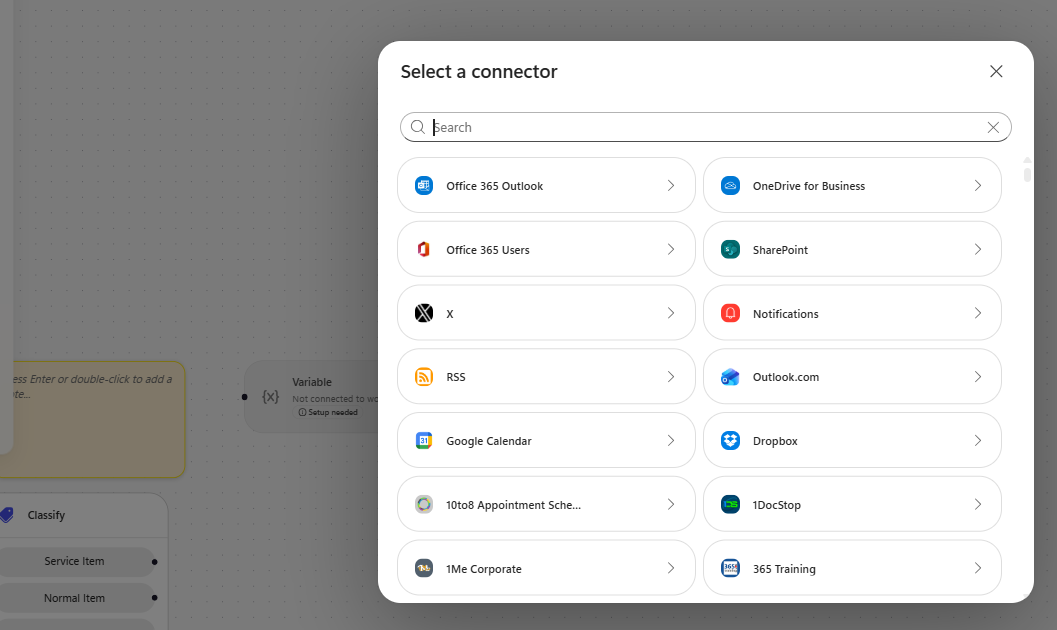
- It also has a huge bucket of Connecters to choose from:
With that let me conclude the discussion here. Copilot Studio's New experience is an ocean of opportunities, capable of being leveraged in any business situation, and complicacies.
Keep learning, take care - till we meet again with a new topic.
*This post is locked for comments